TABLE OF CONTENTS
Preamble
This document is designed to provide information about how to register the current .etz timetable file to the EdvalStaff application.
Registering Edval Staff
Edval Staff must first be ‘registered’ so that all changes made in EdvalStaff feed directly into the correct .etz timetable file.
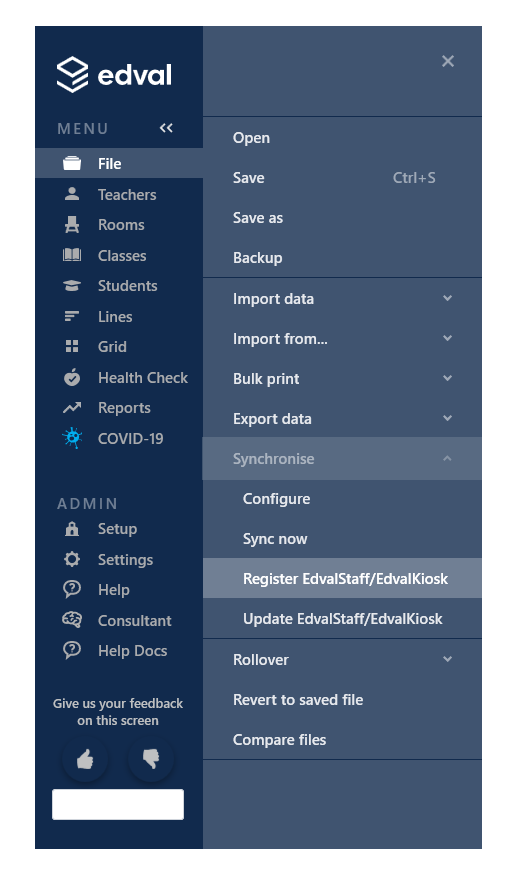
In Edval, navigate to File > Synchronise > Register EdvalStaff/EdvalKiosk.
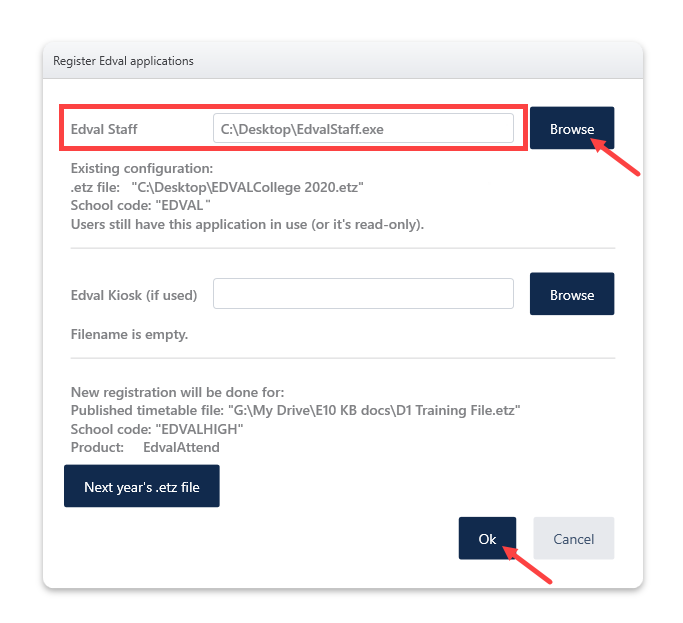
The 'Register Edval applications' window will prompt. Browse for the Edval Staff application and hit OK.
After registration is done, any changes made to student details or classes will be sent directly to the registered Edval etz file - there is no need to sync or save in Edval Staff.
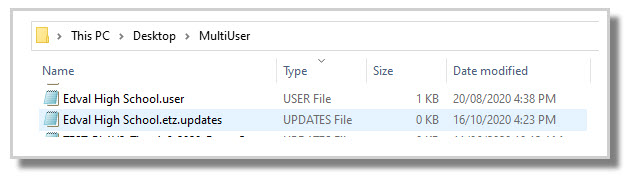
Changes are saved into an 'updates' file located in the 'MultiUser' folder that Edval creates in the same location that the .etz file is saved. They will sit here until the Edval .etz file is open and saved.
It is good practice to always test that the registration has been done correctly by either:
- Make a student change in Edval Staff, open the .etz timetable file and save, then check to see if the student is showing the same change in the .etz file.
- Add a dummy student in Edval Staff, open the .etz timetable file and save, then check to see if the dummy student appears in the .etz file.
- Check a student's timetable in Edval Daily to ensure the correct classes and timetable are displaying.
Updating Edval Staff
Edval Staff must be updated via the Edval .etz software in File > Synchronise > Update EdvalStaff/EdvalKiosk.
Important Information
WARNING
• Edval Staff cannot be stored or run from cloud storage (such as OneDrive, Google Drive, SharePoint, Dropbox, etc).
• There should only be one copy of Edval Staff on a school's network location that all authorised users can access. This will ensure updates flow correctly from Edval Staff to the .etz (timetable) file.
• Only share the school's network location's shortcut of Edval Staff to users. Do not distribute separate copies of the software.


• Check with your IT department if school policies prevent .exe files from being saved or run from the school’s network.
• Ensure all staff with access to Edval Staff have been trained on how to use it.
Was this article helpful?
That’s Great!
Thank you for your feedback
Sorry! We couldn't be helpful
Thank you for your feedback
Feedback sent
We appreciate your effort and will try to fix the article