TABLE OF CONTENTS
Preamble
Tes Desktop Timetabling products (Edval 10 and EdvalStaff) are desktop applications supported only in a Windows environment. They require either a local folder on an individual computer or a shared network folder for storage and operation. Tes strongly recommends that all software and data files be stored on the school’s local network.
If a school chooses to store Edval 10 (.etz) files on web-based or cloud platforms, both the IT team and end users must be aware of the potential risks, limitations, and additional care required to manage the data safely.
The steps outlined in this document are technical and should be completed by your IT administrator. If you have received this document as part of an onboarding process, please forward it to your IT administrator so they can review and implement the required configuration. For other IT related documents please check here
EdvalStaff is not supported in a cloud storage environment. It must be run from either a local desktop folder or a network location to function correctly. Schools transitioning to cloud-based storage will need to provide an alternative solution, such as maintaining a local or on-premises network folder, if they wish to continue using EdvalStaff.
For more information about EdvalStaff, please refer to the knowledge base documentation.
Please note that Tes Specialists cannot assist with issue resulting in the web based file management, The school's IT team will need to be consulted.
Running E10 Timetable in a Cloud Drive Environment
The E10 Timetable product cannot be run directly from a cloud drive via a web browser. To use the application, the cloud-hosted folder must be made available on your local computer.
Most cloud storage platforms provide options to sync or map folders to a local machine. This allows files to be accessed and executed as if they were stored locally. When configured correctly, E10 can operate using these locally synced or mapped folders.
Mapping a Cloud Drive Folder to Your Local Computer
The steps to map or sync a cloud drive folder to your local computer may vary depending on the platform being used. Schools should consult their IT team for guidance specific to their environment. Below are general steps based on Microsoft SharePoint.
Steps to Sync SharePoint Locally:
- Log In: Open your web browser and log in to your organization's Microsoft 365 portal.
- Navigate: Open SharePoint and go to the specific site and Documents library you want to map.
- Click Sync: Click the Sync button on the top toolbar.
- Allow Permission: A browser prompt will ask to open Microsoft OneDrive. Click Open or Allow.
- View Files: Open your computer's File Explorer (Windows). Your files will appear under a new folder labelled with your Organization's Name (marked by a building icon ?).
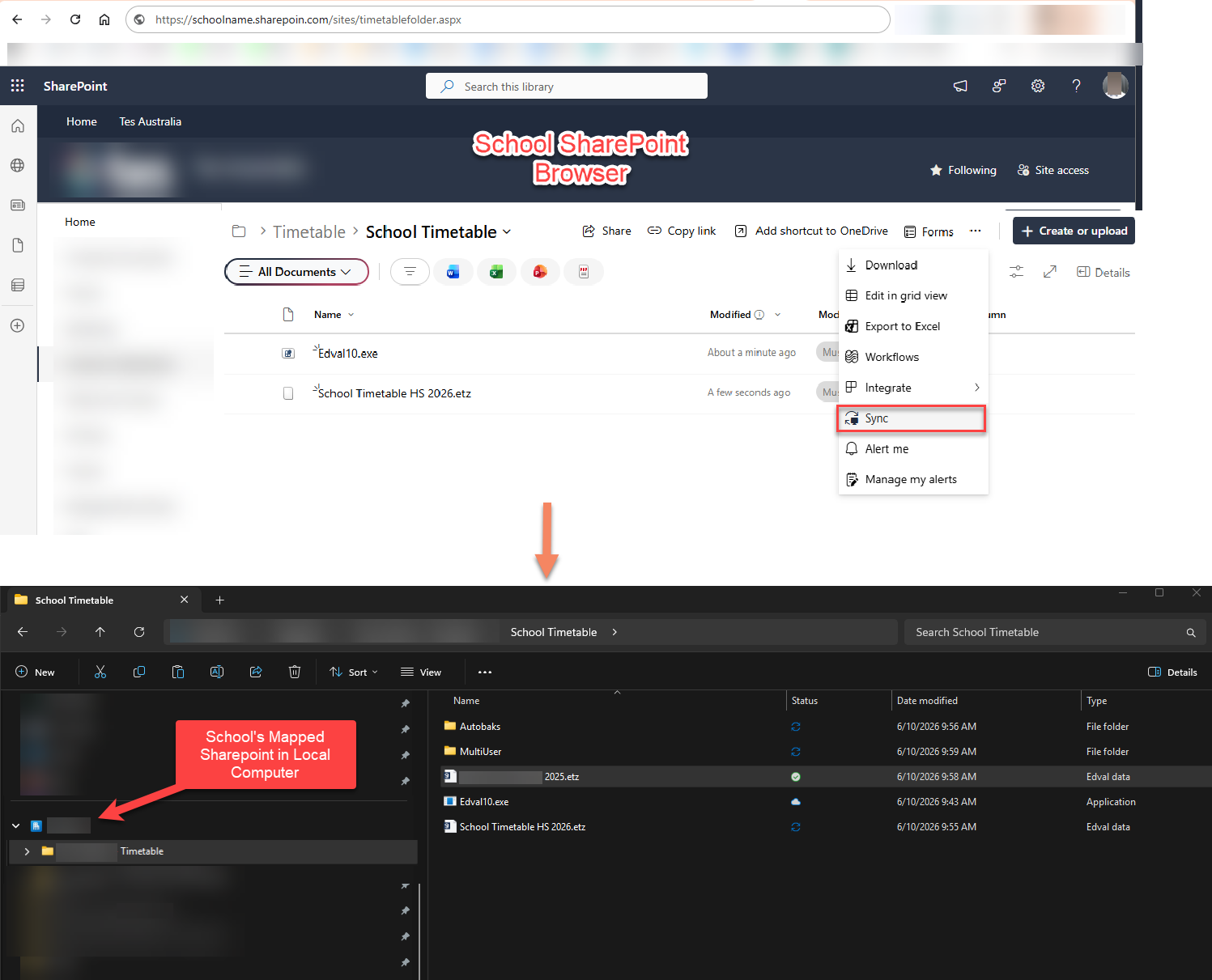
You can store both the executable application (Edval10.exe) and your timetable file (.etz) within the mapped SharePoint folder. The application can be run directly from this mapped location, as it behaves like a local or network drive on your computer.
It is important that users have full access permissions (read and write) to the mapped folder to ensure the application functions correctly and that files can be saved without issues.
It is also important to understand the status icons shown in the Status column within your mapped SharePoint folder. These icons indicate whether your files are fully synced and up to date. Users should always confirm that changes have synced successfully before closing or sharing files. Ensuring that files are fully synced before and after making changes is critical to avoid data loss or version conflicts, especially when working in a cloud drive environment.
Key status icons to be aware of:
- ✅ White circle with green tick
This means the file is fully synced and available on your local device. The latest version has been downloaded, and any changes you make will sync back to SharePoint. - Two blue circular arrows (Sync in progress)
This indicates that the file or folder is currently syncing. Changes are either being uploaded to SharePoint or downloaded from the cloud.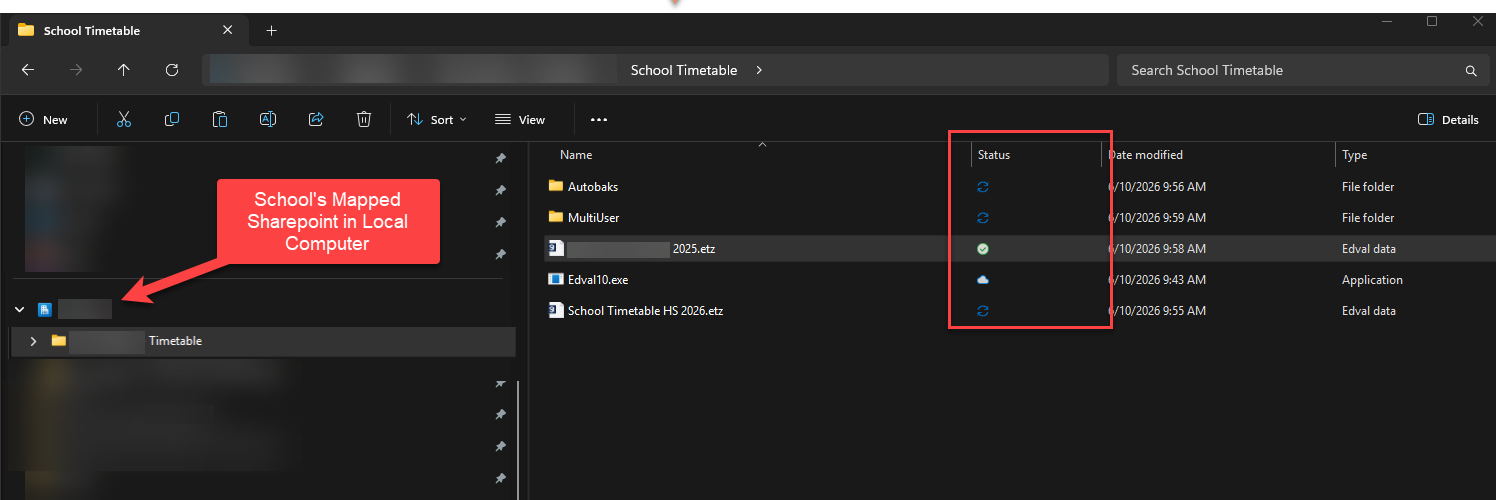
File Management
It is not possible for two people to work on the .etz file at the same time, The warning usually received when two people simultaneously open the same .etz file in local network folder does not apply when the .etz file is stored on web platforms, instead it will continue allow opening the file to the 2nd user and will result in either creating duplicate copies or overwrite each other's change.
- Single user (recommended)
If there is a single user at the school who works in the .etz timetable file, the file management issues are significantly minimised. They will need to monitor their file management, in the same way when the .etz files were stored on a network folder. - Multiple users
Where more than one person opens the .etz file, file management can be problematic. It is possible that two people may open the file separately and each make changes to the file at the same time. Only one of these versions will be saved, and the other changes will be lost.
Therefore, it is highly recommended that users communicate with each other when accessing, and most importantly updating the timetable file. A suggestion of how to communicate with others is by renaming the file so other users can see who is working in it. Steps below:
- Rename the file to indicate it is being used. E.g. "[Username] is using the file.etz"
- Once changes are saved, rename the file back to the original name.
Was this article helpful?
That’s Great!
Thank you for your feedback
Sorry! We couldn't be helpful
Thank you for your feedback
Feedback sent
We appreciate your effort and will try to fix the article