TABLE OF CONTENTS
Preamble
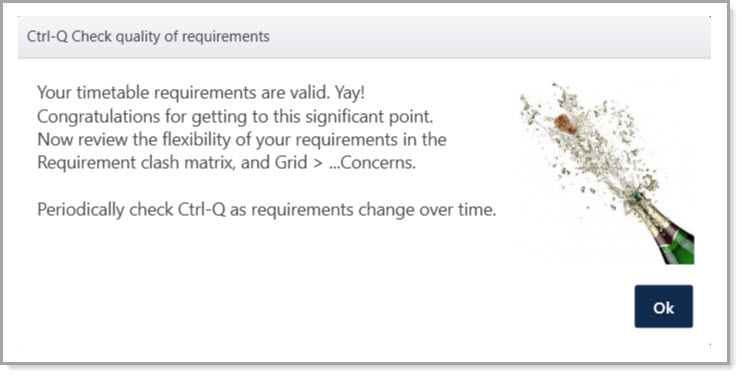
Before timetable construction, run Ctrl+Q Check to validate the data. This ensures the file is capable of creating a viable timetable. It highlights issues to fix. Once resolved, you reach the 'Champagne Stage', confirming the file is ready for construction. This document outlines how to use Ctrl-Q Check when working towards next year's file.
NOTE
Ctrl+Q Check is not to be confused with Health Check. The Ctrl+Q Check validates data before construction, while the Health Check reviews the quality of the completed timetable throughout the year. Refer to E10 - Health Check.
Preparing for Ctrl+Q Check
Prior to conducting the Ctrl+Q Check, you need to:
1. Check Class data and sign off
Review each year level's Class data screen to ensure the structure is correct.
Steps to checking Class data:
- Check the line structure. Every class (except Study Roster classes) must have a 'Line' or 'Link' entry, or both. If both of these columns are blank, an 'Error classes' message will show in Period allocations. Also check that the class links are correct. Refer to E10 - Class data > Line field - it's all about structure.
- Check spread requests are compatible. Classes with the same Line and number of periods should have the same spread. Refer to E10 - Class data: Spread.
- Check Period allocations. Totals should match the total periods per cycle and align across all letter and number groups. If using multiple rotations, check all rotations using the filter. Refer to E10 - Classes: Periods allocations.
- Check Year structure to confirm blocks and overall layout appears correct. Refer to E10 - Year Structure.
- Sign-off the year level once you have confirmed the structure. Click 'Sign Off' in the action bar. The icon changes from red to green.
- Repeat Steps 1 - 5 above for all year levels.
IMPORTANT
All year levels must be signed off before running Ctrl+Q Check . Any subsequent changes to Class data require the relevant year to be signed off again.
2. Conduct a Sample Staffing Check
Once all year levels are signed off, confirm teacher preferences can produce a workable solution by running sample staff in Teachers > Staff allocations > Auto staffing. Refer to E10 - How to: Auto Staff / Sample Staff classes.
NOTE
Auto staff tests whether a viable staffing solution is possible and highlights any issues. It is not necessary to keep this sample solution; staffing can be cleared and reviewed at a later point during the construction process.
Conducting a Ctrl+Q Check
Once all year levels have been signed off and a sample staffing conducted, run the Ctrl+Q Check.
- Navigate to Grid > Check Everything, or press Ctrl+Q.
- This will produce up to two tables.
- Errors. These are important discrepancies that need to be addressed to achieve the 'champagne stage' and before proceeding to construction.
- Warnings. These do not prevent getting to the 'champagne stage', but it is a good idea to address the listed issues.
Reading the Ctrl+Q Check Table
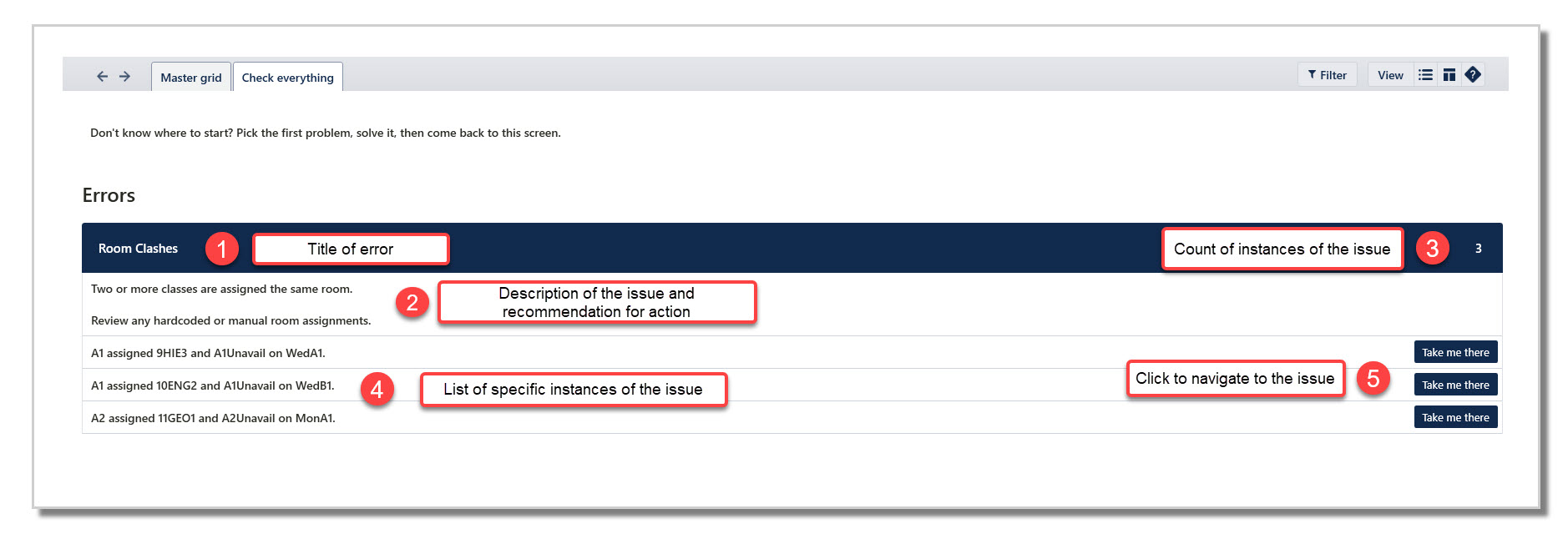
The Ctrl+Q check table consists of the following:
- Title of the error.
- Description of the issue with recommended action. In some instances there may be multiple solutions.
- Count of occurrences. All instances of an error must be resolved before champagne can be achieved.
- List of the specifics of each instance of the error.
- 'Take me There' button to quickly navigate to the screen where the issue can be viewed and potentially resolved.
Using Ctrl+Q to Achieve Champagne
- Run the initial Ctrl+Q Check once next year's data is entered.
- Work through each error to resolve them. Re-run Ctrl+Q until all errors are resolved.
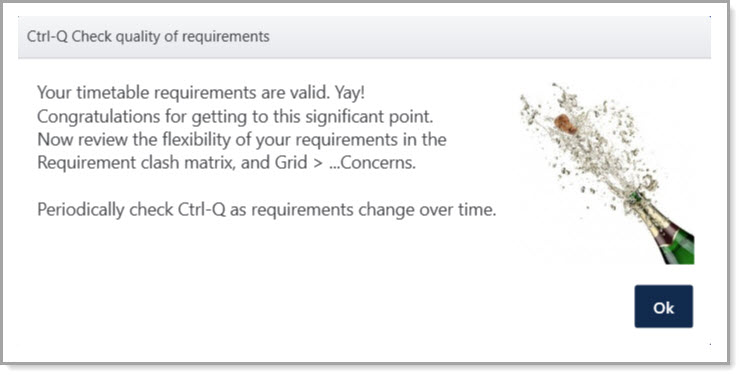
- Achieving champagne means that the current data is free of conflicting information and ready for construction in the Master grid - a key milestone in the timetabling process.
IMPORTANT
Although it is possible to achieve champagne by resolving only the errors - leaving warnings outstanding - it is strongly recommended that warnings are also resolved, or at least noted and understood.
Typically, changes to data are made throughout the construction process. It is a good idea to periodically run Ctrl+Q checks throughout the construction process to ensure that your data remains valid and conducive to constructing a viable timetable.
Was this article helpful?
That’s Great!
Thank you for your feedback
Sorry! We couldn't be helpful
Thank you for your feedback
Feedback sent
We appreciate your effort and will try to fix the article