Introduction
This guide walks you through connecting Timetabler to Synergetic using the Learning Information Sharing Standard (LISS) API, allowing your school’s timetable data to transfer automatically between systems.
The new API integration complements your existing timetable file export workflow. You can trial the automated sync alongside your current processes with zero risk of data loss—if any sync issues arise, you can immediately fall back to your standard file export.
Before you start
Ensure you have the required access and prerequisites before beginning setup:
- SynWeb access: A Synergetic web login with administrator permissions to access System > Interface settings.
- SynMain access: A Synergetic desktop login with permissions for Configuration file maintenance and Timetable maintenance.
- Timetabler access: A Timetabler login with permissions to create and manage SIF/LISS integrations.
- On-premises IT contact: A brief consultation with your school’s IT team if your Synergetic database is hosted on-premises (to verify the SQL Server background job in Part 3). Cloud-hosted schools do not need local IT intervention.
On this page
- What is LISS?
- Setup at a glance
- Part 1: Enable the LISS integration in SynWeb
- Part 2: Configure Synergetic in SynMain
- Part 3: Verify the background processor
- Part 4: Configure the LISS integration in Timetabler
- Part 5: Synchronise your timetable
- Security and connection maintenance
- Unsupported features and limitations
- Frequently asked questions (FAQs)
What is LISS?
LISS stands for Learning Information Sharing Standard. It is an agreed data exchange protocol used by education software platforms—including Timetabler and Synergetic—to securely share timetable, class, student, and daily data without requiring manual file exports and imports.
Setup at a glance
The integration requires configuration in both systems and comprises five short phases:
Phase | System / Location | Purpose |
Part 1 | SynWeb (Web browser) | Enable the integration and generate your School Code, Username, and Password. |
Part 2 | SynMain (Desktop client) | Select record types to import, map periods, and set timetable import rules. |
Part 3 | Synergetic Server | Verify the automated background SQL job that imports received LISS data. |
Part 4 | Timetabler (Web browser) | Input the Synergetic API endpoint URL and matching credentials, and choose integration calls. |
Part 5 | Timetabler (Web browser) | Run your first sync to push timetable data to Synergetic. |
Part 1: Enable the LISS integration in SynWeb
To allow Synergetic to receive incoming API requests, switch on the integration endpoint and define the authentication credentials.
- Open SynWeb in your web browser and sign in with an administrator account.
- Go to System > Interface settings.
- Select LISS – Learning Information Sharing Standard from the interface drop-down menu.
- Select Timetabler from the integration list on the left-hand navigation pane.
- Select Enable to turn on the integration.
- Enter a School code (e.g., your school's identifier).
- Enter a Username.
- Enter a strong Password.
- Select Save.
⚠️ Important: Record your credentials securely
Record the exact School code, Username, and Password you entered. You will need to enter these exact values into Timetabler in Part 4. They serve as the authentication key proving requests originate from your authorised Timetabler account.
✳️ Success: The Synergetic LISS API listener is now enabled and ready to accept authorised sync requests.
Part 2: Configure Synergetic in SynMain
Define which records Synergetic accepts from Timetabler, map your timetable structure, and configure import behaviour.
2.1 Choose timetable record types to import
- In SynMain, open Configuration file maintenance.
- Locate the Timetabler LISS import settings:
- Academic classes: Academic classes are imported automatically; no manual setting is required.
- Duty records (e.g., yard duty): Optional. Select the Import checkbox if you want duty records brought in.
- Staff meetings: Optional. Select the Import checkbox if you want staff meetings brought in.
- (Optional) In Override file type, specify an alternative file type code (e.g.,
Yfor duty records). If left blank, Synergetic uses the default file type specified in your Timetable config. - Select Save.
2.2 Match timetable periods (optional)
If your timetable contains named periods or requires specific period number alignment, configure period mapping:
- In SynMain, open Timetable maintenance.
- Go to the Timetable definition tab.
- Locate the LISS period column:
- Numbered periods (e.g., 1, 2, 3): Match automatically. You only need to enter values here if period numbers differ between systems.
- Named periods (e.g., Recess, Lunch, Homeroom): Enter the corresponding Timetabler period name in the LISS period column. If left blank, Synergetic will attempt to match them using the Description column.
✳️ Good to know: Period offsets
If a period is explicitly matched using either the LISS period column or the Description column, the Period offset rule in the Timetable config tab is bypassed for that specific period.
2.3 Configure timetable details and sync rules
- Still in Timetable maintenance, go to the Timetable config tab.
- In the top table, record your Timetable code (e.g.,
LISS_SENI). You will need this code for the API URL in Part 4. - In the bottom table, verify there is only one record and ensure its Timetable type is set to LISS. (Unlike the legacy file import, a single LISS configuration record handles all class, teacher, room, and daily organiser data).
- Review and set the configuration fields according to the table below:
Field / Setting | Description & Business Rules |
Timetable code | Unique identifier for this timetable configuration. Must match the query string code used in your Timetabler sync URL (e.g., |
Description | Internal administrative note for your school's reference. |
Timetable path | Not required for LISS API sync. Leave blank. |
File year | The academic year receiving the timetable data (e.g., |
File semester | The specific semester or term receiving the timetable data. |
File type | The default Synergetic file type under which imported timetable records are stored. |
Class campus | The campus code associated with this timetable import. |
Timetable group | The timetable group associated with this import. |
Timetable type | Must be set to |
Year level from / to | Optional range filter. Limits import to students within specified year levels (classes in Timetabler must also have matching year levels). Leave blank to import all year levels. |
Student link field | Identifier Synergetic uses to match students sent from Timetabler. Select the field matching Timetabler's student identifier: Alternate code, Synergetic ID, Previous system code, or Timetable code. |
Staff link field | Identifier Synergetic uses to match staff sent from Timetabler. Select Synergetic ID or School staff code. |
Import order sequence | Not used for LISS. |
Timetable operation mode | Controls how class changes are processed: |
Import start / end date & time | Active import window. Syncs attempted outside this date and time range will be rejected. |
Enabled | Must be checked for the import job to process data. |
Email to addresses | Not used for LISS. |
Period offset | Shifts period numbering up or down (e.g., if Timetabler Period 1 maps to Synergetic Period 2). Applies only to numbered periods that are not explicitly mapped. |
Import meetings | Managed under Configuration file maintenance (see step 2.1). |
Import unavailable | Not supported by LISS. |
- Select Save.
✳️ Success: Synergetic is fully configured to recognise, filter, and file timetable data received via LISS.
Part 3: Verify the background processor
When Timetabler pushes data via the API, Synergetic stages the payload and processes it using an automated SQL Server Agent background job.
- Job identification: The background job is named
Synergetic LISS Processor <DatabaseName>. It is automatically provisioned during your Synergetic database upgrade. - Cloud-hosted schools: Tes manages this process automatically in cloud environments. No user action is required.
- On-premises hosted schools: Your IT administrator can adjust the job schedule (e.g., run frequency) or initiate a manual test run at any time using the stored procedure:
EXEC dbo.spxProcessLISS;
Part 4: Configure the LISS integration in Timetabler
Prerequisites
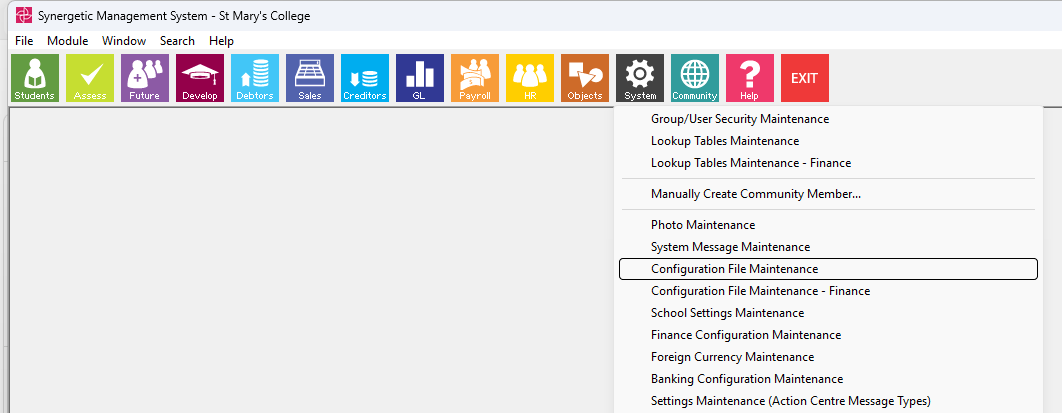
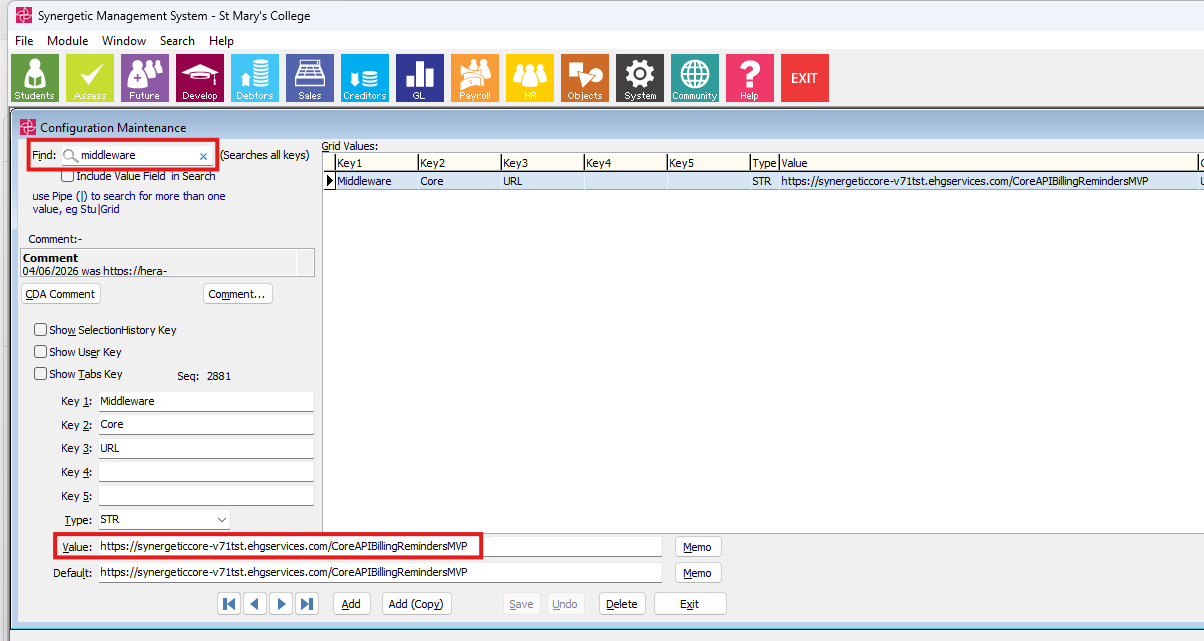
You need to obtain your CoreAPI base URL from SynMain. This is also known as the ‘middleware’ URL.
- Open SynMain and login
- Goto “Settings” and click on “Configuration file maintenance”
- In the search box, search for “middleware”
- Copy the “Value” of this configuration item - this is your Core API base URL you’ll need in Step 5 below
Setup Timetabler
Configure Timetabler with your Synergetic endpoint details and authentication credentials.
- Open Timetabler in your web browser and sign in with administrative access.
- Select Configure settings (the cog icon in the right-hand menu).
- Under Integrations, select SIF/LISS integrations.
- Select "Add a new integration".
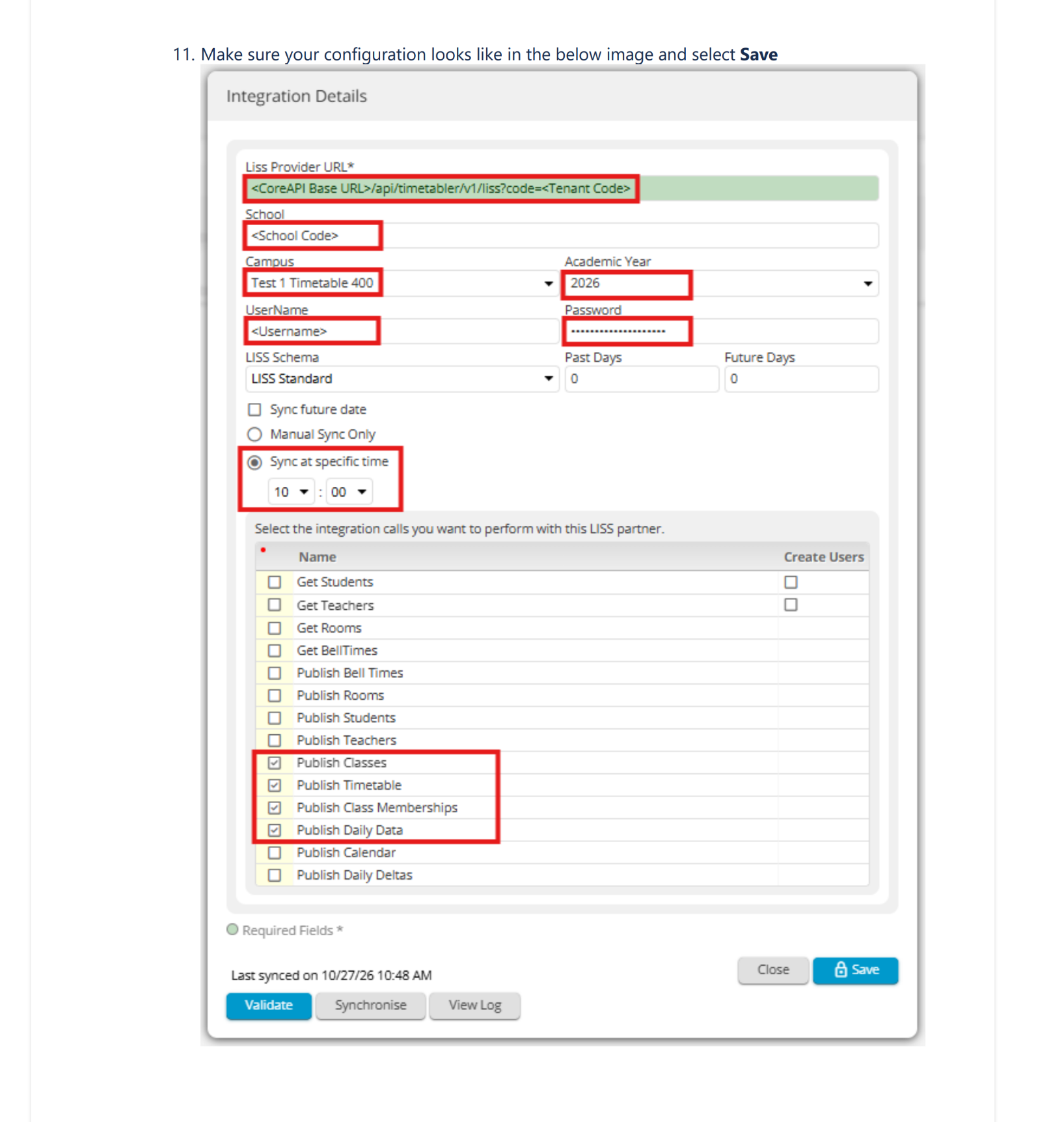
- In URL, enter your school’s Synergetic LISS API web address. Use the Core API base URL you obtained in the prerequisites above, along with the following path and query string params
<CoreAPI Base URL>/api/timetabler/v1/liss?code=<Tenant Code>
?code=<Tenant Code> is optional, see below note.
⚠️ Note: Multi-tenant / shared cloud environments: If your school shares a multi-tenant Synergetic database, append your tenant code to the URL query string. Contact your Synergetic account manager or support team if you are unsure whether your school requires a tenant code. - In School, enter the "School code" created in Part 1.
- Select your Campus and School year.
- In Username, enter the Username created in Part 1.
- In Password, enter the Password created in Part 1.
- Under Select integration calls, ensure the following four items are checked. Only these four items should be checked.
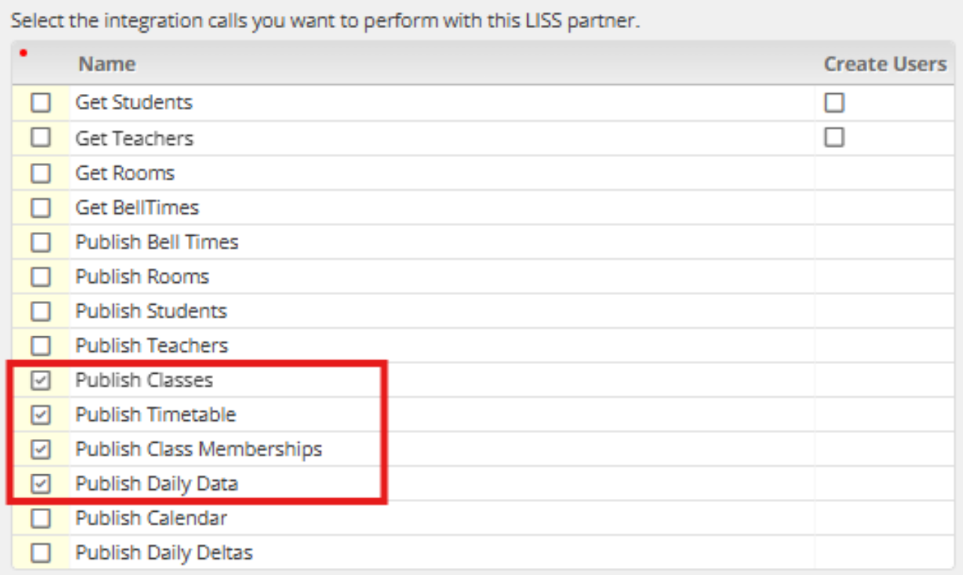 ✅ Publish classes
✅ Publish timetable
✅ Publish class memberships
✅ Publish daily data - Make sure your configuration looks like in the below image and remember to replace the placeholder values highlighted in the below doc to actual values from your environment and then select Save.
✅ Success: Timetabler is now linked to your Synergetic instance with the correct API calls active.
Part 5: Synchronise your timetable
Once saved, trigger a manual sync to transmit timetable data to Synergetic.
- In Timetabler, go to Configure settings > Integrations > SIF/LISS integrations.
- Select the integration you created in Part 4.
- Select Synchronize.
- Automatic Daily Sync: To enable automatic daily sync at a designated time, turn the option on using the radio button and choose the time you wish for it to sync. Synergetic will then receive and process the data automatically every day.
Timetabler will package your data and transmit it to Synergetic. Synergetic will stage the payload and process it via the Synergetic LISS Processor background job.
✳️ Success: Your timetable sync has initiated. Once the background processor completes, classes, teachers, rooms, and student enrolments will reflect in Synergetic.
Security and connection maintenance
To protect your school's data from brute-force attempts and credential decay, follow these security practices:
Rotate credentials regularly
Change your integration credentials periodically in both platforms:
- Update credentials in SynWeb under System > Interface settings > Timetabler – LISS.
- Immediately update the matching credentials in Timetabler under your integration settings.
⚠️ Important: Credentials must match
The School code, Username, and Password must match identically across both systems. If updated in one platform but not the other, API requests will fail authentication and synchronisation will pause.
Disable the integration
If you need to suspend synchronisation at any time:
- In SynWeb, go to System > Interface settings.
- Select Timetabler – LISS.
- Toggle the integration setting to Disabled and save.
Unsupported features and limitations
Certain legacy desktop file-export features are not supported by the LISS specification:
Feature | Behaviour / Limitation | Alternative Workflow |
Staff & teacher unavailability | The LISS specification does not support transmitting recurring teacher unavailability blocks. | Manage teacher unavailability directly within Synergetic Daily Organiser. |
Regular yard duty schedules | Recurring yard duty rosters cannot be imported via LISS. | Yard duty can still be transmitted via daily data updates; in Synergetic, these appear as substitute records. |
Form update | Available in the Operation Mode list, but not applicable to LISS imports. | N/A |
Tutor update | Available in the Operation Mode list, but not applicable to LISS imports. | N/A |
Frequently asked questions (FAQs)
What happens if a sync fails?
The LISS API integration operates independently of the file export workflow. If an API synchronisation encounters an issue or network interruption, your existing timetable data remains safe, and you can export and import your timetable via standard file transfer as an immediate fallback.
Do I need separate config records for Timetable and Daily Organiser?
No. Unlike the older file-based import which required separate configuration rows for general timetable data and daily organiser records, LISS handles all supported timetable, class membership, and daily data through a single configuration record.
Why are changes not showing immediately in Synergetic after clicking Synchronize?
Timetabler sends data to Synergetic's staging tables via the CoreAPI. Synergetic then ingests this data into core tables using the Synergetic LISS Processor background job. Depending on how frequently the SQL Agent job is scheduled to run (typically every few minutes), there may be a brief processing interval before records populate in SynMain and SynWeb.
Was this article helpful?
That’s Great!
Thank you for your feedback
Sorry! We couldn't be helpful
Thank you for your feedback
Feedback sent
We appreciate your effort and will try to fix the article