TABLE OF CONTENTS
- Preamble
- Option 1: Submit tickets via Get Help in products
- In-Product: Submit a help ticket directly through the E10 Timetable
- In-Product: Submit a help ticket directly through the Timetable Daily & Choice
- In-Product: Submit a help ticket directly through the Teach Starter
- In-Product: Submit a help ticket directly through the Learning Pathways
- Submit a help ticket on Parents' Meetings
- Option 2: Submit tickets via Tes Help Portal
Preamble
There are two main ways for customers in Australia and New Zealand to submit a query to our support team. The preferred method is to use the Get Help feature built into each product. If that option isn’t available or the customer can’t access it, they can instead lodge a ticket through the Tes Help Portal.
This document provides step‑by‑step guidance on how customers in Australia and New Zealand can contact support for Timetable Daily, Timetable E10, Timetable Choice, Parents' Meetings, Learning Pathways, and Teach Starter.
The Tes Knowledge Base portal contains a wide range of information to help you get the most out of Tes products. Our team keeps the portal up to date with practical and easy‑to‑follow user guide. You can can access the guide here for an overview of the Knowledge Base and tips on how to navigate it.
Option 1: Submit tickets via Get Help in products
In-Product: Submit a help ticket directly through the E10 Timetable
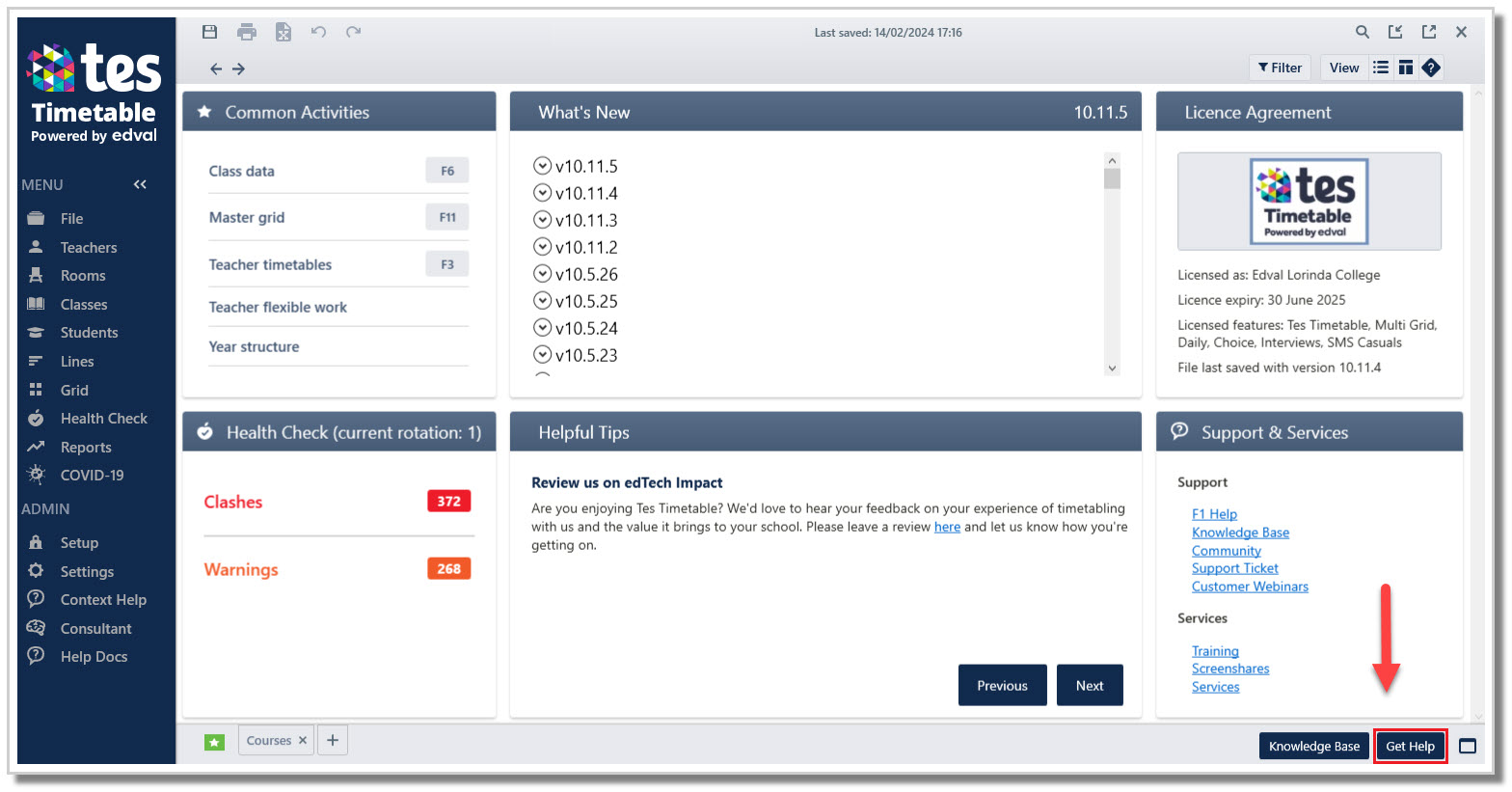
The landing page of the E10 application, called the 'Dashboard', has a link in the bottom right-hand corner to easily create a support ticket.
- Click on the 'Get help!' link in the bottom right-hand corner of the Dashboard
- Complete the details:Email from: Enter your email address (your computer will remember this for future help tickets)Subject: Choose the most appropriate category from the options includedPlease provide a one line description that summarises your enquiry: Enter your one line summary hereDescription: Please explain in detail with steps and examplesAttachments: The .etz timetable file will automatically be attached to the help ticket. Further attachments that will help the Timetable Specialist understand the query, such as images or other files, may be attached via the 'Upload' button
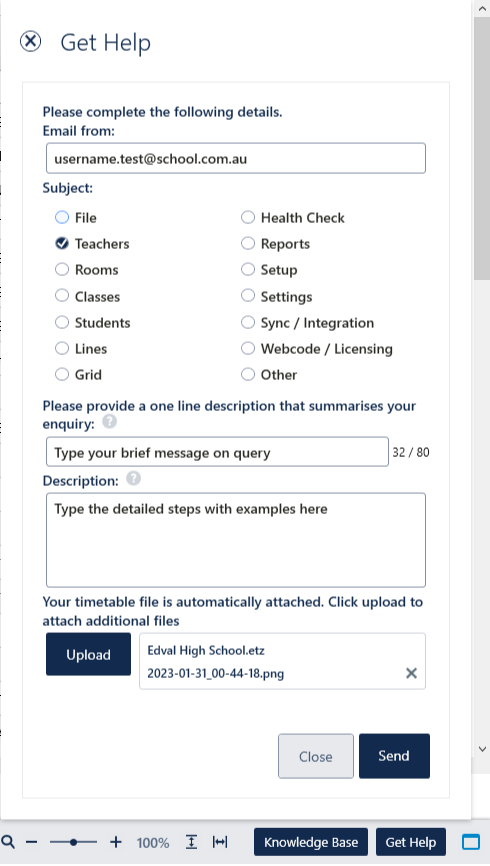
- Send.
In-Product: Submit a help ticket directly through the Timetable Daily & Choice
When logged into the Cloud server (Daily, Online Choice): Link here.
- Click on 'Get Help' at the bottom right corner of the screen (scroll down if you are unable to see it)
- A window will appear for you to fill in the details
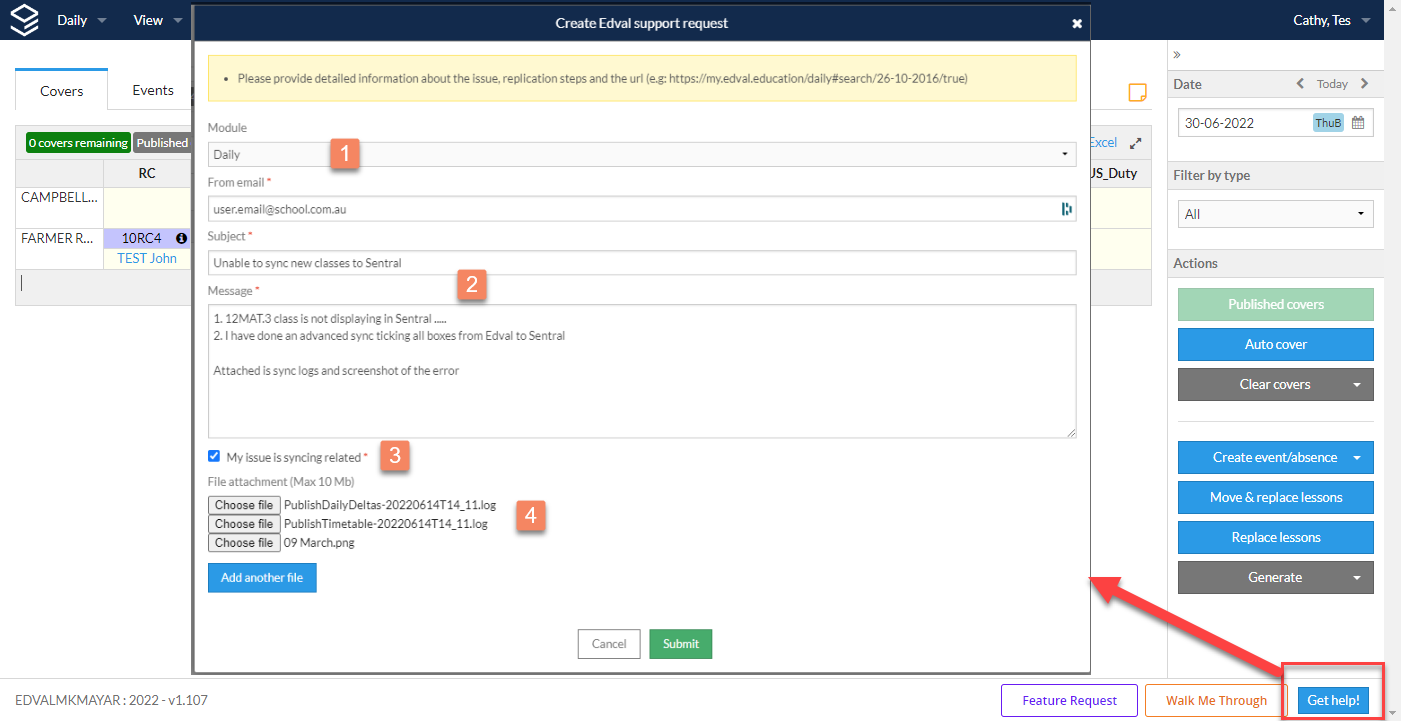
- Once the ticket is submitted, you will receive a receipt confirmation email with your ticket number
In-Product: Submit a help ticket directly through the Teach Starter
If you would like to submit queries on Teachstarter product, please email us at support@teachstarter.com
In-Product: Submit a help ticket directly through the Learning Pathways
f you need a hand, we're here to help! Please submit a ticket through the Help section within the product.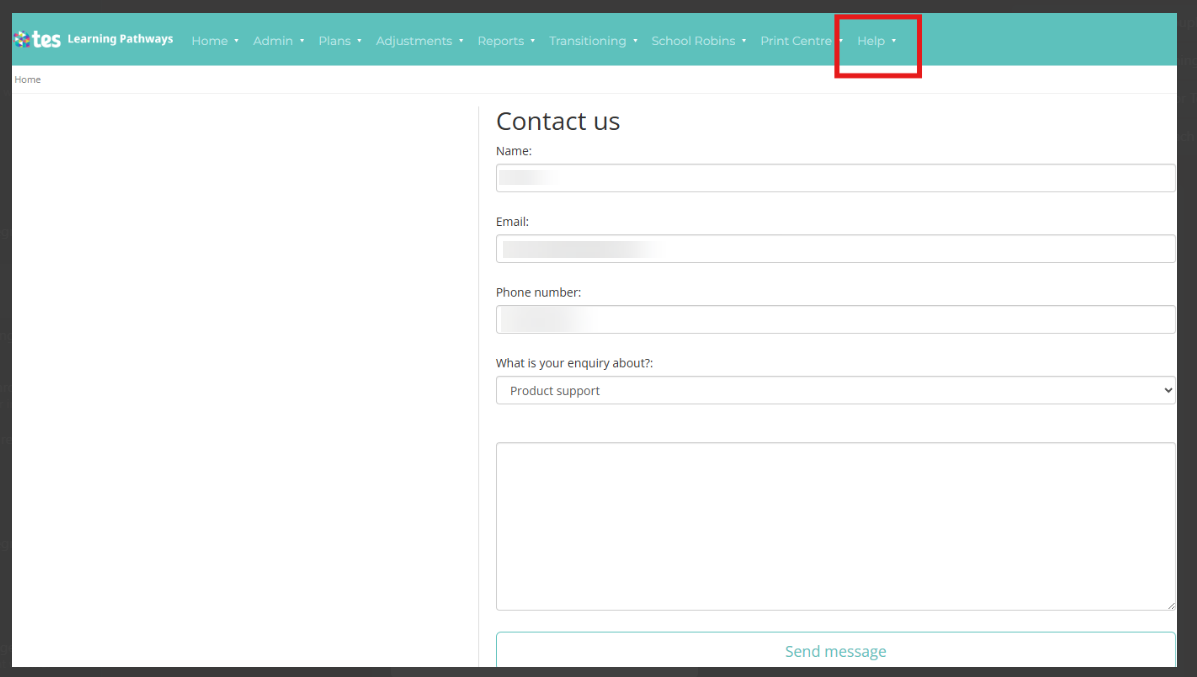
Submit a help ticket on Parents' Meetings
If you would like to to submit queries on Parents' Meetings module, Please submit your query via Contact Us option within our support site https://support.parentseveningsystem.co.uk/. Alternatively you can also access our support site via your Parents' Meetings account by clicking "Help & Support" at the right bottom panel and select "Parents' Meetings"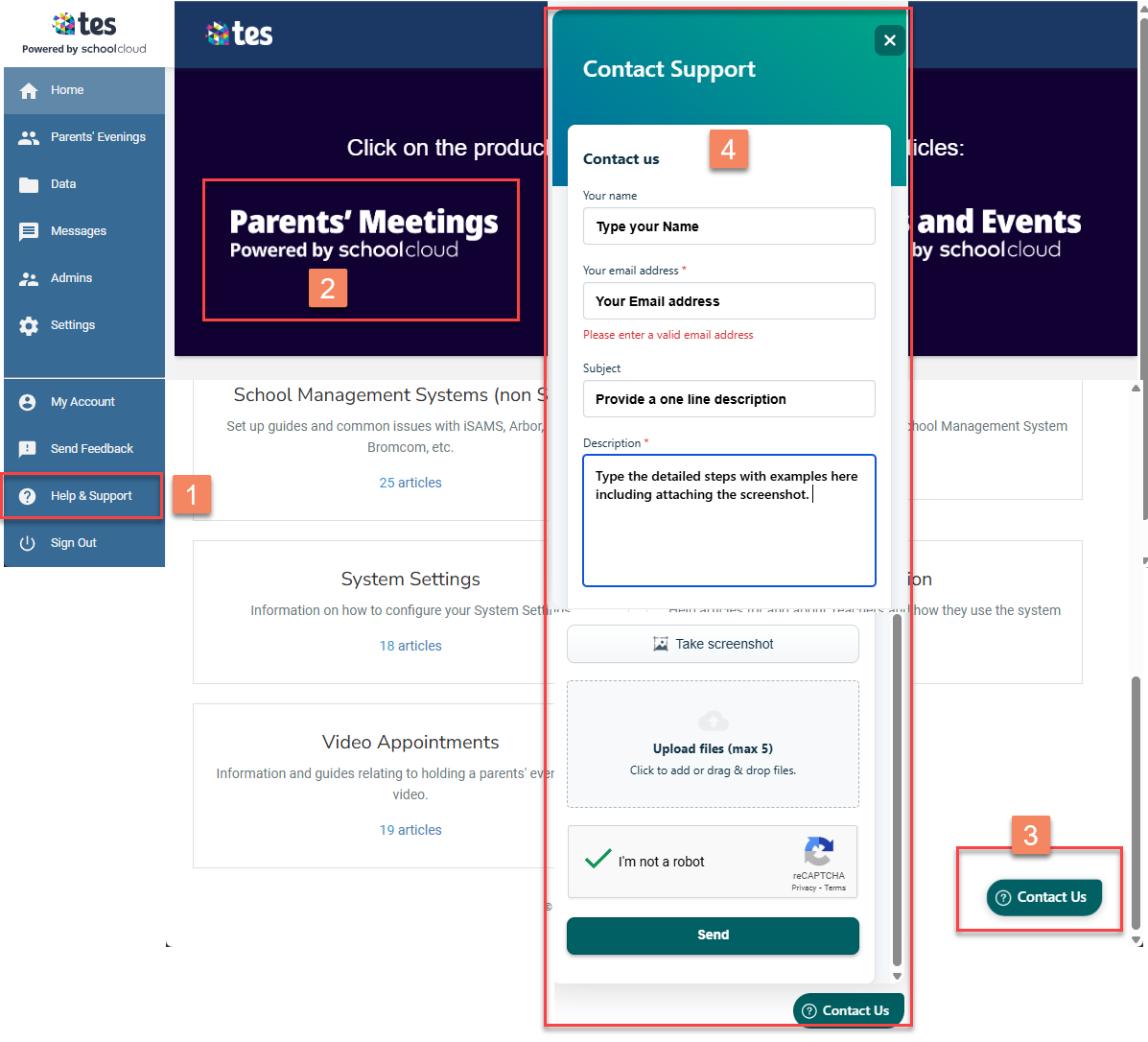
Option 2: Submit tickets via Tes Help Portal
We’re pleased to introduce our new portal that will allow all customers to browse our knowledge base and submit support requests through an online form – you can see more at www.help.tes.com.
You will continue to receive email updates about your ticket, by creating a login using this email address, you’ll also be able to view and track all enquiries in one place, without having to rely on emails.
Creating your portal account
If you’d like to create a portal account so you can track all your support tickets and their statuses, along with accessing other helpful features, you can sign up here. You can also follow the steps shown in the screenshot below.
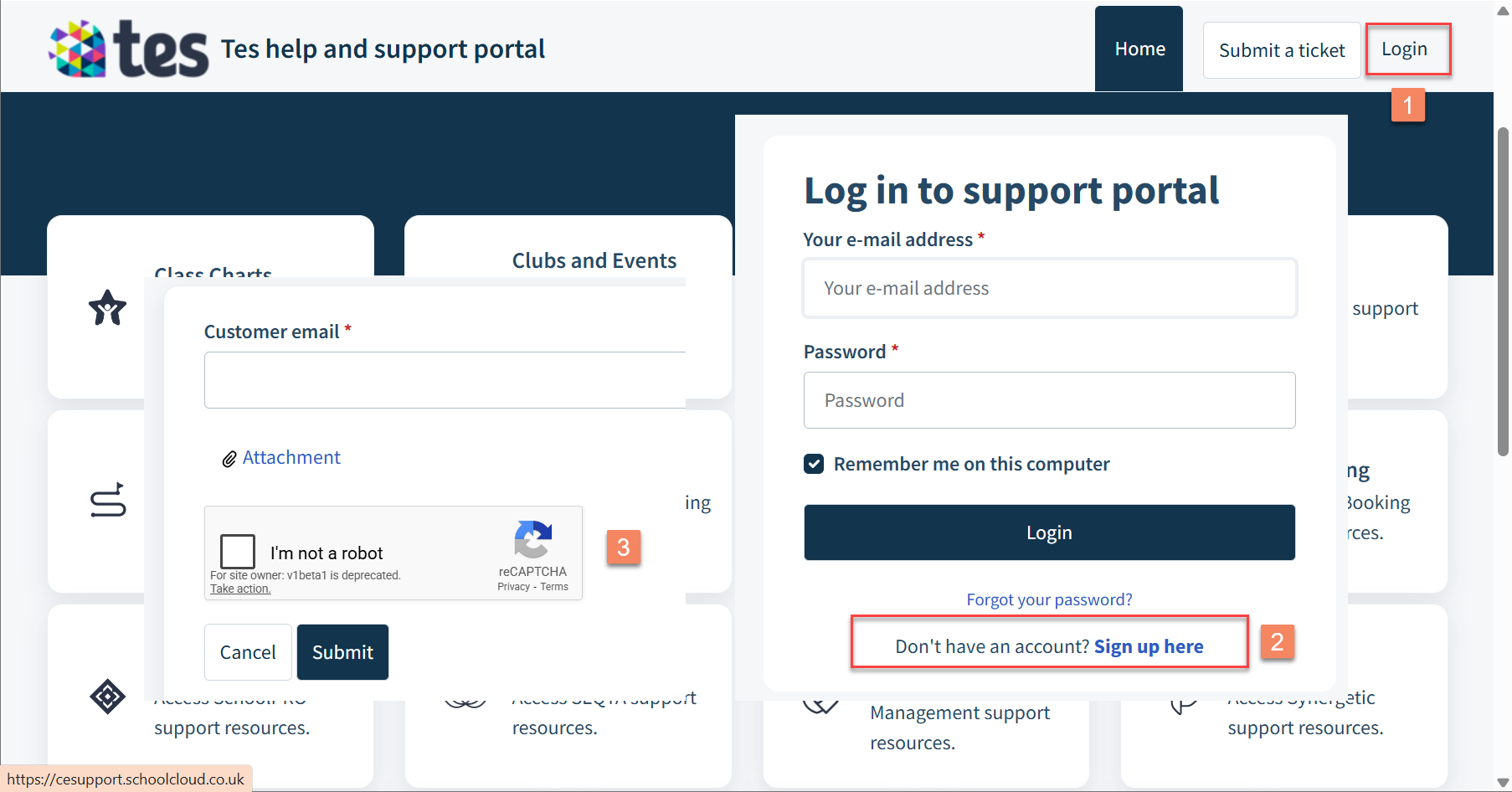
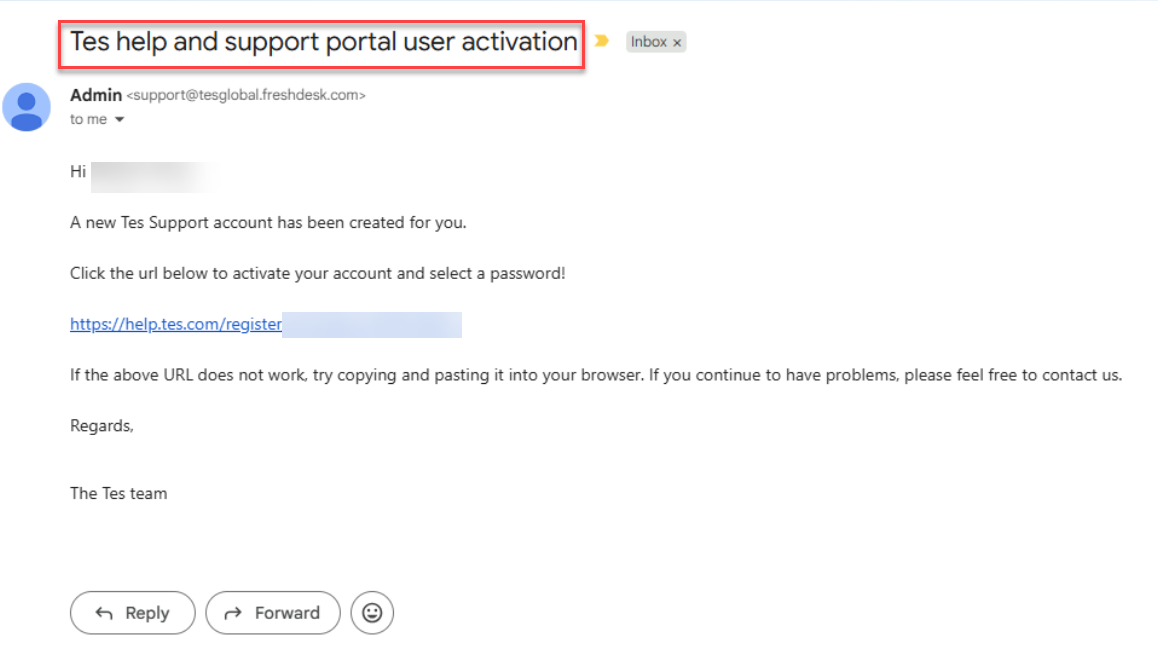
A portal activation email will be sent to you. Click the link in the email to activate your account and set your password.
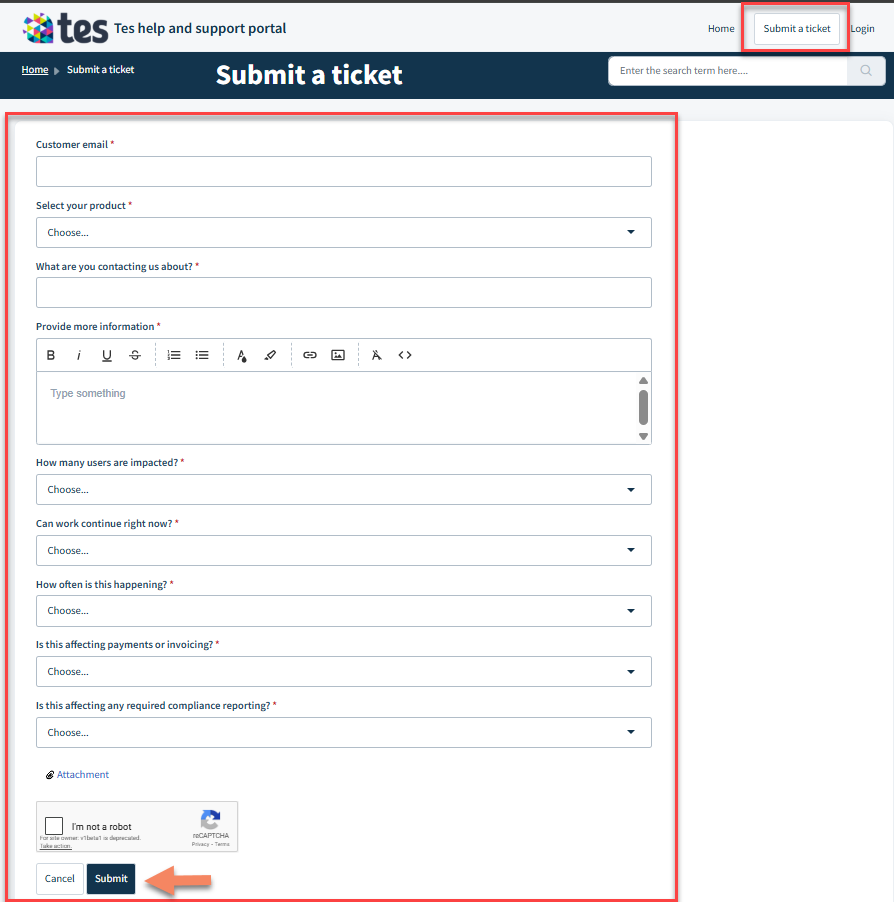
Submit a ticket through the Tes portal (You can also directly submit a ticket without creating the account)
You can submit a ticket either by logging in first or by submitting it directly without creating or signing in to an account.
To start, click Submit a ticket at the top of the page, next to your profile.
Complete the Details:
Customer email: Enter your email address. If you already have a portal account and are logged in, this field will fill in automatically.
Select your product: Choose the product from the dropdown list. Make sure you scroll through the full list to find the correct option.
What are you contacting us about?: Enter a brief summary of your query.
Provide more information: Add detailed information about your issue, including steps taken and screenshots where possible.
How many users are impacted?: Choose the appropriate response based on the impact.
Can work continue right now?: Choose the appropriate response based on the impact.
How often is this happening? Select how frequently the issue occurs.
Is this affecting payments or invoicing?: Choose the option that applies.
Is this affecting any required compliance reporting?: Select the appropriate option.
Attachment: Click Attachment to upload your timetable file, screenshots, or any other documents that may help the support team.
Complete the captcha and click Submit. A confirmation email will be sent to your inbox.
Was this article helpful?
That’s Great!
Thank you for your feedback
Sorry! We couldn't be helpful
Thank you for your feedback
Feedback sent
We appreciate your effort and will try to fix the article