TABLE OF CONTENTS
Preamble
Teachers > Subject teachers is a very important area in Tes Timetable. For every subject, the teachers who are able to teach that subject should be listed, along with their relative priority for teaching it. E10 will refer to this data at various stages, such as during:
- line construction
- auto-staffing
- timetable construction
WARNING
It is essential to keep Subject Teacher sets accurate and up to date at all stages of the timetable process to ensure solutions reflect your school’s requirements and are generate efficiently. The quality of the solution is directly impacted by the quality of the data entered. Providing wider visibility of who can teach also increases flexibility, allowing the system to generate more viable solutions when working within constraints.
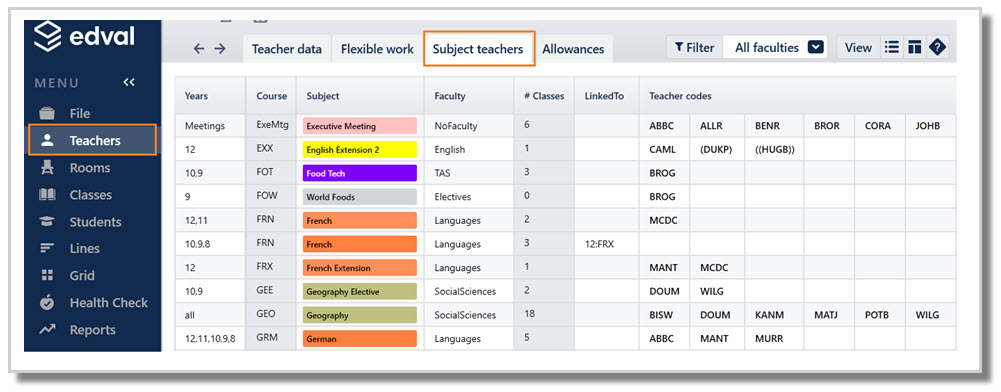
Subject teachers screen explained
Filter to view particular faculties, or all faculties.
NOTE
Courses that exist in the Lines > Elective data will display in a faculty called 'Electives', which can only be found in the 'All faculties' view, as E10 does not yet know the faculty. Whilst this can be defined later, best practice is to first add new courses in Setup > Subjects so they are defined correctly before referencing it in the file.
| Heading | Details |
|---|---|
| Years | Lists the year/s that each subject/course runs in. Where there is the same teacher set across multiple years, coding can be condensed by entering the year levels separated by a comma (e.g. 7,8,9). To separate combined year levels, type over the cell to updated years. The program will automatically separate. Where all years share the same class code and teacher set, enter ‘all’. |
Course | A non-editable field: Taken from the course codes in Class Data (F6) or Elective data (F10). Ensure course codes are used correctly – see Naming Convention for Course and Class Codes. Double-click on a course code to go directly to the class data screen for the first listing of the subject. |
Subject | Non-editable field: Subject names are displayed based on their course codes configured in Setup > Subjects. Double-click on a subject cell to go directly to the class data screen for the first listing of the subject. |
Faculty | Displays when viewing 'All faculties' from the Filter menu. If there are any old references to course codes that are not in the file anymore, a 'Delete' button appears to remove the associated teacher sets. |
| # Classes | Non-editable field: The number of classes is calculated from the Class Data (F6). |
Linked To | Used to link teacher sets that are the same with different course codes. Use the syntax: Years:Course (e.g. 12:FRX) |
| Teacher codes | Lists the teacher options for subject. The order of teacher codes are sorted by priority then alphabetically. There are three levels of teacher priority:
|
WARNING
Courses will not appear in Subject Teacher (Shift+F2) unless they exists in Class Data (F6) or Elective Data > Courses (even if they are listed in Setup > Subjects).

If a course is still not appearing in Subject Teacher, check that the TeacherPref column is not set to 'None'.
Teacher priority
As seen above, teachers can be prioritised as ‘Preferred’, ‘Fallback’ or ‘Desperate’. E10 uses these priority levels during line generation, auto-staffing and timetable construction. It prioritises preferred staffing and warns where this is not possible.
Defining all options in the teacher set is important, as it ensures that if a solution cannot be found using the current parameters, fallback options are available to support decision-making across the iterative solutions.
Editing Subject teachers sets
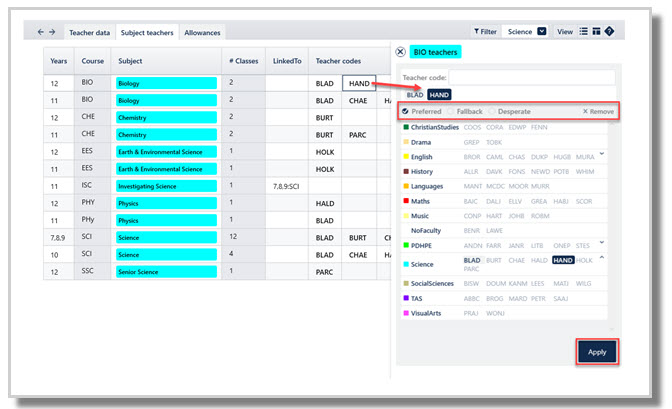
Add a teacher to the set
Click into the empty white cell at the end of the row of the teacher set, and type in the teacher code, or select from the teacher picker pop-up box and Apply.
Remove a teacher
Click into the appropriate cell and press delete on the keyboard.
Edit teacher priority
Double-click on the teacher code cell, select the desired priority from the teacher pop-up box and Apply.
TIP
How teacher preferences are defined across the file:
    Course level (indicates teacher capability - who can teach the course)
Subject Teacher (Shift+F2)
Class level (preferred teachers to take a specific class for the year)
Elective data (F10) > Courses > Teacher column. Once classes are created from Line generation, elective data (including teacher preferences) will copy into class data. Refer to: E10 - Elective data > Courses
Class data (F6) > Teacher pref column Refer to: E10 - Class data: TPref Code / TeacherPref
Was this article helpful?
That’s Great!
Thank you for your feedback
Sorry! We couldn't be helpful
Thank you for your feedback
Feedback sent
We appreciate your effort and will try to fix the article