TABLE OF CONTENTS
Preamble
The Health Check is a very useful tool that provides an overview of the timetable file's condition. It highlights items that require attention, while other information is for your information only. This document explains each tab on the Health Check screen.
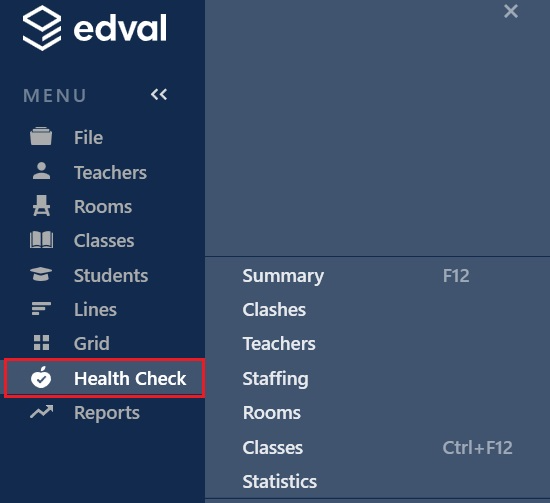
Summary
The first tab provides an overall Summary of issues in the following areas:
- Clashes
- Teachers
- Staffing
- Rooms
- Classes
- Statistics
- Syncs
Each item shows a count of items to view. The traffic light system is used: red is a major issue, orange is a warning, green is good (no issue to report), and black is informational only. The Health Check can be performed for all rotations, or for individual rotation by selecting the required rotation from the Filter dropdown in the top right.
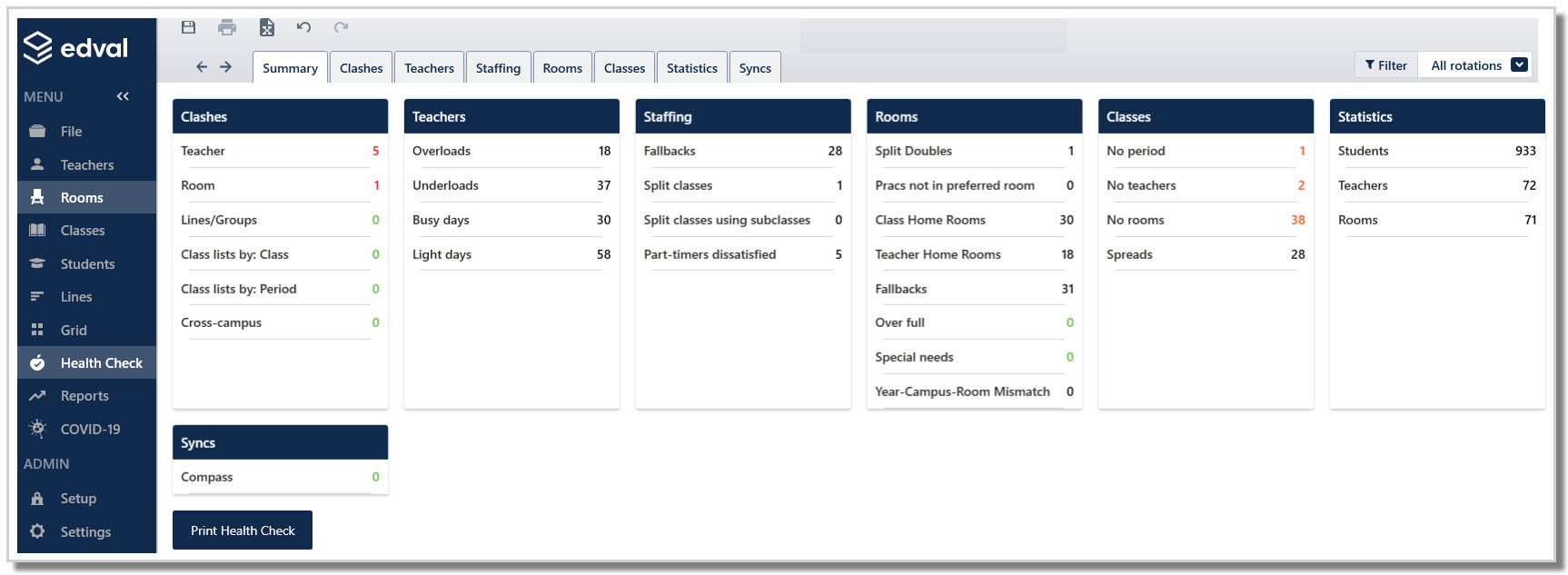
Click any row in the Summary screen, or select a tab from the top to view details. Expand or collapse lists using the blue heading bar. Multiple lists can be open at once. Selecting a row (or the 'Take me there' button) navigates to the relevant screen. For example, selecting a row in the Teacher table will take you to the Teachers > Timetables screen.
Clashes
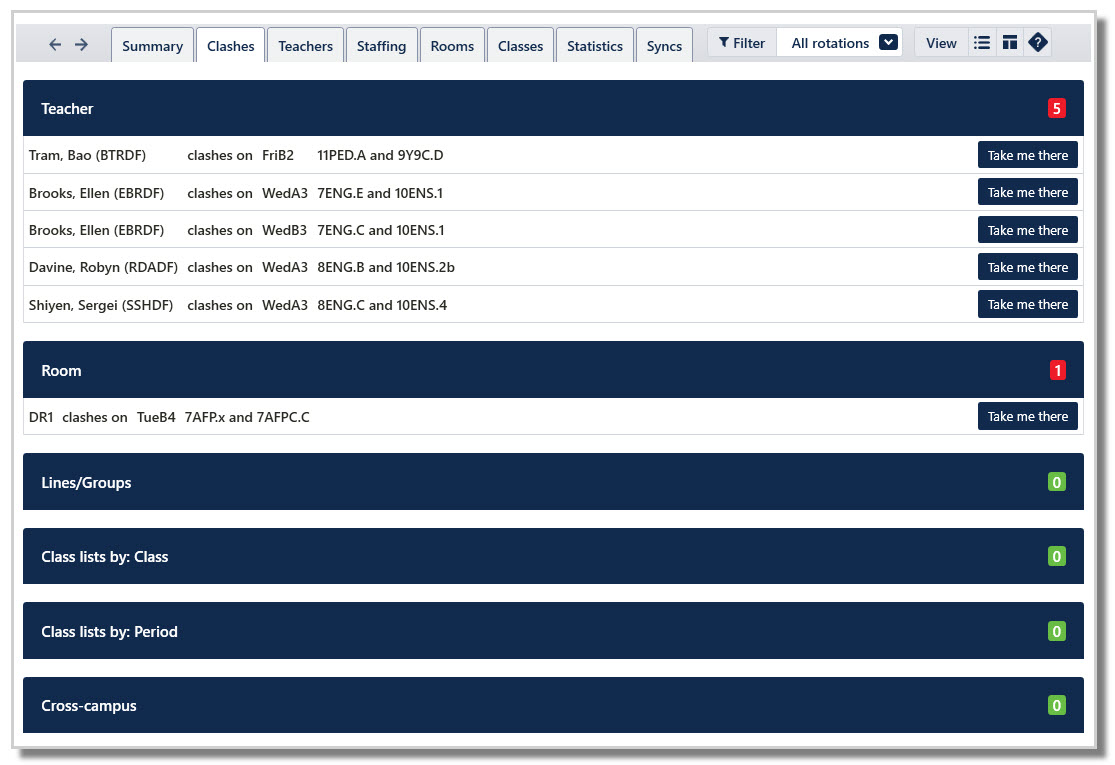
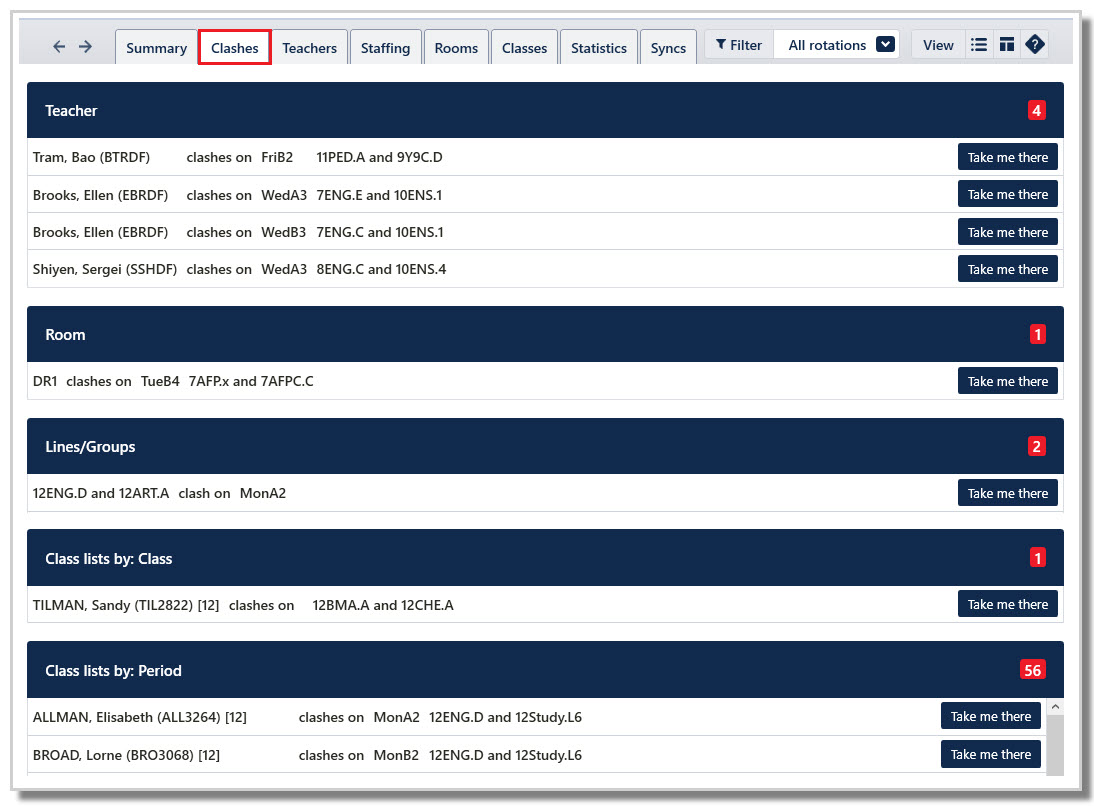
Clashes usually need addressing. There are often ways to set up your data so the system understands what you are requiring, for example, correctly linking composite classes.
Occasionally, a clash cannot be resolved and therefore cannot be eliminated, but this is rare. Example: A Year 11 and 12 class maintains separate teachers for all but one of their lessons, where one teacher takes both classes together. This cannot be set up as a composite class, so one clash will remain.
Section | Explanation |
Teacher | Displays teacher timetable clashes, including online and offline period clashes. |
Room | Displays room timetable clashes, including online and offline period clashes. |
Lines/Groups | Displays classes that have been placed onto the timetable that do not conform to the required structure. These issues are usually caused by the user when manually timetabling. Example: where 7A have two classes placed on the timetable at the same time, or, if Line 1 classes are timetabled onto Mon2, and then a Line 3 class is also placed there. These are both structural issues and must be corrected. |
Class lists by: Class | Student clashes, such as where a student has been placed into classes on the same line resulting from a class list management error. Examples: a student is placed in two classes on the same line, or, classes 7ENG.G and 7EAL.1 run at the same time, and a student is enrolled in both classes. |
Class lists by: Periods | Student clashes for each period where a student is placed into classes which are clashing on the timetable. |
Cross-campus | Classes that are running on the wrong campus as defined in the setup. |
Teachers
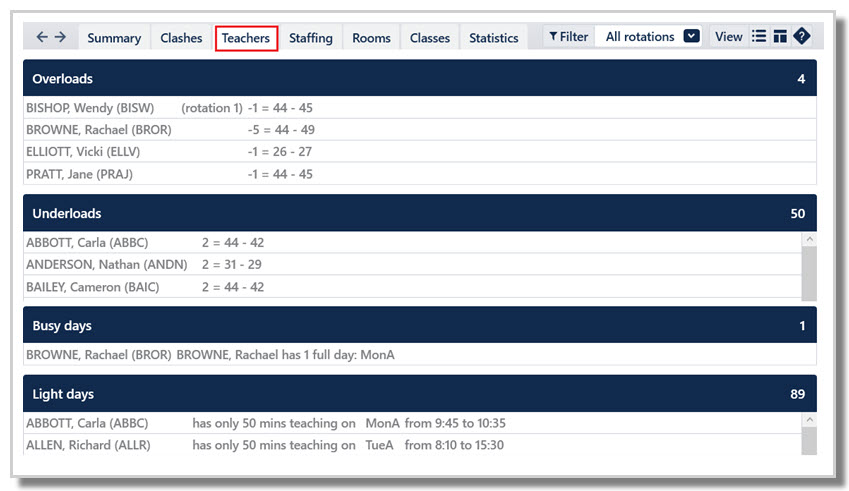
This section is for information only, but is very useful to review during and after timetable construction.
Section | Explanation |
Overloads | Displays teachers who have been assigned more classes and allowances than their MaxLoad. Example: -1 = 44-45 means the teacher is overloaded by 1; their MaxLoad is 44 periods but they have been assigned 45 periods. |
Underloads | Displays teachers who have been assigned less classes and allowances than their MaxLoad. Example: 2 = 44-42 means the teacher is underloaded by 2; their MaxLoad is 44 and they have only been assigned 42 periods. |
Busy days | Displays teachers who have full days of teaching periods. |
Light days | Displays teachers who have light teaching days of teaching periods. |
Staffing
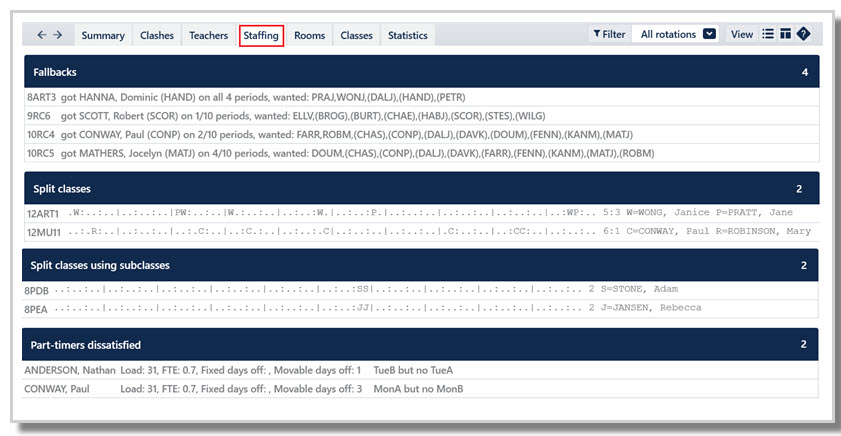
This section is also for information only, but is useful to review during and after timetable construction.
Section | Explanation |
Fallbacks | Displays classes that have been assigned to a non-preferred teacher (fallback or desperate). |
Split classes | Displays the breakdown of classes where two or more teachers are assigned the same class when using the 'T' teacher change function, or the right click split staffing function in Staff allocations. Example: 12ART1 5:3 WONG, PRATT (WONG has 5 periods and PRATT has 3 periods). |
Split classes using subclasses | Displays the breakdown of classes where two teachers are assigned the same class when using the subclass feature in the Class data screen. |
Part-timers dissatisfied | Displays any teacher who needs day(s) off as specified in the Teachers > Flexible work tab but who has not has been assigned the required number of days off. |
Rooms
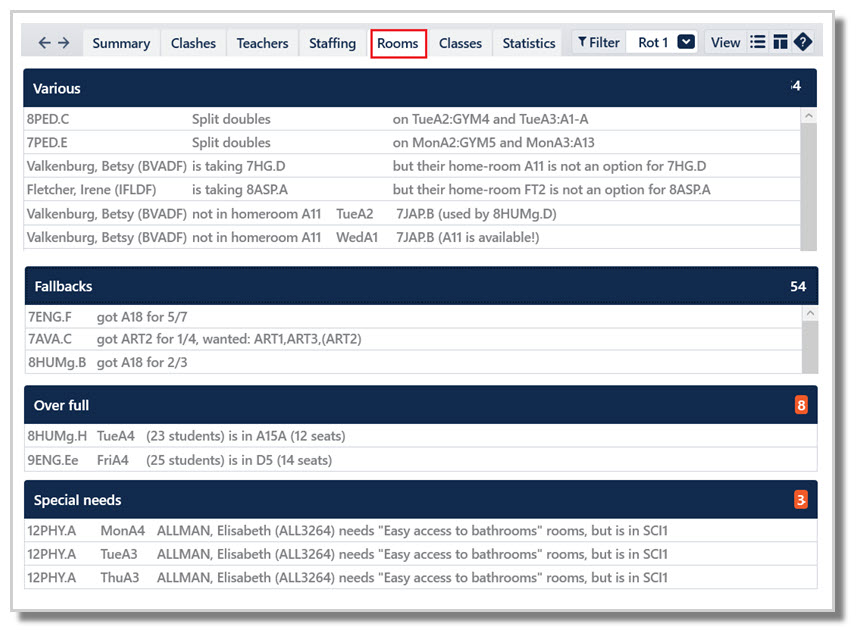
This section flags violations to any rooming requirement as stipulated in various sections, such as Room data and Class data. Always review this section after running the Auto-room function.
Section | Explanation |
Split Doubles | Double lessons that are in two different rooms. Normally, this need to be addressed. |
| Pracs not in preferred room | Subclasses not in their preferred room. |
| Class Home Rooms | Classes not in their homerooms as defined in Room data > Home group field. |
| Teacher Home Rooms | Classes not in their teacher's homeroom as defined in Room data > Homeroom of field. |
Fallbacks | Classes that have been assigned a less preferred room (fallback and desperate). |
Over full | Classes that are placed into rooms with less seats than the class size. |
Special needs | Lists any Specialty rooms violations, ie, students who are not in an appropriate room. |
| Year-Campus-Room Mismatch | Applies to multicampus/multigrid schools where rooms are designated to a particular campus. |
Classes
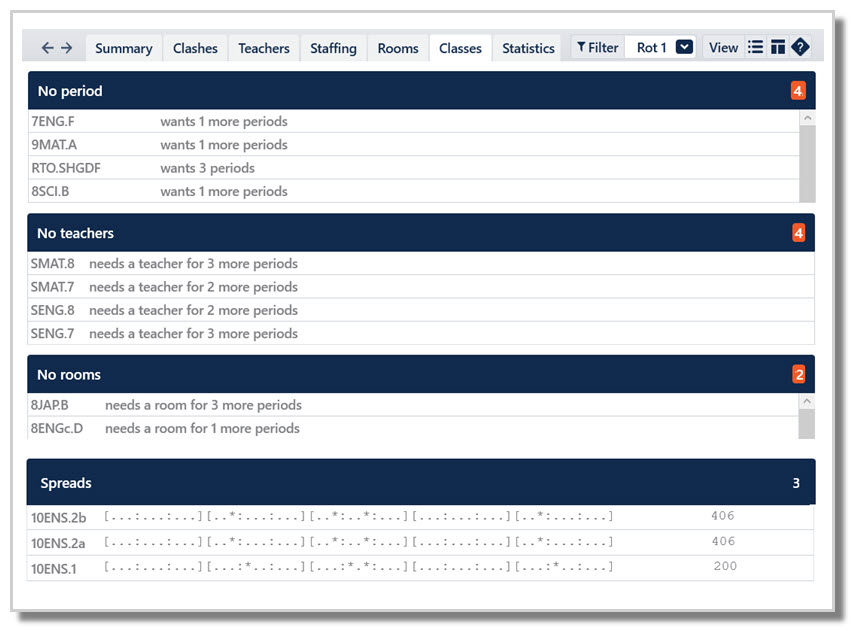
This section of the Health Check is very important to check before finalising your timetable.
Section | Explanation |
No period | Displays classes, including meetings, which are not yet timetabled. |
No teachers | Displays classes which have no teacher assigned. |
No rooms | Displays classes which have no room assigned. |
Spreads | Shows classes that do not have an optimal spread. The brackets and dots correspond with the pattern of days and periods to visually see where the classes are on the grid and may highlight the problem. The number at the end of each row is the penalty score assigned to the class, and the classes with the highest penalty scores appear at the top of the list. |
Statistics
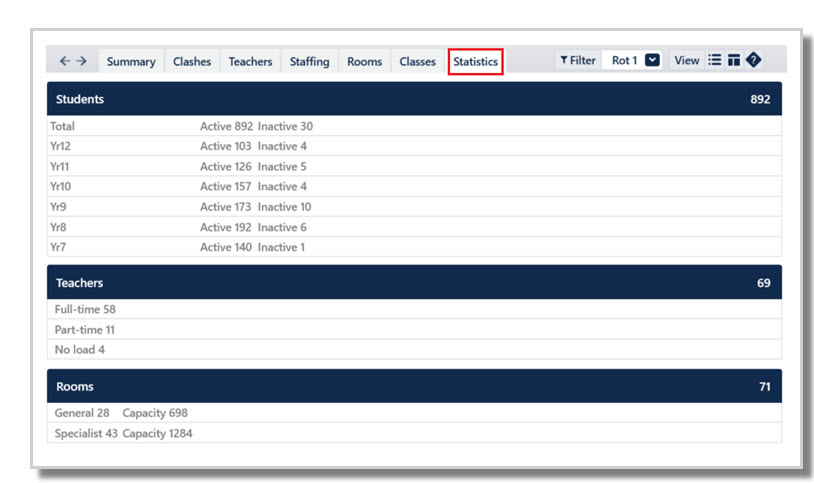
The Statistics tab displays the number of students (both active and inactive), teachers (full-time, part-time, no load) and rooms (General and Specialist) included in the file.
Syncs
This section displays any issues with the configured third party system sync.
Was this article helpful?
That’s Great!
Thank you for your feedback
Sorry! We couldn't be helpful
Thank you for your feedback
Feedback sent
We appreciate your effort and will try to fix the article