Arbor Sync Pre-Publish Errors
Common errors found in the pre-publish report (Arbor mapping report) for syncing from Edval to Arbor and potential solutions.
Missing teacher ID
Any missing teacher IDs are because a teacher has not been matched between Edval and Arbor. If the teacher exists in both Edval and Arbor then going to File – Synchronise – Sync Now – Download Teachers should populate this ID.
Some staff may not have the required permissions to be full teaching staff in Arbor but are still required to be a named teacher on a class. In this case they will not have an ID and need to be upgraded as such so they have one, and then Download Teachers will populate this in Edval.
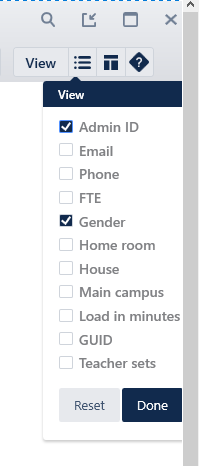
If there is a need to manually update these IDs they can be found in Edval in Teachers – Teacher Data, then by allowing Admin ID in the view menu.
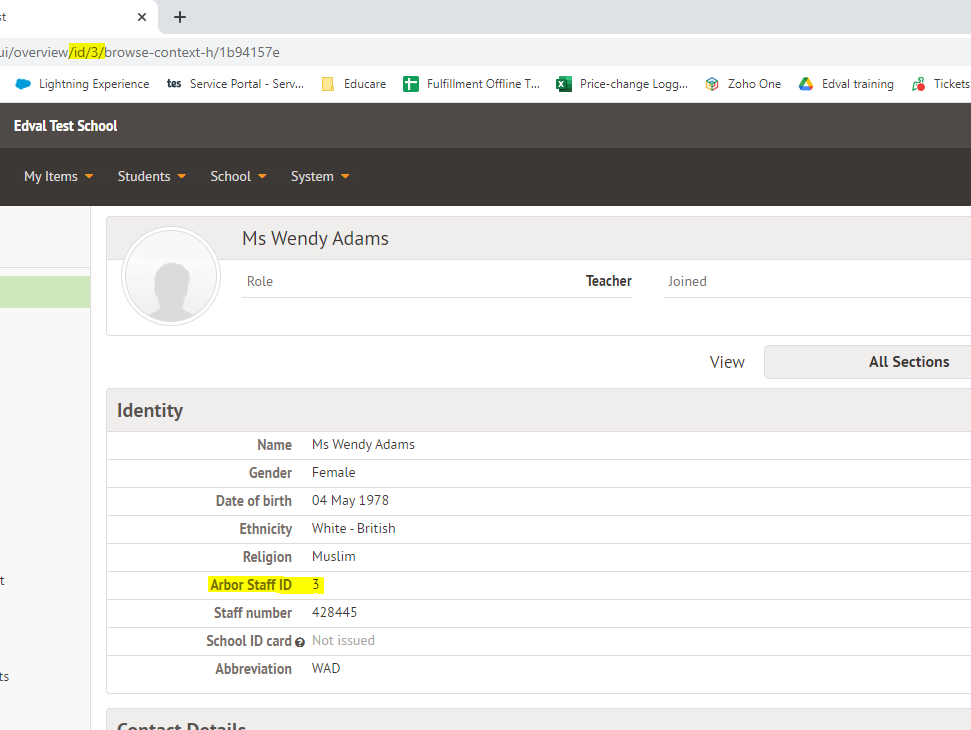
In Arbor, the teacher IDs can be seen on the teacher’s page both under Arbor Staff ID, as well as in the URL, as highlighted below.
Missing room ID
Any missing room IDs are because a room has not been matched between Edval and Arbor. If the room exists in both Edval and Arbor then going to File – Synchronise – Sync Now – Download Rooms will populate this ID.
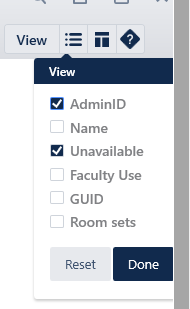
If there is a need to manually update the rooms’ IDs then these can be found in Edval in Rooms – Room Data, then by allowing Admin ID in the view menu.
In Arbor these room IDs can only be seen in the URL of the page for the room.

Missing Academic Unit
A course with a missing Academic Unit means it was not matched during Import Classes steps one and two. This could be for one of several reasons:
• The module does not exist in Arbor.
If a module has not been created in Arbor then it will have not been matched for obvious reasons. Check that the course does exist in Arbor, create it if not, and then re-run Import Classes steps one and two to match it. Any previously matched courses will stay matched and not be present on the spreadsheet.
• The module has a different course code in Arbor and Edval.
If the course in question has a different code (it doesn’t matter how different, any difference will cause this) then you may have matched incorrectly. In the case of simply copying an incorrect code from column F (AcademicUnit name) of the spreadsheet into column A (Edval Class code) then Edval would have created a new class in Class Data to fit this unexpected course.
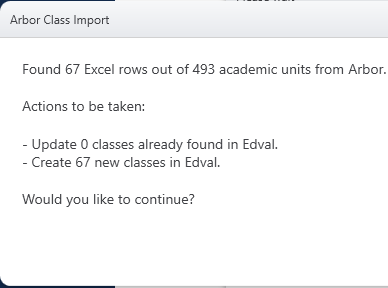
• You have not matched the course.
Every time any changes are made within Edval to be synced to Arbor, you need to complete Import Classes steps one and two. Any previously matched courses for the current academic year will remain matched and not appear on the spreadsheet, but new ones will. Without completing this every time you cannot sync.
Was this article helpful?
That’s Great!
Thank you for your feedback
Sorry! We couldn't be helpful
Thank you for your feedback
Feedback sent
We appreciate your effort and will try to fix the article