TABLE OF CONTENTS
- Preamble
- Type of sync
- Which data is sent to the other system?
- Which data can be received from the other system into Tes timetable file?
- Steps to Synchronise data
Preamble
- new school file set up
- synchronisation processes
- synchronisation troubleshooting
The following information has been provided by the Bromcom team and was correct at the time of publication. Please check the Bromcom documentation for any changes to the process. Please contact them for any support required in the set up in this system, as Tes consultants are not able to advise.
While Tes takes all care to ensure any mention to the other system is correct and up to date, it is the user's responsibility to check with the other system prior to an initial sync. If the user becomes aware of any changes to the other system, we would very much appreciate this feedback.
Type of sync
Which data is sent to the other system?
Note that Tes builds many excellent features to help users build high quality timetables, and while these features can be sent onto the other system through the synchronisation process, not all systems have built the capability on their end to receive/display these feature
| Tes Timetable feature | Notes on feature | Is this feature received by the other system? | Other notes |
| Bell times | Bell times as per the Grid structures | Yes | |
| Campuses | Campuses and their associated rooms | Unsure | |
| Classes | Class code, GUID, Faculty, Course Name, Assigned teacher | Yes | |
| Class lists | Yes | ||
| Composite classes (linked classes) | One teacher teaching more than one class at the same time | Yes | |
| Duty roster | Yes | ||
| Faculty data | Yes | ||
| Grid structure codes | Yes | ||
| Multi-file | Two (or more) timetable files | Unsure | |
| Multi-grid | Multiple grids with different bell times | Unsure | |
| On-call roster | Yes | ||
| Priority classes | The priority class that shows on students' timetables where they have class clashes | Yes | |
| Room data | Room Code | Yes | |
| Rotation classes | Classes from particular rotations | Yes | |
| RTO roster | No | ||
| Student data | Student Code, Name, Year level, | Yes | |
| Study roster | Study classes, staffing and rooming roster | Yes | |
| Sub-classes | No | ||
| Teacher data | Teacher Code, Name, Preferred name, Faculty, Gender, GUID | Yes | |
| Teacher days off (Unavailable) | No | ||
| Timetable data | Yes | ||
| Two (or more) rooms at once | No | ||
| Two (or more) teachers at once | No | ||
| Year levels (non-numeric) | Year levels such as SPT, LSUP, ROLL, Yr9+10, etc. | Yes |
Which data can be received from the other system into the Tes timetable file?
| Tes timetable data | Can this data be drawn down into the Tes timetable? | Other notes |
| Room data | Yes | Matched against code, and conflicts are managed in the import match screen. |
| Teacher data | Yes | Matched against code, and conflicts are managed in the import match screen. |
Student data | Yes | Matched against code, and conflicts are managed in the import match screen. You can set that Timetable should ignore year level and statewide IDs downloaded from Compass. |
Steps to Synchronise data
Step 1: Check if any Bromcom setup is required
Step 2: Configure the Timetable file
The process requires that we export an XML file from Tes Timetable, which then gets imported into Bromcom.
Checks prior to sync (in Tes Timetable):
Go to setup: subjects: official course data
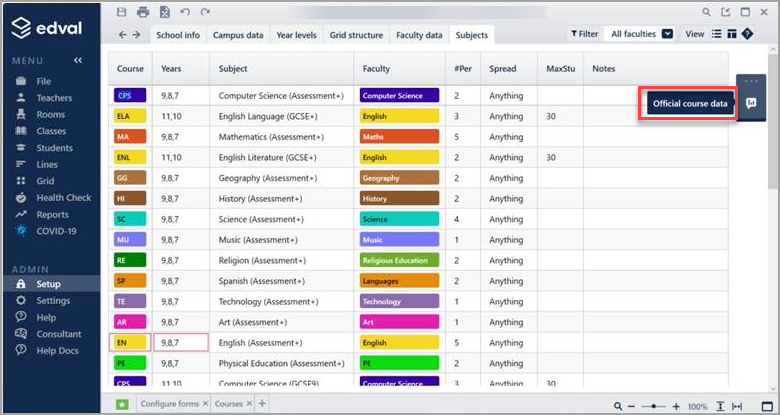
Click on the blue action button and go to the official course code screen. Check that there is a unique description in each row, and that the course codes are correct.
IMPORTANT: The description column is CRUCIAL – this is what you will see in the subject column on the right in the Groups screen in Bromcom. It also must match the subject names in Bromcom.
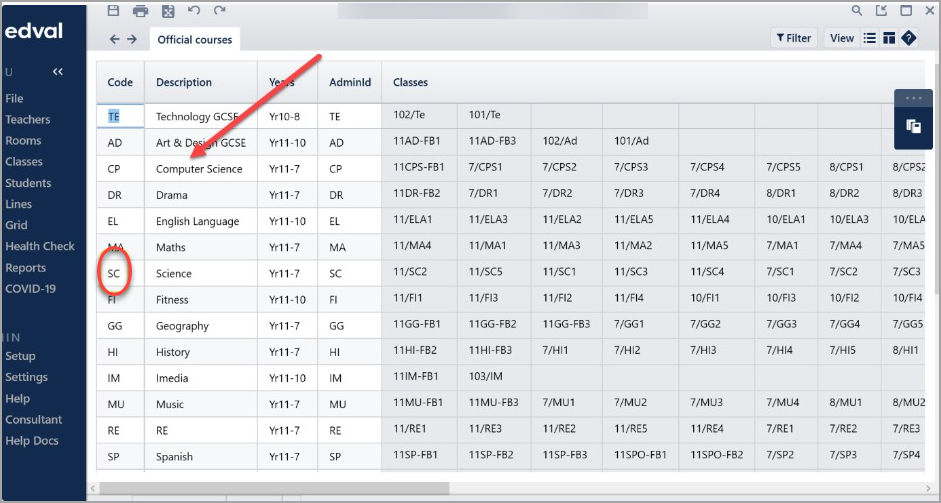
If you need a new course code that is not already in the etz file, you can scroll down and see if you have an ‘unused’ code (there will be no classes attached in the grey section of the screen)
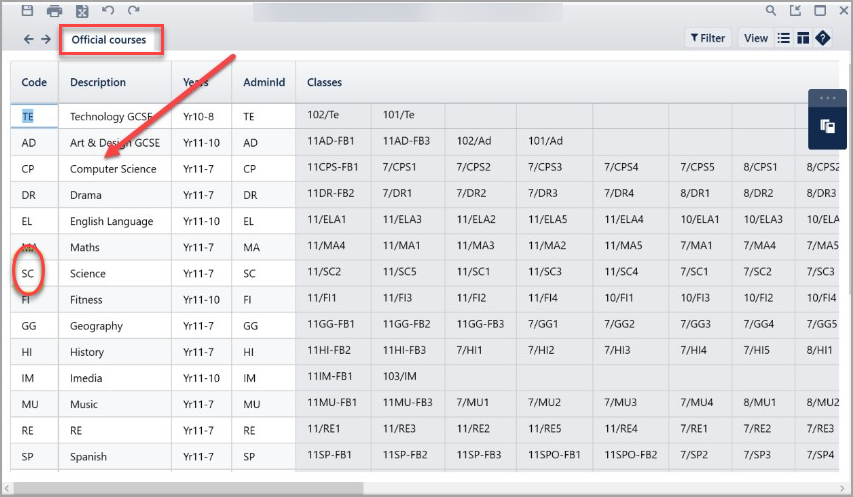
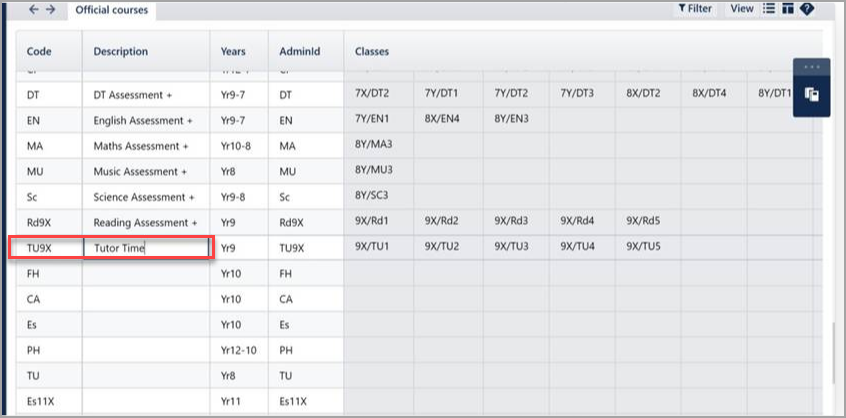
You will be able to change one of these unused codes to the code you need.
If you have no spare codes. Please send in your file to the ticket desk, and a consultant will be able to do this for you.
IMPORTANT: Once you are sure you have all your course codes correct, and match subjects in Bromcom, delete any unused ones – this means any that have no classes attached to them in the grey section. This ensures there is no mix up when the file is imported into Bromcom.
Note: Your Tes timetable teacher codes also must match your Bromcom teacher codes. Otherwise, those lessons won’t be published. Change them in either Tes Timetable and/or Bromcom until they’re all matching. Similarly, you need to ensure that your Tes Timetable room codes match your Bromcom room codes.Step 3: Configure the Timetable file: One-off setup
Now, please send you etz timetable file to the ticket desk for checking. We will then provide you with an unlocked file to sync. To do that, please refer to the link here on how to contact us.
Step 4: Publishing the Timetable
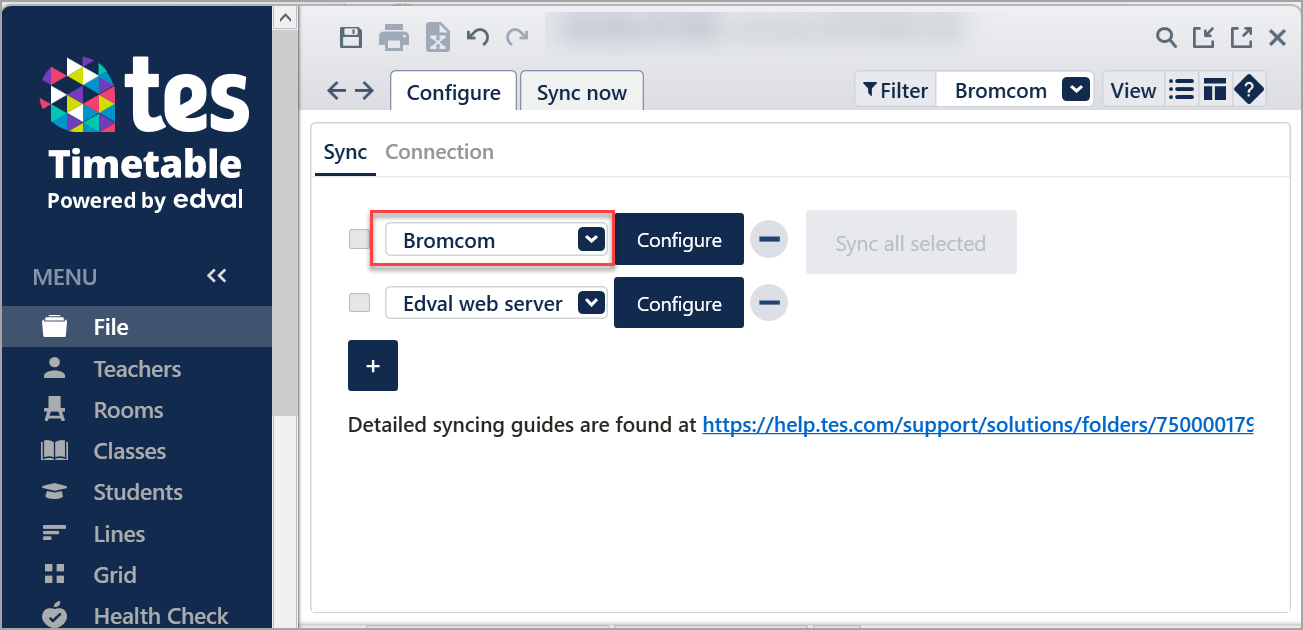
Go to file: synchronise > configure and ensure the following are present:
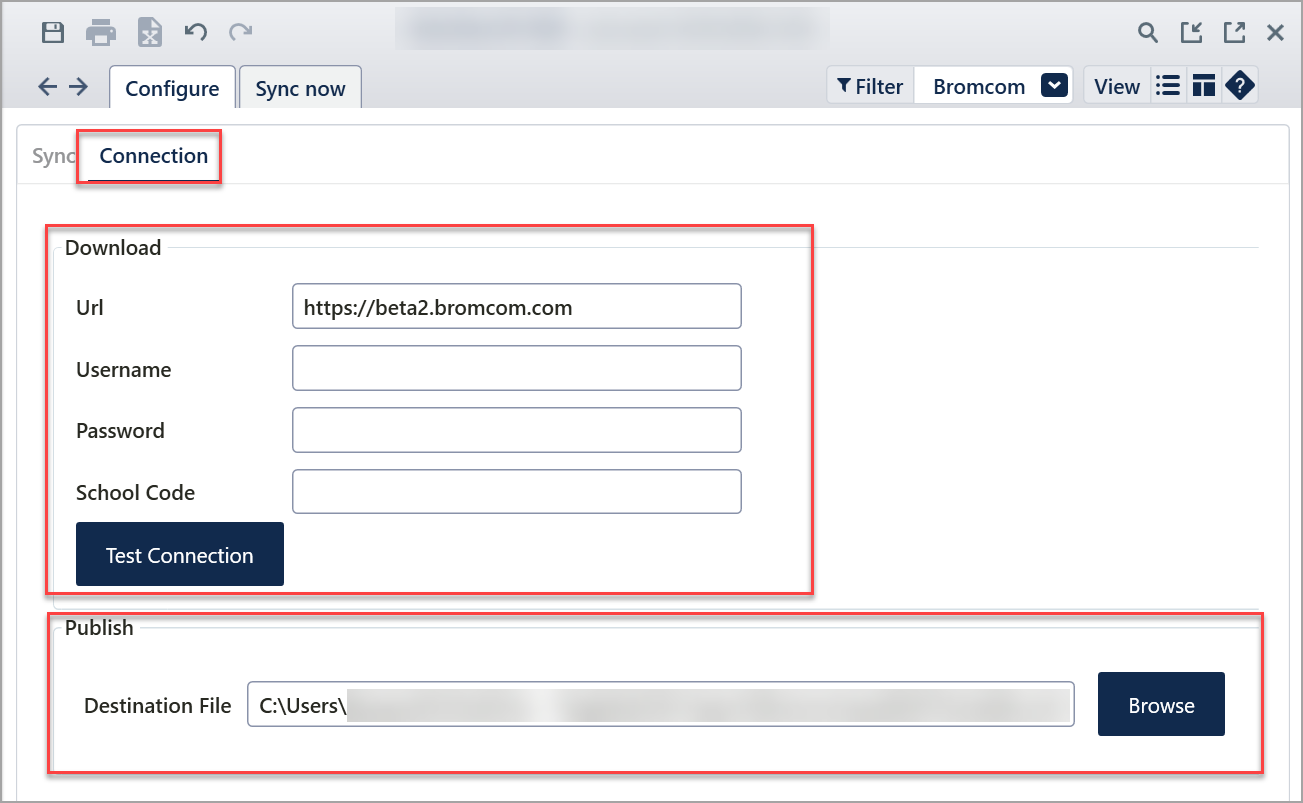
Go to the connection tab and fill in the details. The destination file folder will contain your XML once produced. Now save your etz file.
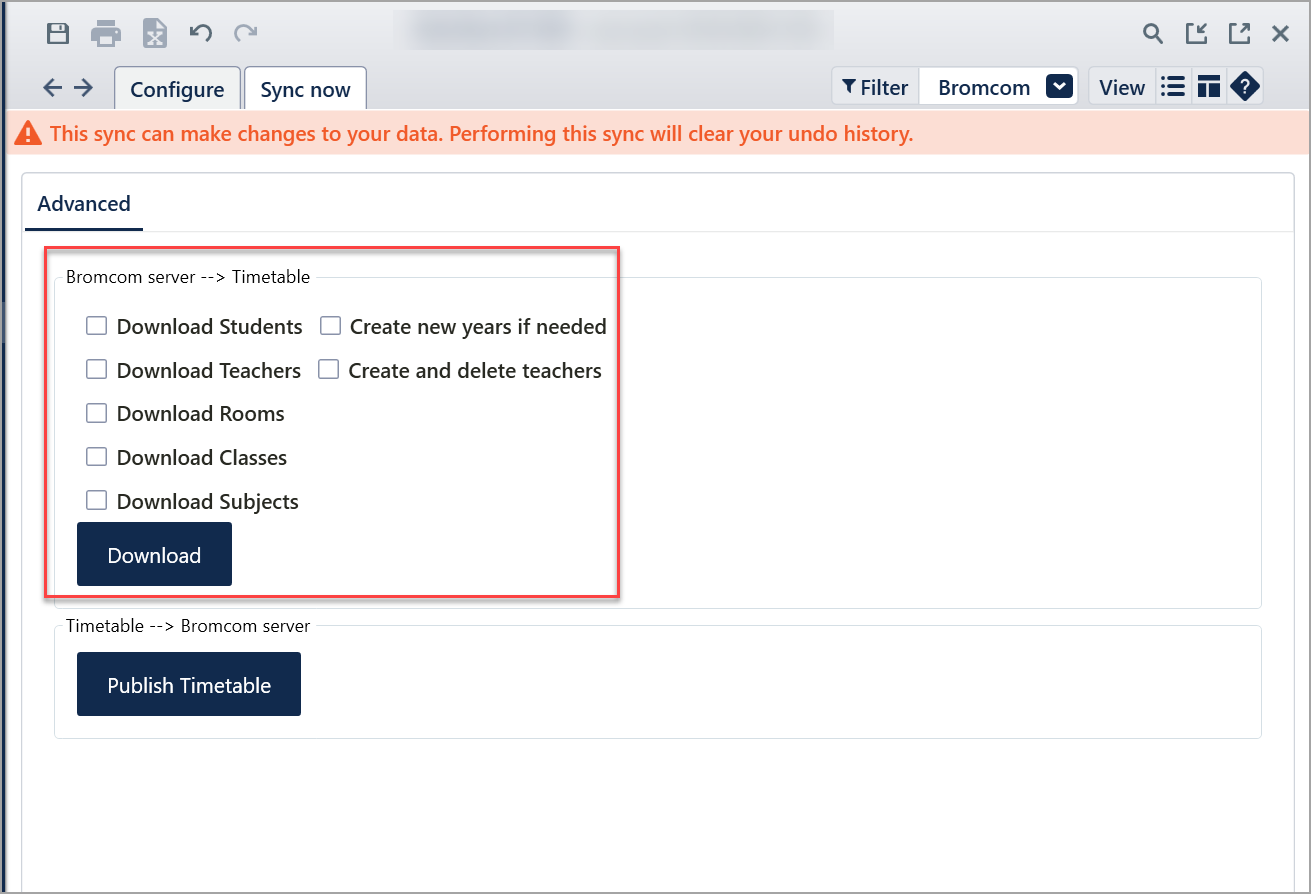
Go to “File > Synchronise > Sync now”. You do NOT need to tick the following boxes – leave blank.
Click Publish Timetable - This will create the .XML file you configured.
Step 5: Importing the Timetable=
Then go to Bromcom and follow the instructions for importing a timetable file using the unlocked file the consultants have provided you with. It is important that you follow all the steps in Bromcom. These can be found at How to Import your Timetable from Keith Johnson TimeTabler – Bromcom, but are also summarised here. Although the link says Keith Johnson timetabler, these instructions are also for use with Tes Timetable (formerly Edval) as stated in the second line of the document.
Note: only Full Timetables will be imported, not blank timetables
Prerequisites: Note that the first 2 items below are not needed if applying midyear.
- Make sure a new academic year has been created in Bromcom with the same period structure as in the Tes timetable
- Make sure the number of your periods matches exactly with those in the Tes Timetable.
- Make sure any new staff added in Tes Timetable are also in Bromcom
- Make sure staff initials in Tes Timetable match those in Bromcom
Within Bromcom
Go to Curriculum > Routines > Apply Timetable Model.
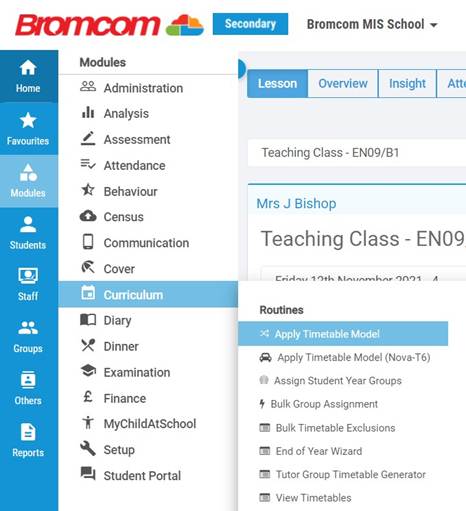
Now, click on Import on the top left of the screen.

This will bring up a new window giving you the option to import the .XML file from TimeTabler for Keith Johnson. However, you can also import your XML file created in Tes Timetable.
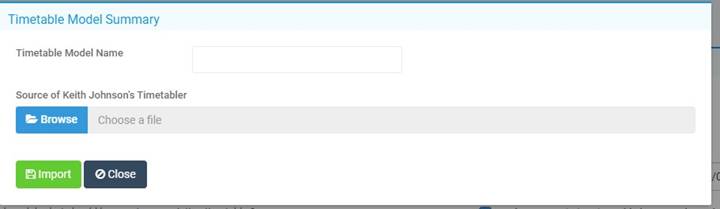
Give your Timetable model a name that you are going to refer to in Bromcom. This is a compulsory field in the process of uploading your Timetable into Bromcom.
Use the Browse button to find your XML file that you have saved from the TES timetable.
Now click Import.
The next screen will ask you for the Timetable Model - this is the name that you typed in the box on the previous screen, ”Timetable Model Name”.
There are a couple of tick boxes that you will need to select.

You will now have a screen that will need the dates that the model will be applied to in Bromcom. Important: This must be academic days, i.e. days when the students are in school, usually the first and last day of the academic year.
The next step is to match the grid structure from Tes Timetable to the model in Bromcom.
Under the match calendar days, make sure that the Calendar days are matched to the corresponding Timetable Day and that the period count is correct. Each period must be matched individually; you can’t bulk do the entire week/cycle.
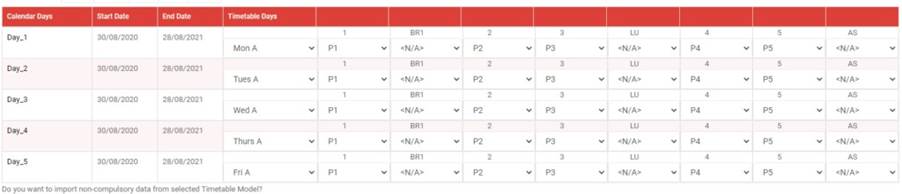
Once you have completed these areas, click on the Process button at the top of the screen.

You will be prompted by the warning message below. Once you have read and understood the warning, click OK to continue.
The model will now be analysed, and a summary will be produced. Make sure you check through the summary page. If there is anything that you think looks incorrect or you are unsure of, please contact the support team.
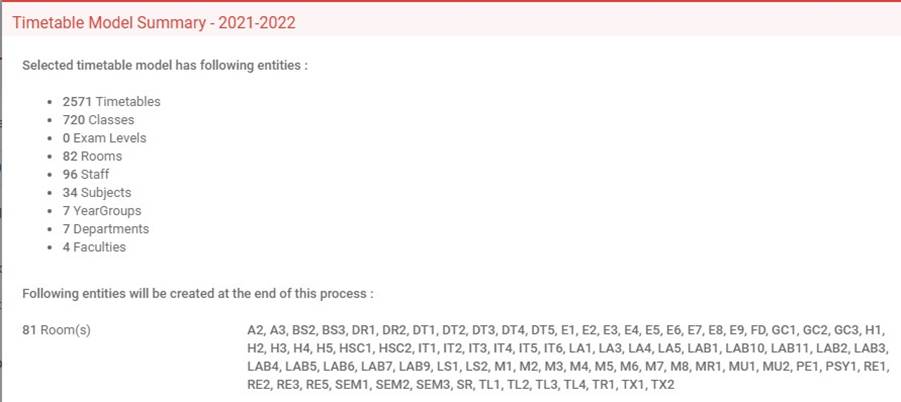
If you are happy with the summary, click Apply.

Post Import
If the Tes Timetable .XML file does not contain year group and subject code information, then the additional steps below will need to be completed by you.
- You will need to assign subjects to classes after the import. Go to Groups>Teaching Classes to select and fill in the Tes Timetable Subject Code.
- You need to assign year groups to classes after the import. Go to Groups > Teaching Classes to select and fill in the Year Groups
If you have queries prior to generating the Tes Timetable team. If you have queries post the generation of the XML file, then please contact the Bromcom Team in the first instance.
Create support log file: Occasionally, Tes specialists may ask you to perform a sync and tick this box, which will create a text file in the same location as the timetable file. This file can be sent to Tes to help with troubleshooting.Was this article helpful?
That’s Great!
Thank you for your feedback
Sorry! We couldn't be helpful
Thank you for your feedback
Feedback sent
We appreciate your effort and will try to fix the article