Classes > Curriculum Plan (Ctrl+F6)
This powerful screen visually shows timetable structures, providing an overall map of the school’s whole curriculum plan. Whereas the F6 Class data screen can show Lines/Link entries that join classes together, this screen shows them grouped together in various boxes - for each year level.
The Curriculum Plan screen displays the basic building blocks of the timetable, where in this context, a building block comprises two or more linked classes. Classes can be blocked together in one of two ways - a horizontal groups or a vertical block.
Horizontal/Linear Group
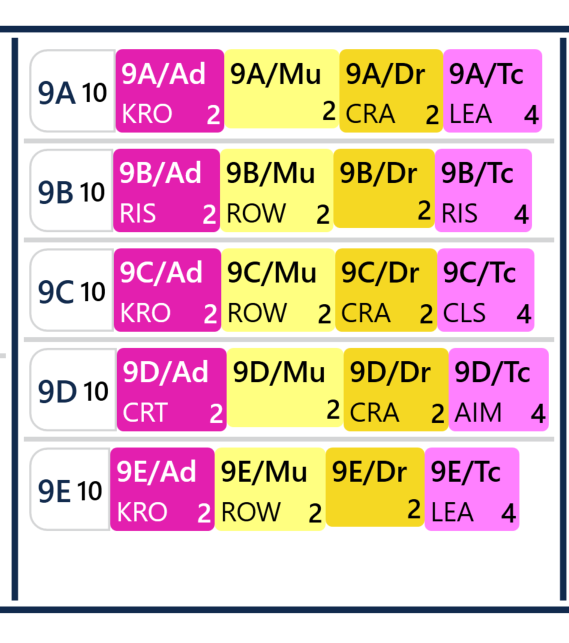
A horizontal or a linear group usually represents a group of students studying a set of subjects together. So for example, you could create horizontal groups for Arts subjects where 5 groups of mixed ability are required for Art, Drama, Music and DT (like in the screenshot below). As these horizontal groups are placed against one another, the groups of students could be doing any of the 4 subjects during the 10 total periods that the group accounts for. 9A could be doing Art whilst 9B are doing Music, 9C are doing Drama etc etc. This method allows for greater flexibility in staffing/rooming but it doesn't allow students to move between classes for just one subject (so if a student moved to 9B/Ad, they would need to also move for Music, Drama and Technology as well).
Vertical Blocks/Lines
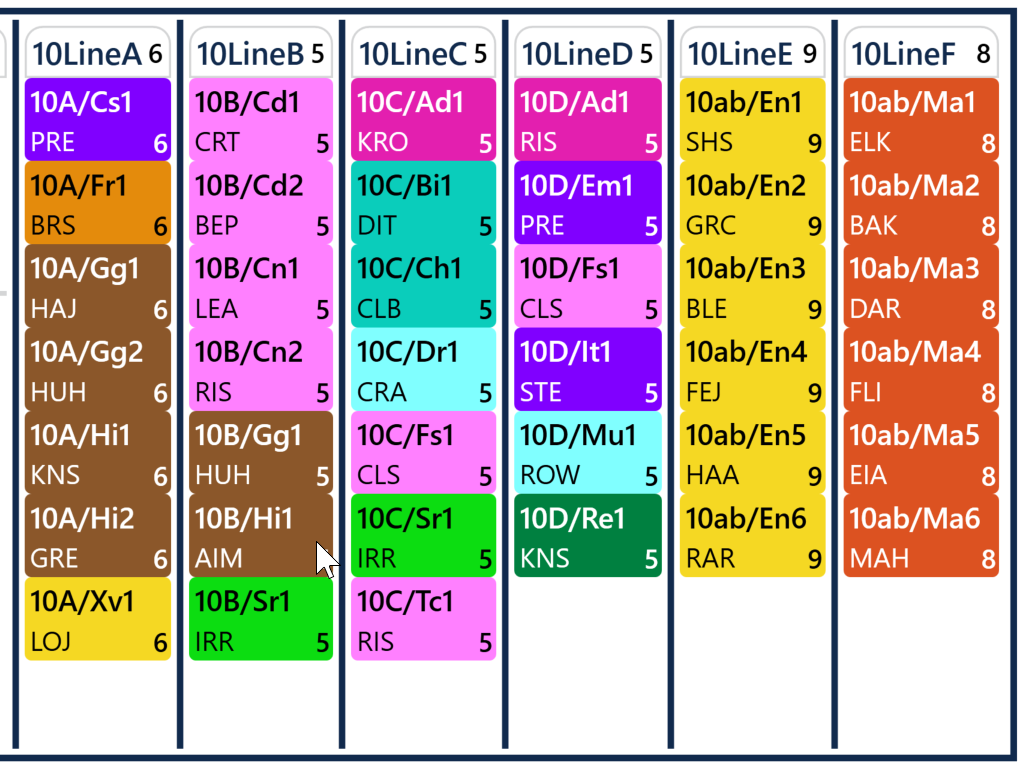
A vertical block or line usually represents a subject/set of subjects where all the lessons should happen at the same time. This could be to enable movement of students between sets or choice of subjects. For example, if your Maths classes are grouped by ability/sets, they could be placed into a vertical block, meaning that the lessons would all happen at the same time so that the students could move between classes if needed (e.g a student needs to progress from set 2 to set 1). For option blocks/lines, student have a choice of subjects that are blocked together and scheduled to happen at the same time.
Bands
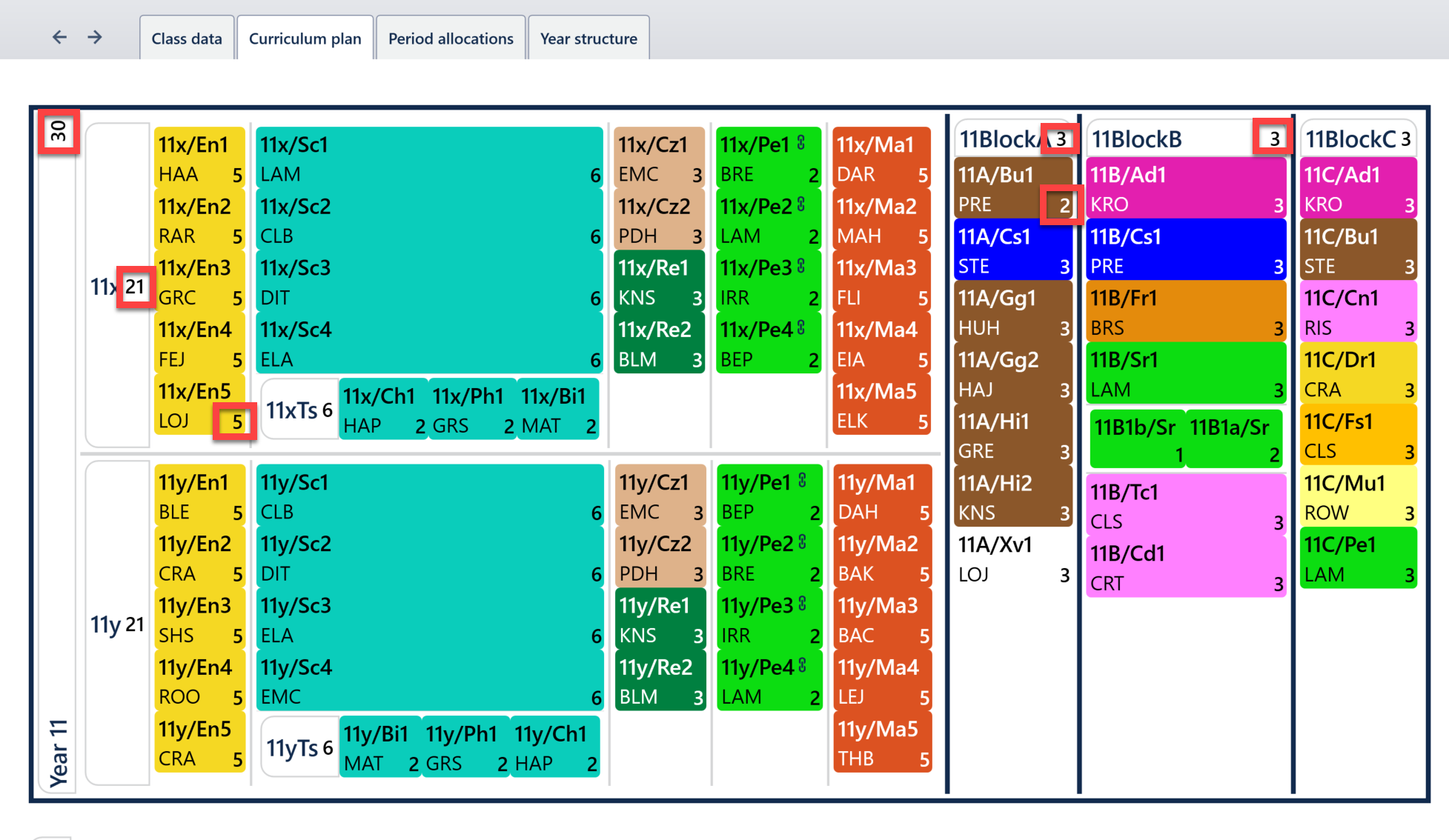
Banding can be used to split the year level - in the example below you can see that Year 11 has an X and a Y band. The core subjects (English, Science, Citizenship/RE and Maths) have been split by band to allow for more flexibility in terms of staffing and rooming. Having a full year block for Science for example, would mean that at least 10 Science teachers would be required to staff all the classes at once. In the below example, we actually only need 5, as only half the year group would need to be being taught Science at one time. Half-year blocks give more resource flexibility for minimal impact on student movement between classes of these subjects.
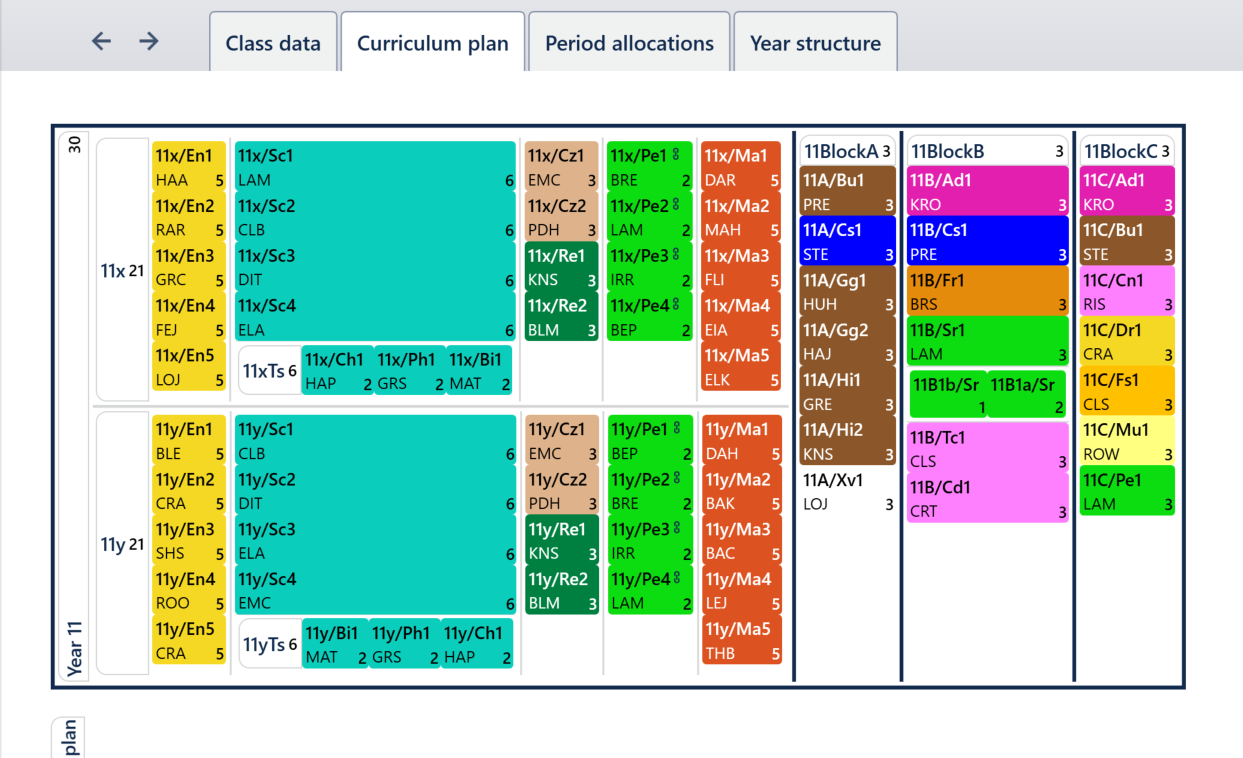
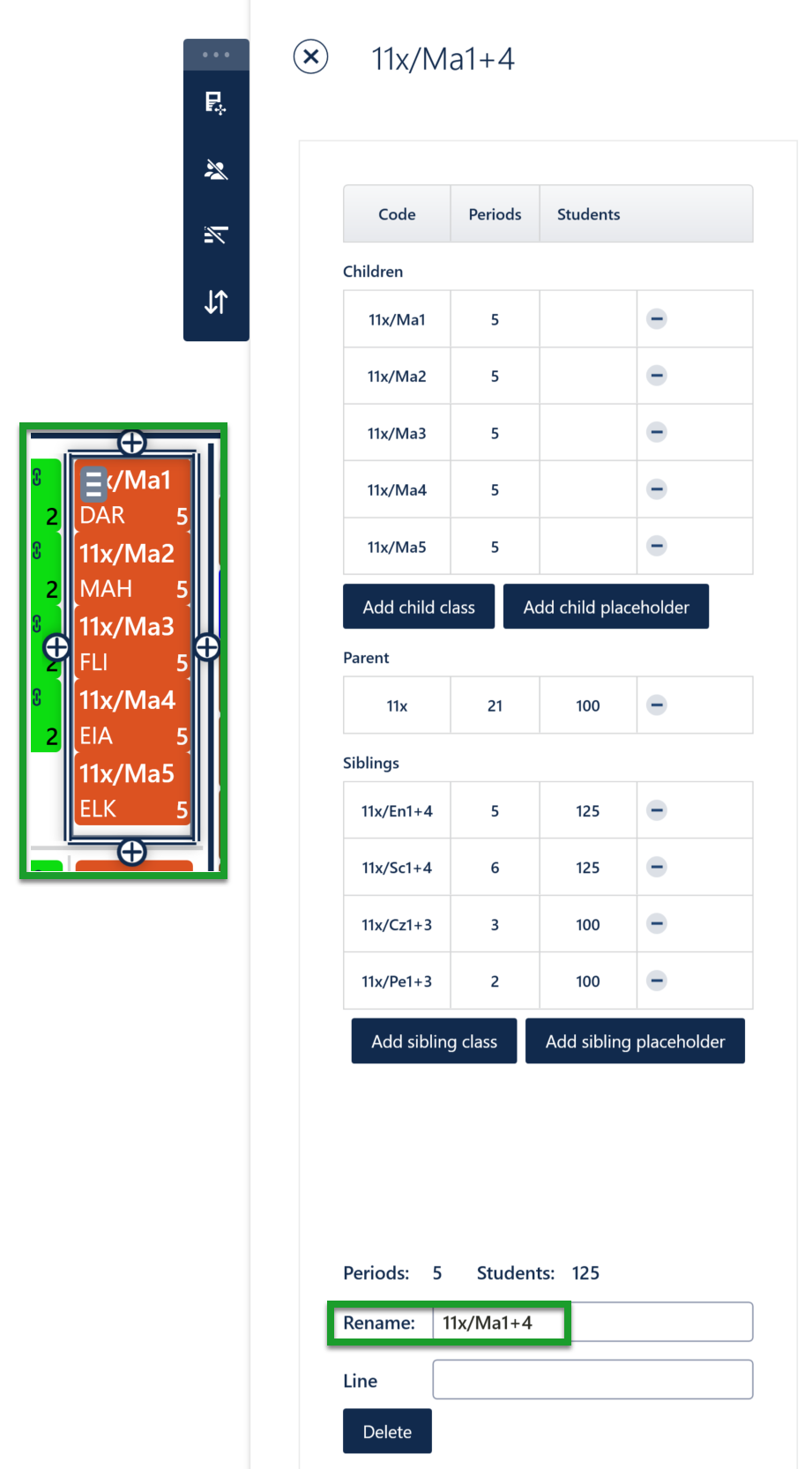
An example from the year 11 curriculum plan above shows the structure for the school’s Year 11 Maths classes. They divide the Maths classes into two bands of five classes. The block of classes in the x band is known within E10 in this case as 11x/Ma1+4 (screenshot below). This syntax indicates that class code 11x/Ma1 is linked with ‘4’ other classes, and together they form an atomic group of five classes which must always be scheduled on together. All students in the x band must be in one of these linked Maths classes.
The Curriculum Plan screen provides a visual representation of groups of students.
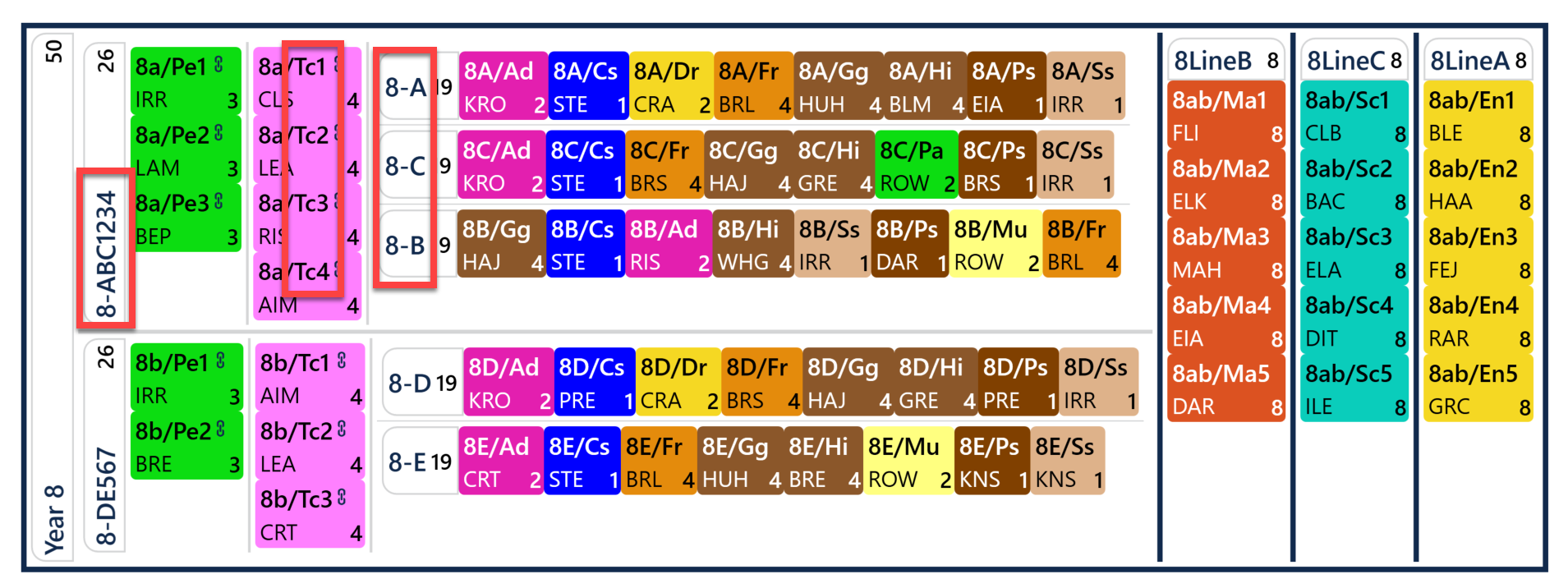
The heading here of 8-ABC1234 in the screenshot below indicates the upper band, comprising of groups of students 8A, 8B, 8C. Note that these letter groups manage the exact same students as the number groups 8a1, 8a2, 8a3, 8a4 for the tech subjects, where smaller class sizes are needed.
A school which has divided their year group into three bands would perhaps see heading entries of: 8-AB123, 8-CD456 and 8-EF789 for example - each showing a horizontal group of classes within the band. These can be renamed, as in the Y11 curriculum plan (11x/11y for example).
Period numbers
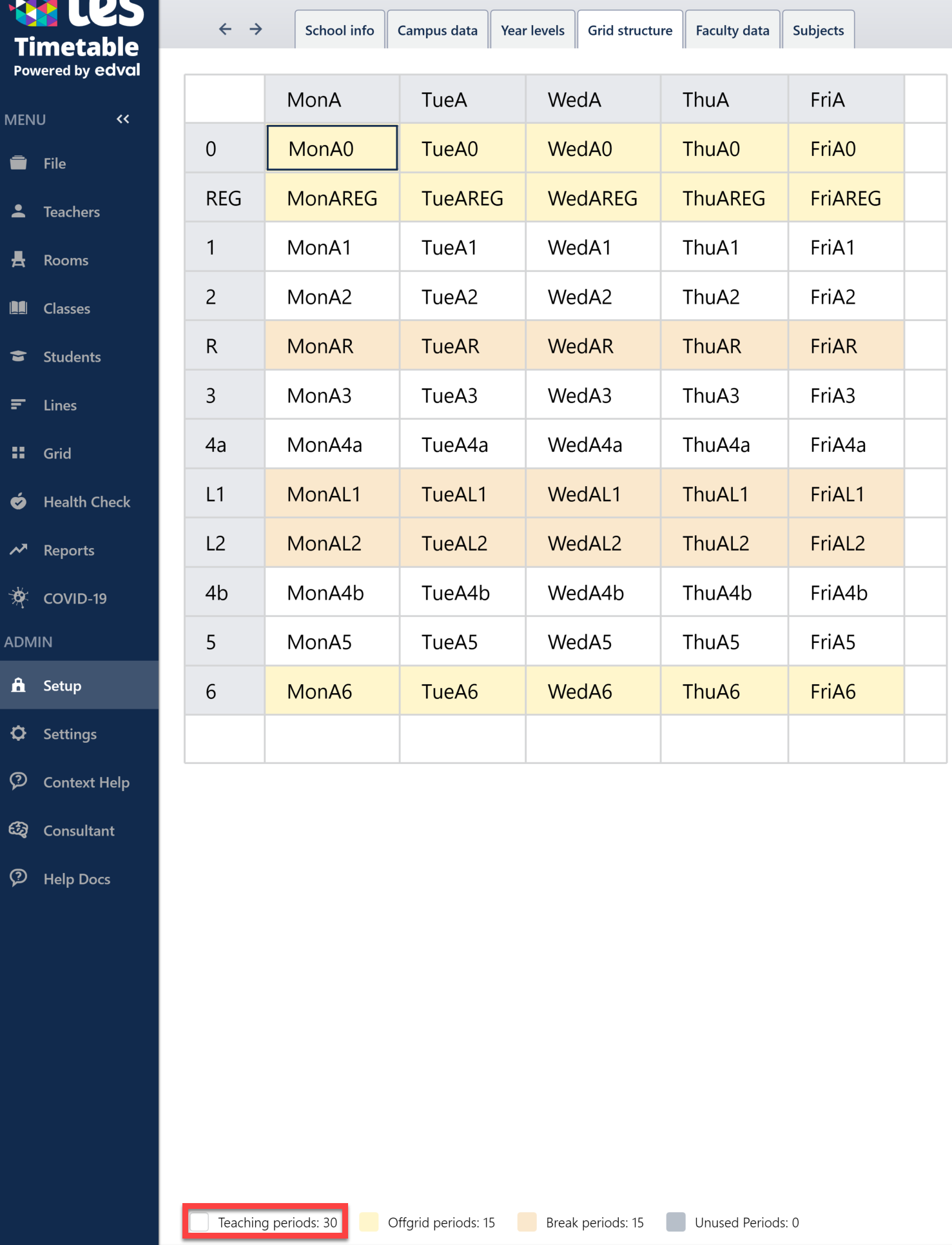
The period numbers are shown in the bottom right corner of each individual class (if you have 'Periods' selected in the view menu - E10 - Curriculum Plan Tools). If using labelling, we can also see the total number of periods accounted for within each block. Note that the total for the block corresponds to the largest amount of periods in classes which have been placed in that block - so in the example below we have Block A which has 3 periods total, but there is a class within that block (11A/Bu1) which only has 2 periods. It is worth checking these numbers thoroughly to ensure there are no discrepancies like this one. The number of periods shown at the top left corner of the Curriculum Plan denotes the number of periods accounted for by the plan as a whole (and you can see the totals for the X and Y band - 21, plus the option blocks - 9, both add up to 30). This number should match the number of teaching periods shown in your Setup>Grid structure for that particular year level - if it doesn't, an error will flag in the Grid>Check everything screen and in the Year structure screen when you attempt to sign this off.
Was this article helpful?
That’s Great!
Thank you for your feedback
Sorry! We couldn't be helpful
Thank you for your feedback
Feedback sent
We appreciate your effort and will try to fix the article