TABLE OF CONTENTS
View menu
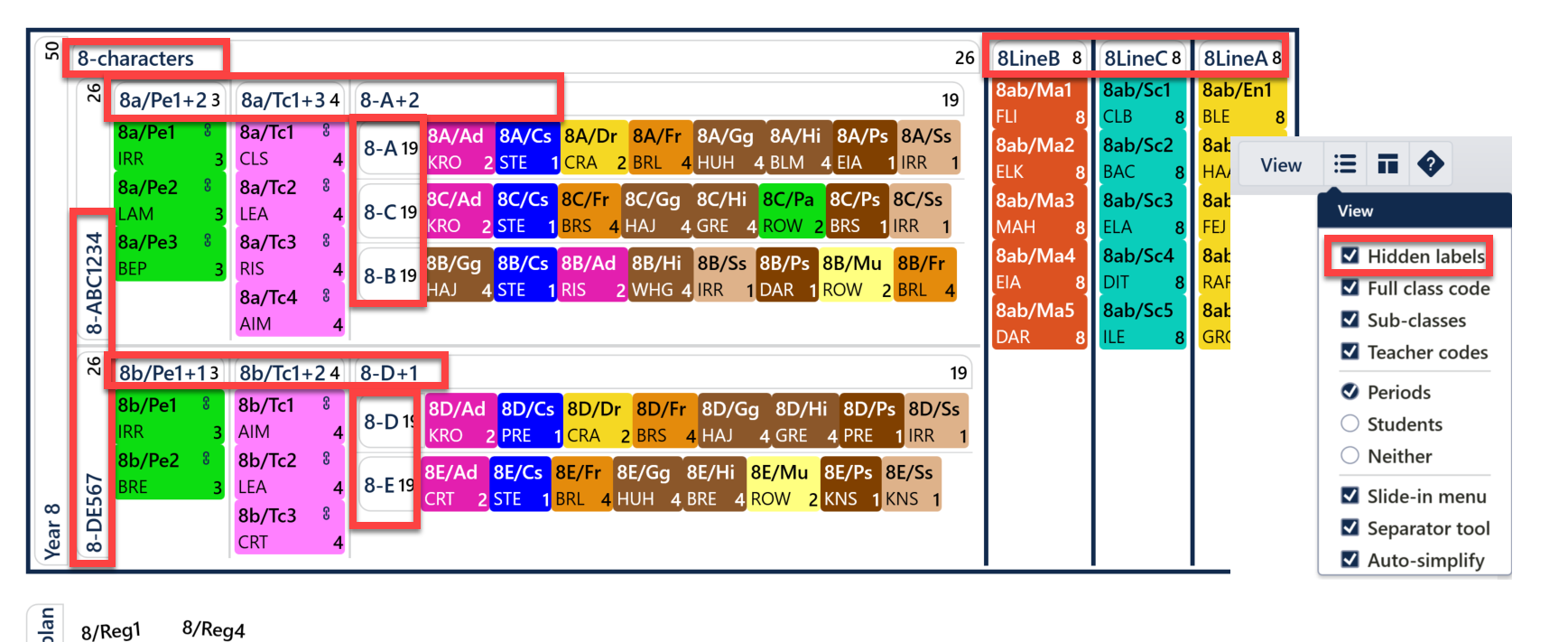
- Hidden labels
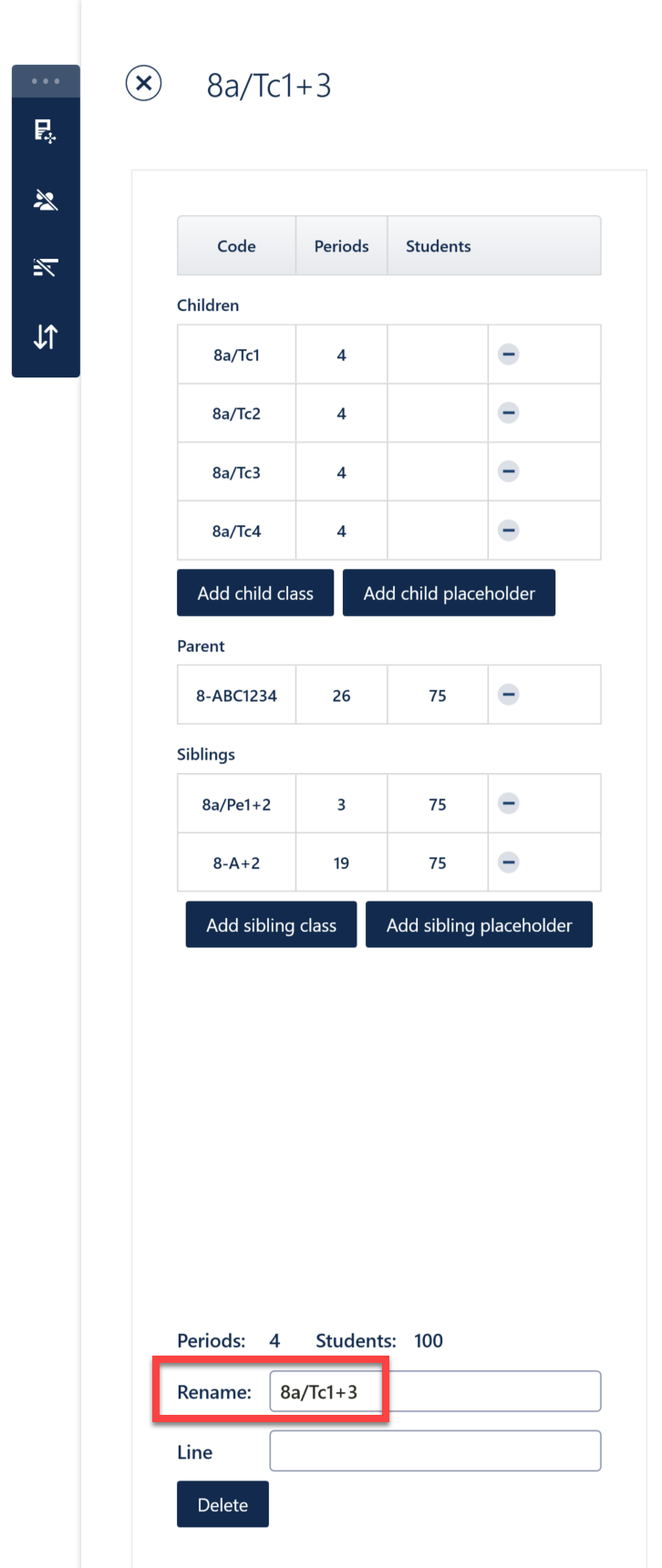
Selecting hidden labels shows all Curriculum Plan labels, which can be edited using the Slide-in menu. These labels are only synced through to SIMS and don't transfer to other MIS systems, but they can be useful for visualisation.
- Full class code
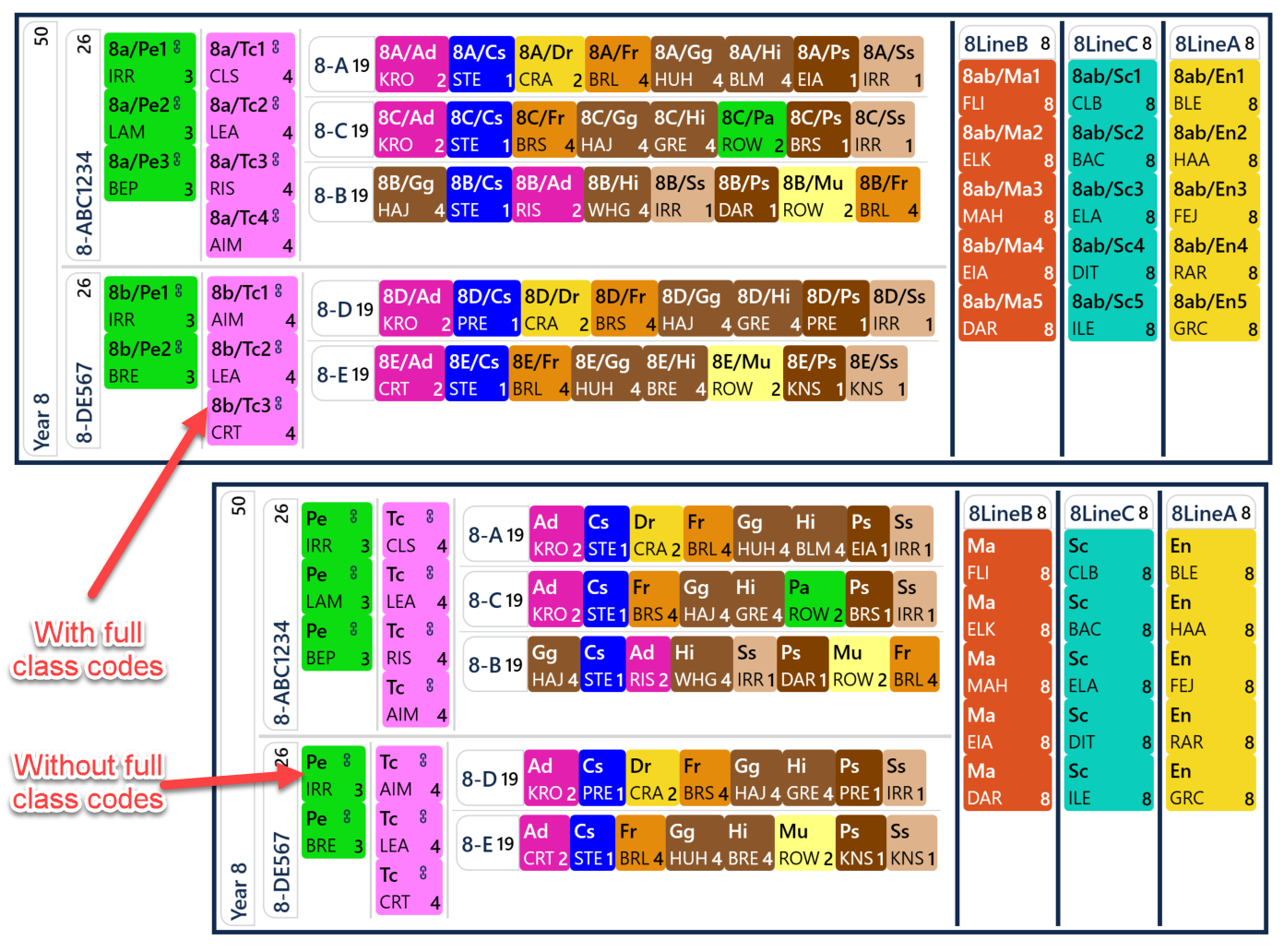
Selecting full class code will show the entire class code, rather than just the subject code, for each class
- Subclasses
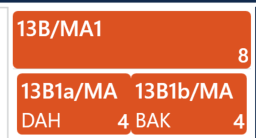
Selecting subclasses will display any subclasses that have been created in Classes>Class Data. For example, split classes between two staff - the parent class will show and the subclasses will show beneath this with the staff attached. If it isn't selected, only the parent class will show.
- Teacher codes
Selecting teacher codes will display teacher codes beneath the class code/subject code for each class that is staffed. Untick to stop displaying these
- View Periods/Students/Neither
You can control which number is displayed in the bottom right corner of the class blocks - the number of periods, the number of students in the class (if you use Student Data/Class List Manager) or you can get rid of the number entirely if you select neither
- Slide-in menu
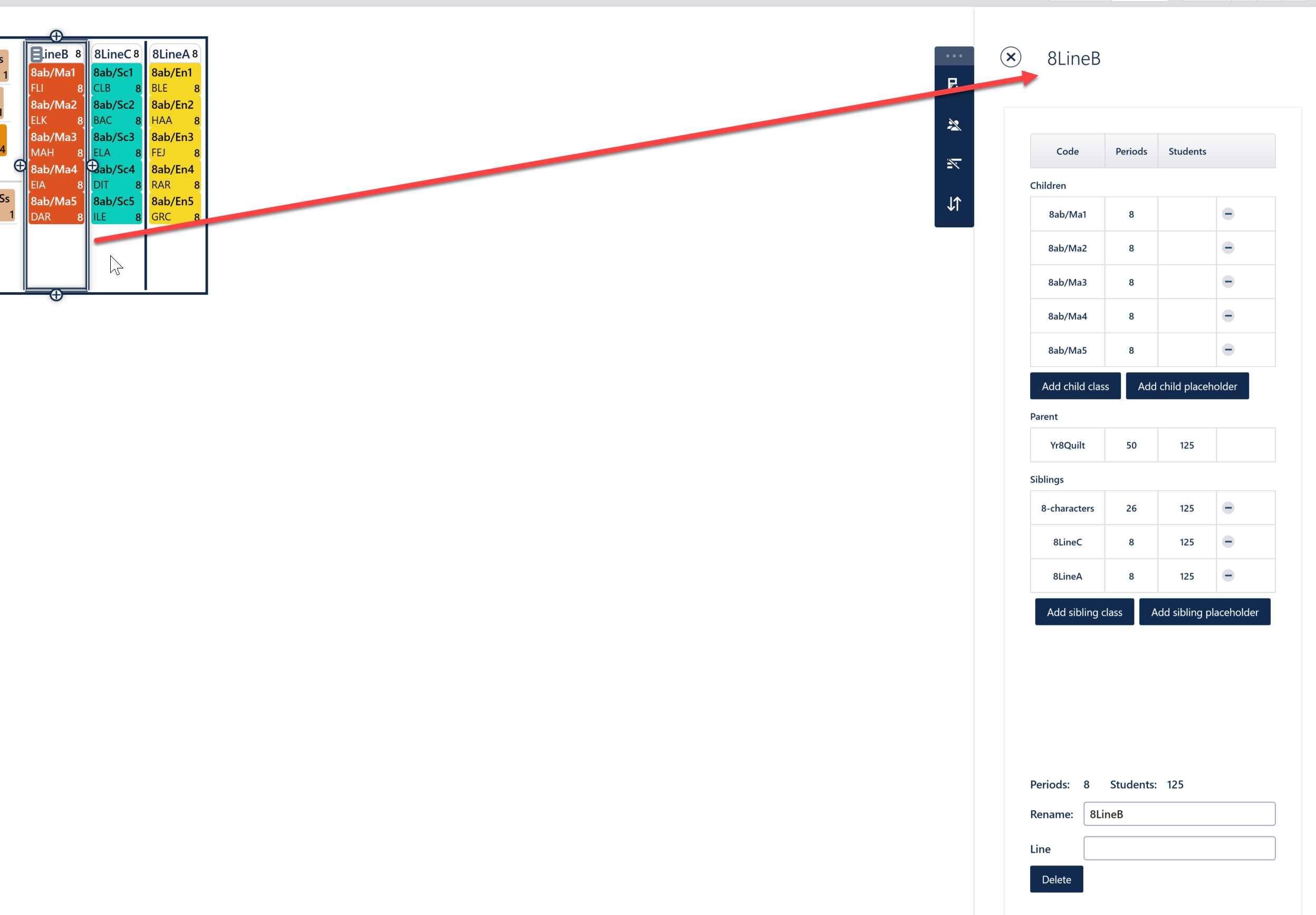
When selected, if you click on a class or block, the menu slides in from the right. It displays the class or block selected and related classes (parent/child/sibling classes) and allows you to delete or add in new classes. You can also edit the label for the block of classes, as well as the Line/Group label which would show in the Master Grid if displaying Lines/Groups.
- Separator tool
When selected, the tool allows you to create spaces in your curriculum plan by clicking, dragging the dotted line and releasing the mouse. For a demonstration of the use of this tool, please see the video in the D1 training module
- Auto-simplify
When selected, the structure is simplified after each drag/drop. Note that without it, the structure might look untidy and sometimes illogical, particularly after long operations. This feature is enabled by default and we recommend you leave it enabled.
Action bar tabs
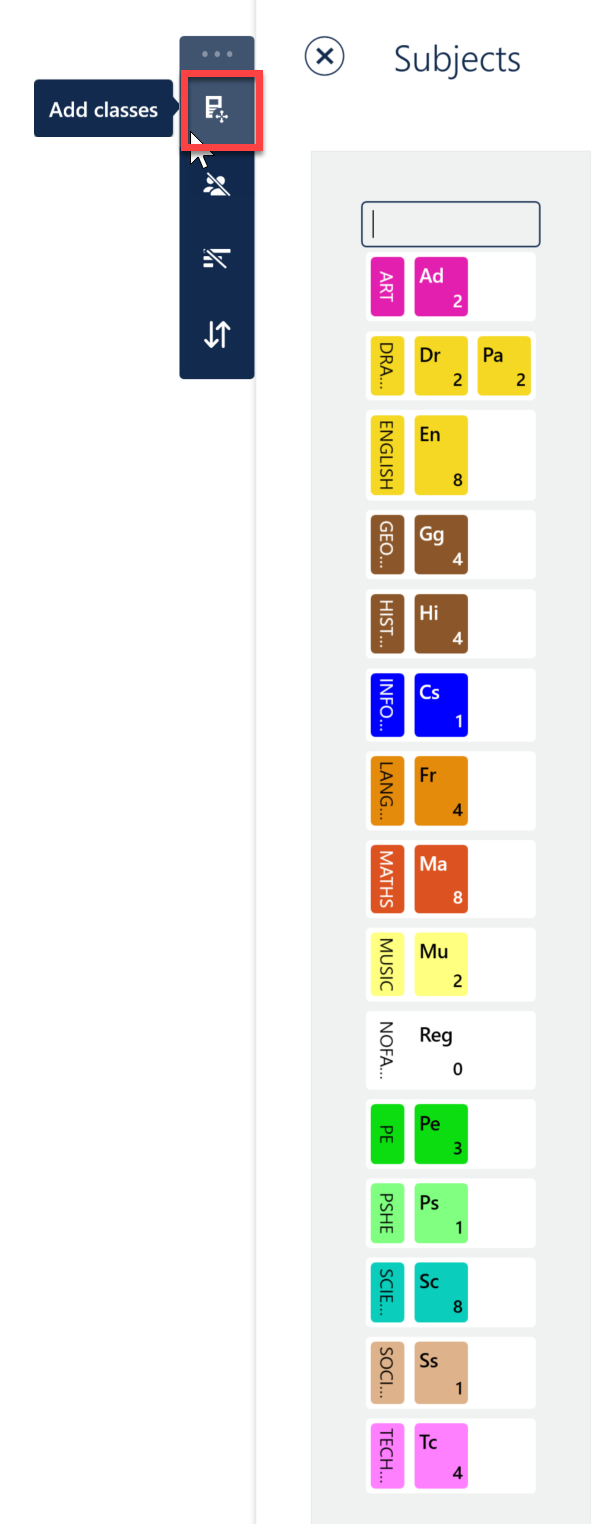
- Add classes
New classes can be added directly to the Curriculum plan by dragging and dropping the correct subject icon. The number of periods and/or other attributes can then be amended by visiting the Class Data screen.
- Clear all student body group entries
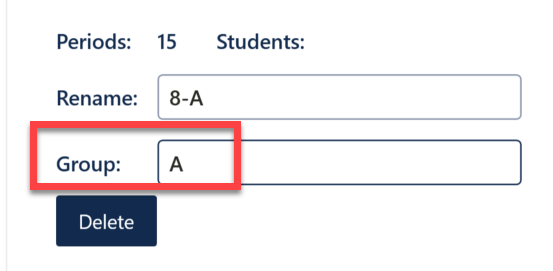
Remove any Group Labels which have previously been entered on the Curriculum Plan via the slide-in menu
- Clear all line entries
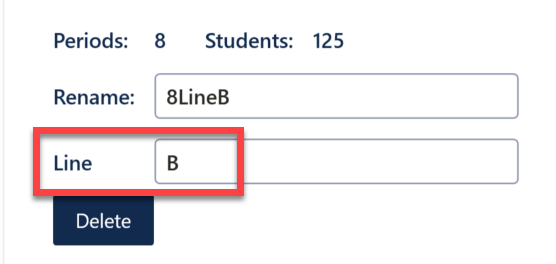
Remove any Line Labels which have previously been entered on the Curriculum Plan via the slide-in menu.
- Sort all classes
A single click sorts all the blocks and classes on the Curriculum Plan alphabetically to provide a more consistent, user friendly view.
Was this article helpful?
That’s Great!
Thank you for your feedback
Sorry! We couldn't be helpful
Thank you for your feedback
Feedback sent
We appreciate your effort and will try to fix the article