Edval–SIMS Integration: Using a Derived Year
Derived years allow a single class to include students from multiple year groups. In E10, classes in different year levels can be vertically linked to run in the same timetable period and share rooms and teachers. In SIMS, however, they remain separate classes, so a teacher would need to complete multiple registers.
A derived year enables students from two or more-year groups to be placed in a single class with one register.
This approach can be used for:
- A shared class for students retaking Maths or English in the 6th Form
- Vertical tutor groups that need to appear on the timetable, rather than AM and PM sessions managed through the SIMS pastoral structure
- Enrichment classes organised by key stage or across the whole school
- PE lessons shared across year levels
Preparation
Go to Setup > Year Levels.
Create a new year named DERIVED, using this exact spelling and capitalisation.
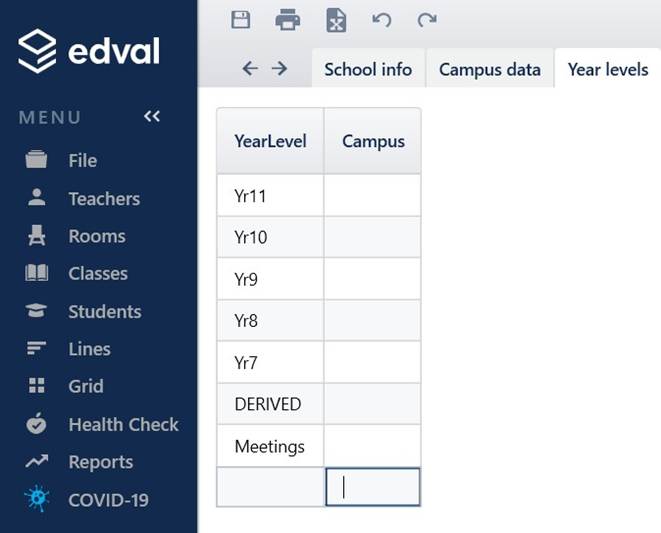
In Class Data for the DERIVED year level, enter the required classes.
Note that there can be only one DERIVED year level, and all derived classes must be created within it. However, a DERIVED year can contain multiple classes/blocks.
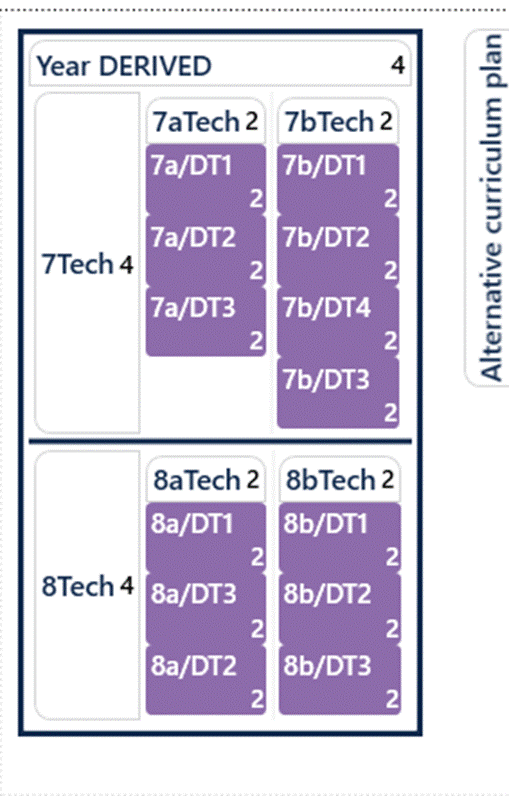
In summary, use Class Data to define the classes as you need them.
You will then need to link these classes to the appropriate Curriculum Plan using the Vertical Link facility on the Curriculum Plan page.
Please remember that classes in DERIVED year can be linked across multiple years (Vertical Tutor Groups/Enrichment Classes). To display multiple Curriculum Plans use the Filter Menu and check the appropriate boxes.
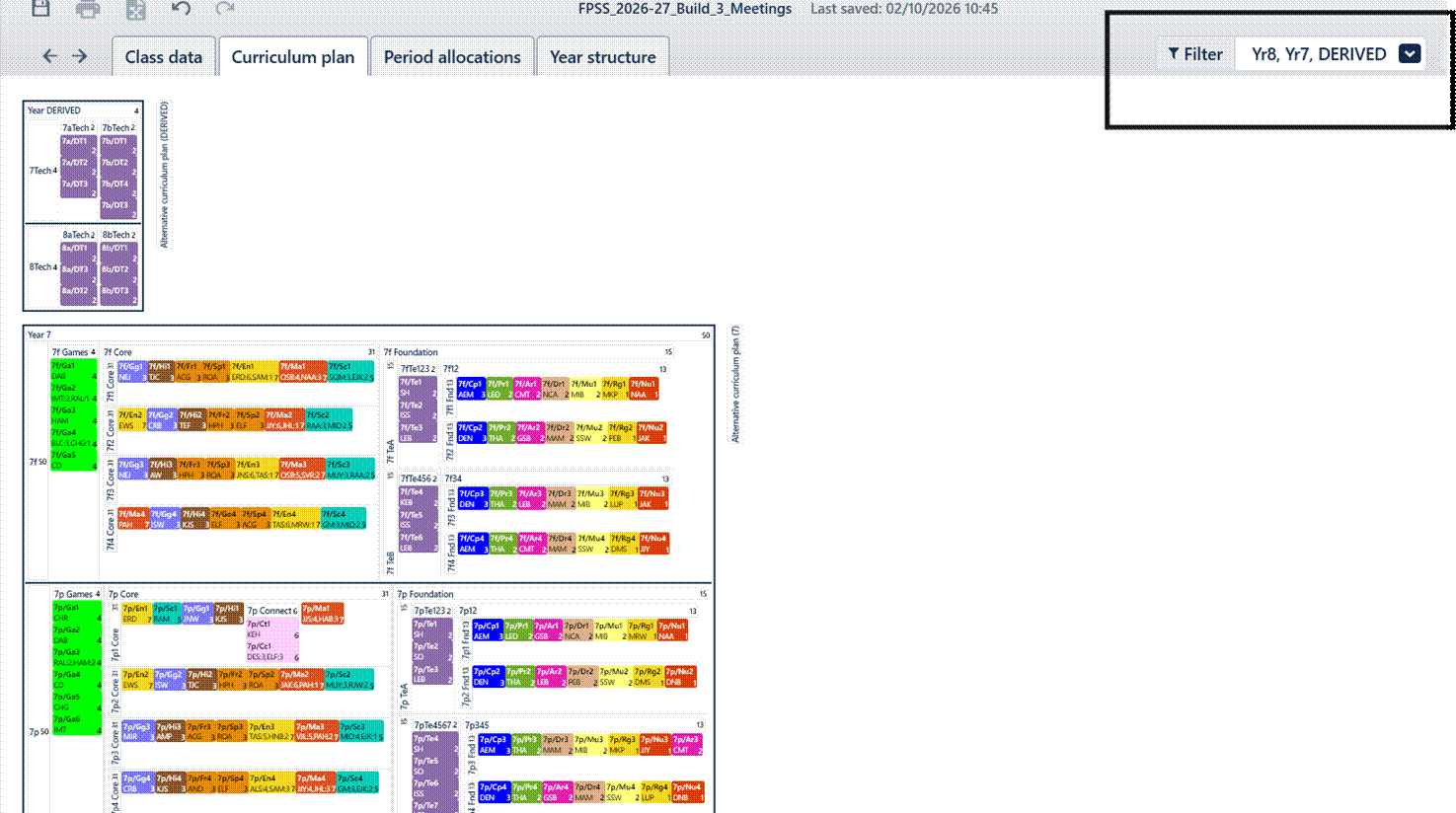
The following sections provide worked examples.
A) Setting Up Vertical Tutor Groups
Note: This guidance also applies to other classes that do not form part of the main curriculum, such as after-school enrichment classes.
This example uses a two-week timetable with an AM registration period and a PM registration period held during Period 5.
In this example, students in Years 12 and 13 share registration periods.
In the DERIVED year, create the tutor-group classes. In this example, they take place during the Reg period. For the two-week timetable, create the 6th Form classes as offline classes, set #Per to 0+10(0), and assign them to the designated “Reg” period. Some schools use Period 3 for tutor time, but this example does not.
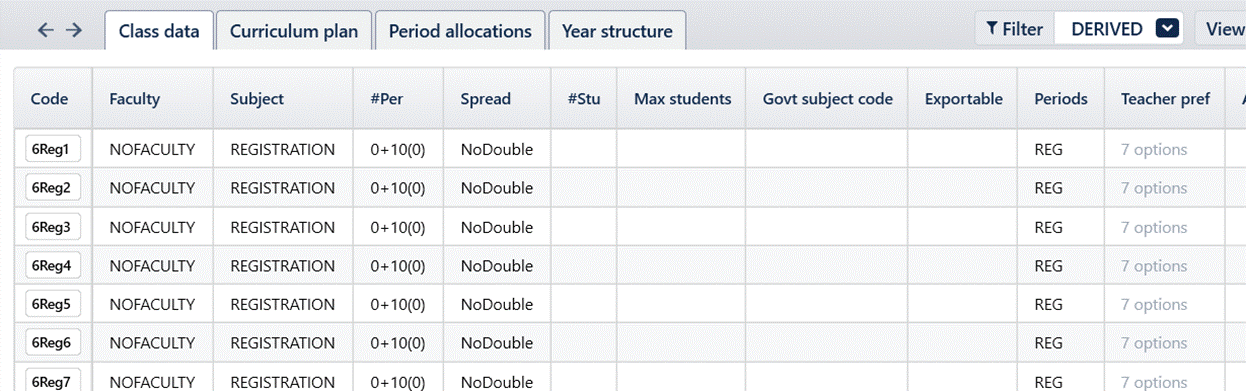
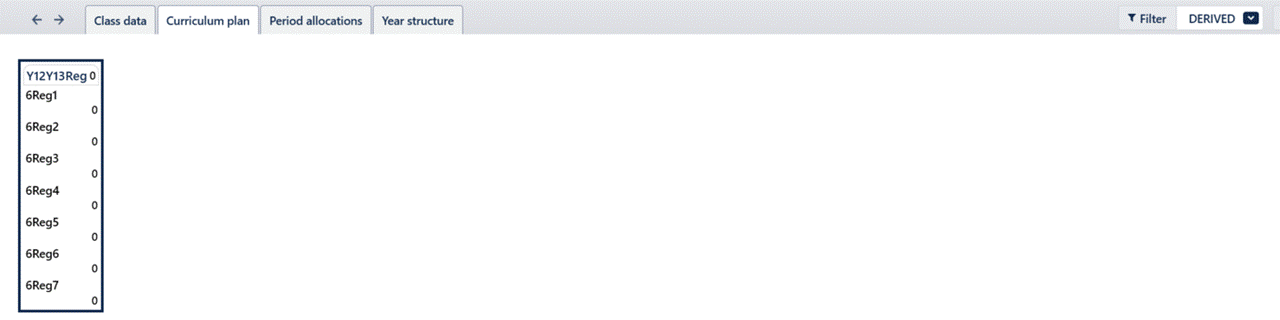
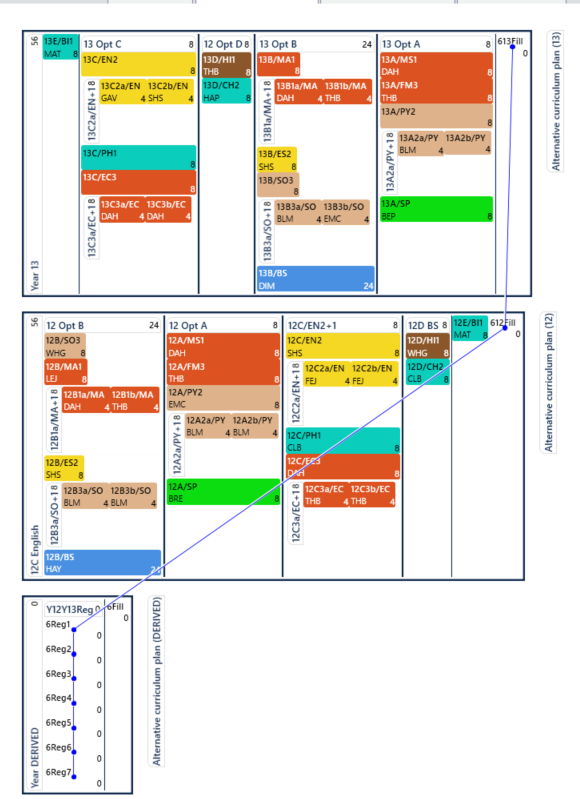
Drag the classes into the Curriculum Plan, where they should appear as a vertical block.
Next, link these classes to the relevant year levels by using filler classes that are not exported.
Add a filler class to Years 12 and 13—612Fill and 613Fill respectively—and add another filler class, 6Fill, to the DERIVED year.



Note that the additional filler in the DERIVED year level is mandatory. It is not exported, but it ensures that the Curriculum Plan labelling exports correctly to SIMS.In the Curriculum Plan, drag this filler onto the plan as shown.
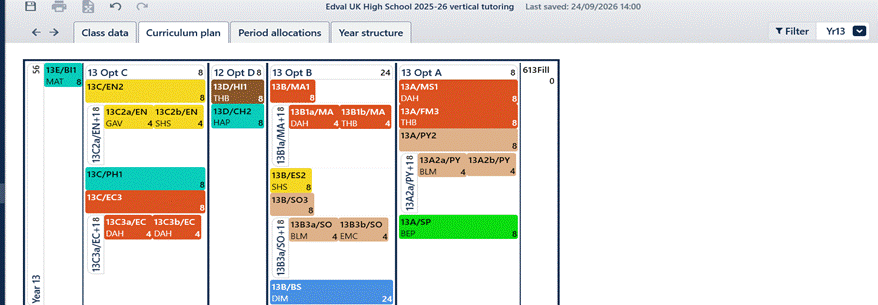
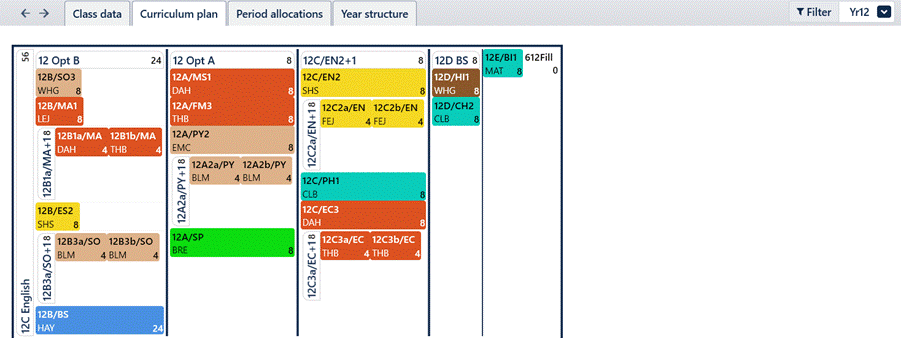

Link the 6th Form filler classes and tutor groups using a vertical link.
Right-click 613Fill and select Vertical Link. Select 613Fill, 612Fill and the seven registration groups in the DERIVED year level, then click the return button to create the links.
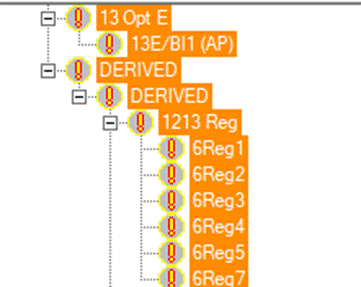
 After synchronisation, the merged curriculum wizard will display the following information for Year 13.
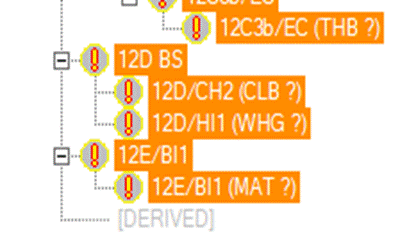
The Year 12 section will display the following information.
B) Setting Up Curriculum Classes in a Derived Year
As noted above, a derived year is not always necessary because SIMS allows students to be added to classes in another year level. However, this approach may be required in some circumstances.
Classes in the DERIVED year take the place of the corresponding classes in the other year levels.
In this example, enter the shared Year 7 and Year 8 PSE classes in Class Data for the DERIVED year.
The DERIVED year will then contain two sets of activities: the 6th Form registration classes and the shared PSE classes.
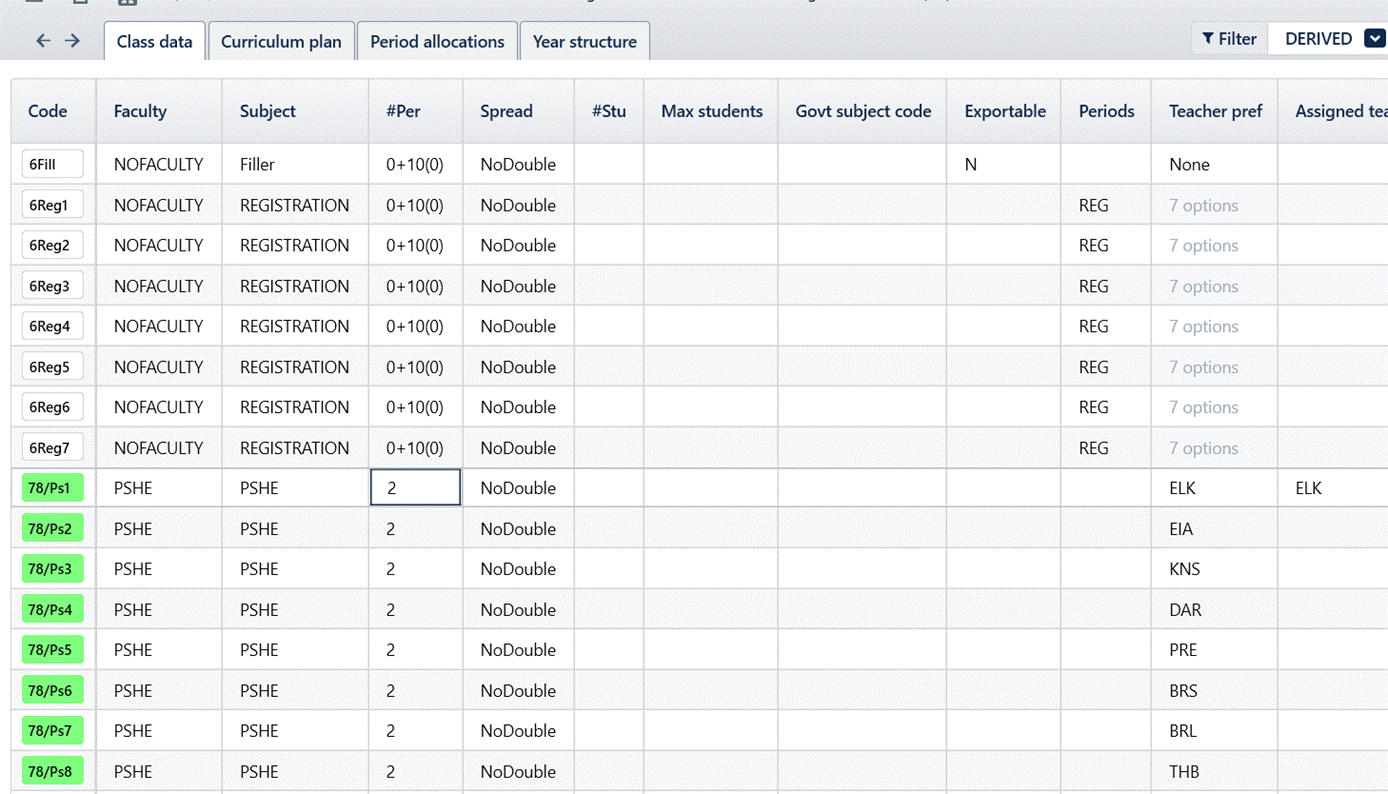
In both Year 7 and Year 8, create a filler class with the same number of periods as the shared class—in this case, two periods.



Add the filler class to the Curriculum Plan for Year 7, Year 8 and the DERIVED year.
Place the DFill class at the top of the 78PS line. This is the filler class that will be linked.
Link these classes so that they are scheduled at the same time. Ensure that the Curriculum Plans for all three years are visible. Select a class in the DERIVED year, or right-click it and choose Vertical Link. Then select the two filler classes and press Enter. A blue line will appear, indicating that the classes are linked. Always create the link from the DERIVED year to the other year levels.
If you encounter an unexpected issue during synchronisation, take a screenshot, cancel the process and contact edval-support@tes.com for advice before proceeding.
After synchronisation, ensure that you save your Edval file.
In SIMS the derived year is linked to ALL years and you need to specify which students are to be enabled in the DERIVED band
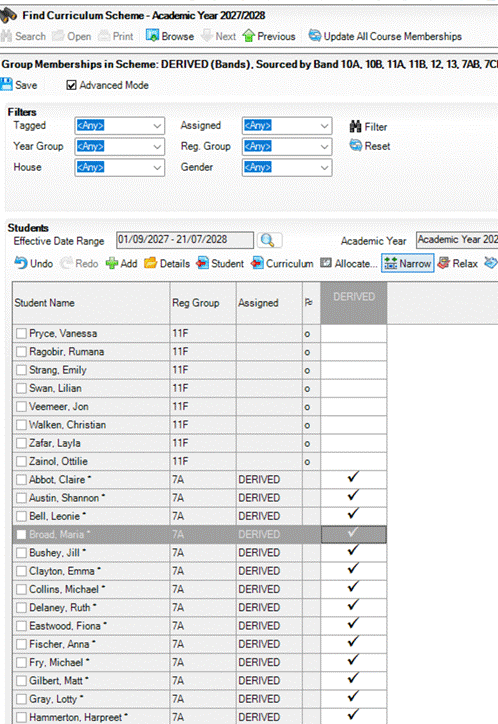
In each curriculum year you will see the following
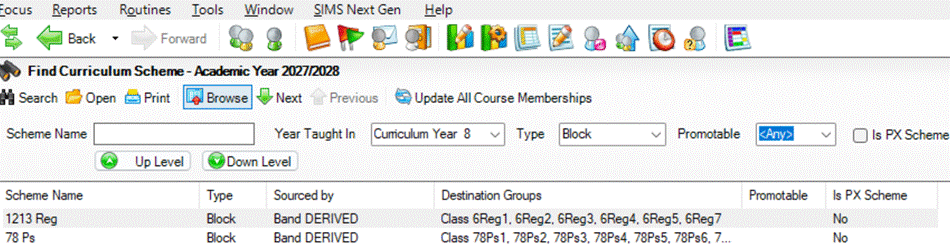
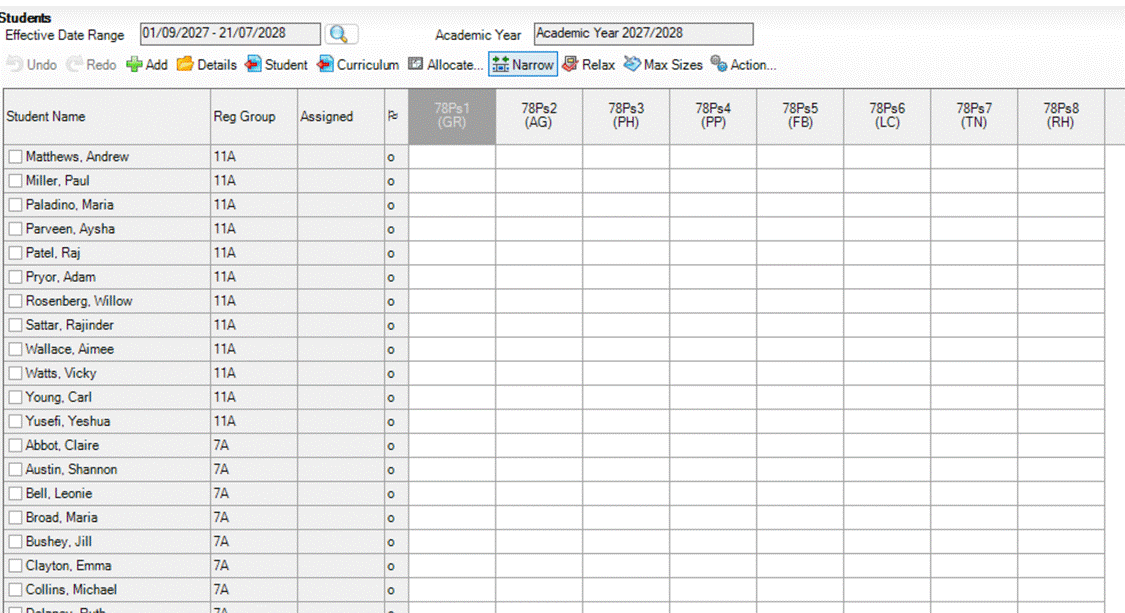
All members for the DERIVED Year Group be available for selection in all groups, so you can allocate any student to any class. So the naming of the classes is very important.
Sept 2026
Was this article helpful?
That’s Great!
Thank you for your feedback
Sorry! We couldn't be helpful
Thank you for your feedback
Feedback sent
We appreciate your effort and will try to fix the article