
Edval – Sims Integration : Setting up Alternative Curriculum classes
Option 1 – Create Alternative Curriculum classes in existing Year Levels
Classes where the same cohort of students will attend all lessons can be created in an existing year level. For example, to create a withdrawal class for 2 students to be withdrawn from a science lesson each week.
Create a class as normal in Classes > Class data

Typically this will be an offline class which is added after the scheduling on the master grid has already been completed. The #per column should be, for example, 0+4 if you want the class to count towards the teacher load or 0+4(0) if the class should not count.
Ensure the class has a UK level (for example KStg3 or Gen) and an Official course matching a code already existing in your sims database.
The class will appear in the Alternative Curriculum section of the Curriculum Plan
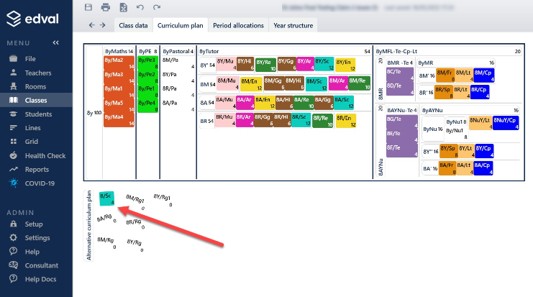
Ensure the class has been scheduled using one of the following methods:
- Hard coding the class to specific periods in the period column in Classes > Class data (as shown in the first screenshot)
- Visiting the teacher timetable(s) and dragging the lessons onto the correct pariods.
Note that this class will not show on the Master Grid as it is an offline class.
Option 2 – Creating an Alternative Curriculum Year
This method can be used for any type of Alternative Curriculum Class (including the example given previously for Option 1). It must be used for any class where students will dip in and out for different lessons across the week. This could be, for example, be for a withdrawal room which different students are timetabled to visit during different periods.
Preparation
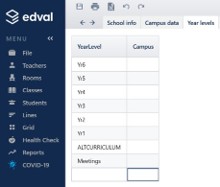
Go to Setup > Year Levels
Create a new year called ALTCURRICULUM (please ensure you use this exact name, UPPERCASAE)
Creating the class
Go to Classes > Class data
Select the ALTCURRICULUM year from the drop-down menu in the top right corner Create a new class with maximum classcode length of 3 characters
Complete the relevant period, spread, teacher and room columns and give the class a level eg. Gen and a Sims subject code (matching a code already existing in your sims database)

In Classes > Curriculum plan the class must remain in the alternative curriculum section
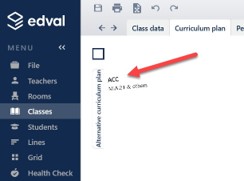
Note that if you are creating this class midway through the academic year you must ensure it has a unique name and not one which has previously been used this academic year, otherwise it will be rejected by sims.
Scheduling the class
Ensure the class has been scheduled using one of the following methods:
- Hard coding the class to specific periods in the period column in Classes > Class data
- Visiting the teacher timetable(s) and dragging the lessons onto the correct periods
- Adding the class on the master grid
Syncing the timetable including the new Alternative Curriculum Class
Before attempting the sync to sims go to Health Check > Syncs and ensure that no errors have been detected which will prevent the sync.
Go to File > Synchronise > Sync now to sync your timetable to sims in the usual way (if you have not previously synced your file to sims please read the document Edval – Sims Integration : Syncing your Timetable)
The first time you sync the timetable the new alternative curriculum class you have created should generate multiple new entries in the curriculum matching wizard, one new class for each period upon which it has been scheduled.
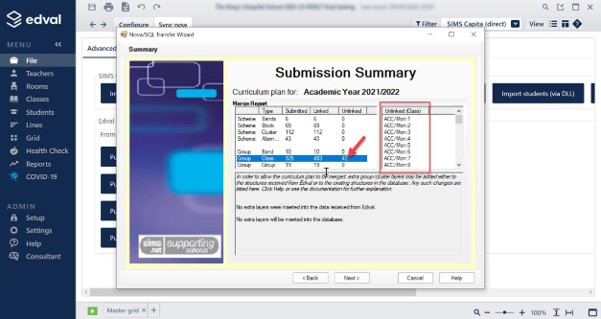
These will appear as new unmatched items in each of the subsequent wizard screens. If you see anything unexpected at this stage please take a screen shot, cancel the sync and contact
edval-support@tes.com so that we can provide further advice before you proceed.
After syncing please ensure you save your edval file.
Checking the Sync
Following the sync we recommend checking teacher timetables in sims (Reports> Timetables > Staff Timetables) to ensure the alternative curriculum classes are appearing as intended. Note that the classcode will be appended by the day and period.
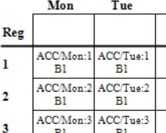
You can now add students to the new alternative curriculum class in sims in the usual way.
Amendments
Once an alternative curriculum class has been synced from edval to sims, we do not recommend altering its classcode in edval as this may require you to reallocate students to the classes in sims after syncing again. Changing teachers/rooms should not cause any problems.
Example
In the class data for the Year Level ALTCURICULUM
A class has been created for an intervention class running for all periods

When it is synched the merge curriculum has the following
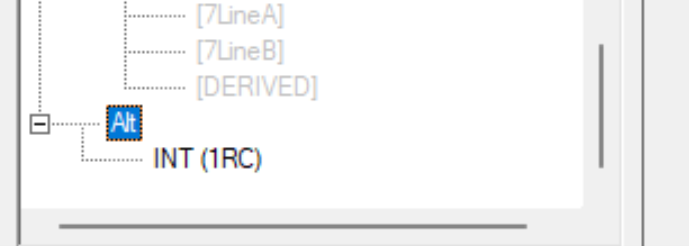
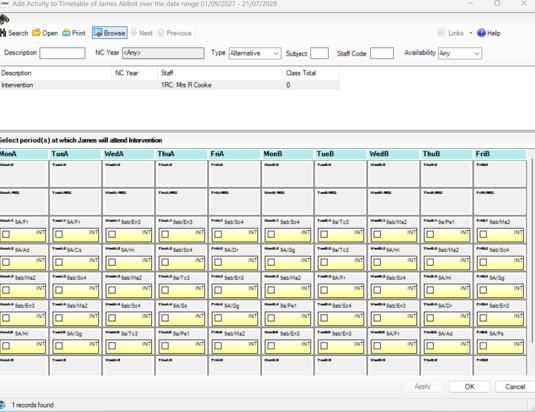
In SIMS you would go to a individual student curriculum for a student and click the Add Activity
In this example there is only one Activity. Click the search button, at present there are no pupils assigned. Just put ticks in the boxes and they will be removed from their normal class and put in the intervention class.
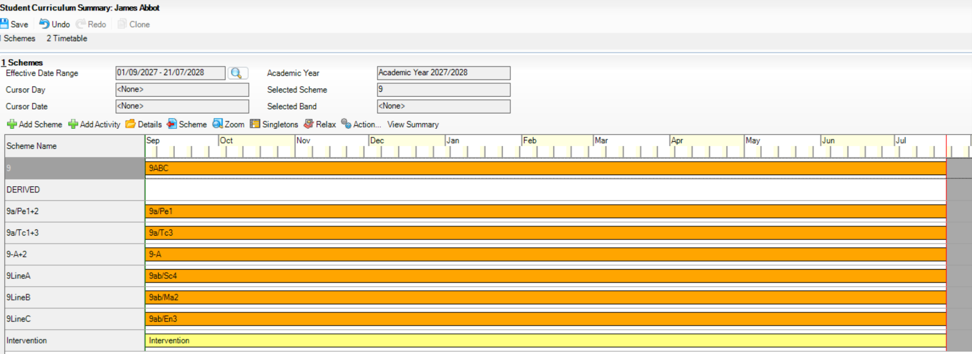
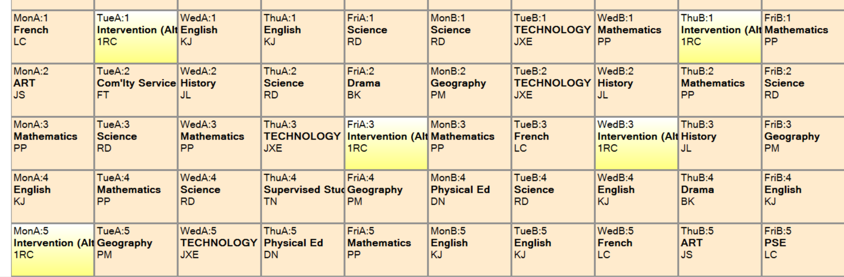
The student’s timetable would be, if you need further assistance please with this functionality in SIMS please contact your SIMS support team.
Oct 2026
Was this article helpful?
That’s Great!
Thank you for your feedback
Sorry! We couldn't be helpful
Thank you for your feedback
Feedback sent
We appreciate your effort and will try to fix the article