
Edval – SIMS Integration : Setting up Registration Classes
Currently there are several approaches to sessions registration adopted by schools.
- The AM and PM sessions registers are linked to the first and last periods in the day. In this case this is set up in Lesson Monitor Settings and no action required in E10.
- The school does an AM session register, and the PM Session is linked to the afternoon period. There are two main modes of dealing with this in E10.
- The use of a NCC codes for enabling the sessions in SIMS to be covered, follow Method 1 below.
- The use of actual teaching classes for the registration periods, this will create class groups for student memberships. They will be visible on the timetable, and lesson monitor needs to setup to map to these periods, follow Method 2 below.
- If the school uses vertical pastoral groups, please refer to the guidance of setting up a DERIVED year level.
If you are unsure which method is relevant for your setting please contact us for advice. You can also speak to your sims support unit.
Method 1 – Registration as a Non-Class Code
Note: this method does not allow for student memberships. No registers will be created and the ‘classes’ will not sync to 3rd Party Apps. The ‘classes’ will not show in the matching wizard when syncing to SIMS and will not show on Student Timetables.
Historically most schools use the pastoral system in sims to set up am and pm registration sessions.
This generates registers which then record attendance. The timetabler then creates a separate meeting (a non-class code) to produce an entry in the teacher timetable which then flags the need for a registration cover if the teacher is absent.
The number of registration periods and number of weeks in the Grid will determine the number of periods to be used. If the school has Reg periods at the start and end of the day that would be 10 periods.
Most schools are now have a single registration period in the morning and lesson registration in a two week timetable that would be 10 periods.
To use this method set up your registration classes in Classes > Class Data. This can either be done in the Meetings year or in each individual year group. Ensure the period column indicates that they are offline periods eg. 0+5(0) or 0+10(0) depending on the number of periods.
If you have entered these in the meetings year, then they will automatically be converted to non-class codes.
If they are in the class data linked to a year level, then you need to enter “Ncc” in the UKLevel column.

Registration periods are usually Orange in Settings > Grid Structure. SIMS will treat this as a nonteaching period.
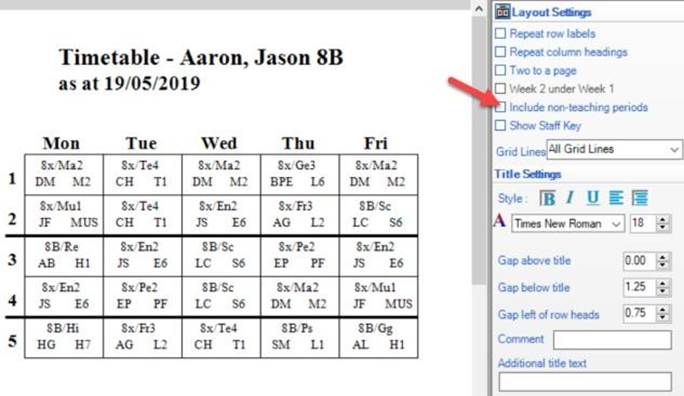
If you need to schedule any teaching activities such as intervention groups during registration periods, then on the Period Grid change ensure the reg period is white as in a teaching period.
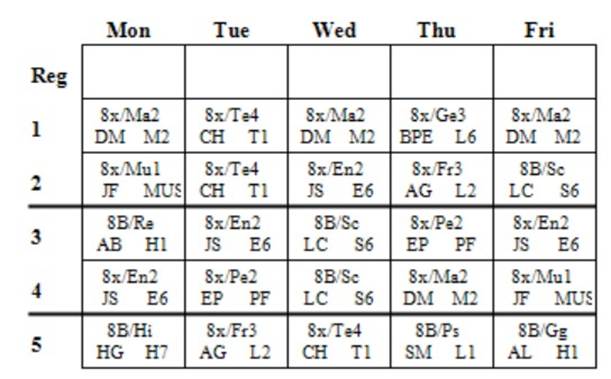
Note that although the registration period can be seen in SIMS, individual daily registration sessions do not appear on student timetables using this method (regardless of the colour of the period). If you need registration “lessons” to appear on student timetables, then you should use Method 2.
You can change the colour of a period in Edval in Setup > Grid structure after constructing the timetable without any issue. If you have already published the timetable to SIMS: you will need to republish the period grid and then the timetable.
Note: Publishing the period grid again should be avoided once the academic year has started.
If you choose Method 1 then registration periods will show on teacher timetables as Non-class codes. Where the reg group is shared between more than one teacher due to part-time staff etc: it is necessary to set up two separate entries in Classes > Class data (one for each teacher).
Note: This method will never create individual daily registration lessons on student timetable. Schools who sync their timetables to third party software and require registration periods to be included should NOT use this method.
Method 2 – Registration as a Lesson – in single year level
This method creates an individual lesson on student timetables for every daily registration session.
To use this method, create an ordinary lesson called registration (or similar) just as you would set up any other curriculum subject.
Registration periods should be yellow in Settings > Grid Structure
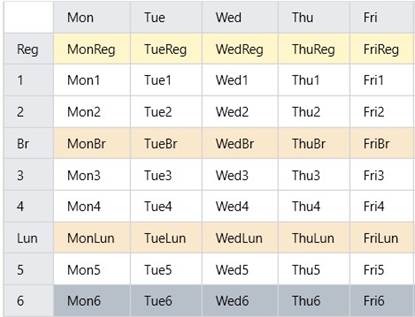
Registration lessons should be set up in the class data screen for each individual year group.
Ensure they are not placed in the meetings year.
Depending on the number of the periods are set as eg. 0+5(0) to prevent them counting towards teacher loads.
The UKlevel is usually “Gen” and the Official Course code needs to match the one you have already set up in SIMS. Typically this might be Rg for “Registration” or Ft for “Form Time” but it’s important to check your own sims database for the correct code.
It is important that the UKLevel is NOT set as Ncc, as this will prevent the classes from appearing in the Matching Wizard when syncing to SIMS and the classes will not show in the Curriculum Assignment screens in SIMS

Whilst the timetable is being constructed, registration classes usually reside in the alternative curriculum section. After constructing the timetable we recommend dragging these classes onto the curriculum plan prior to syncing as this will ensure they appear in the correct year structure in sims and make it easier to populate them with students.
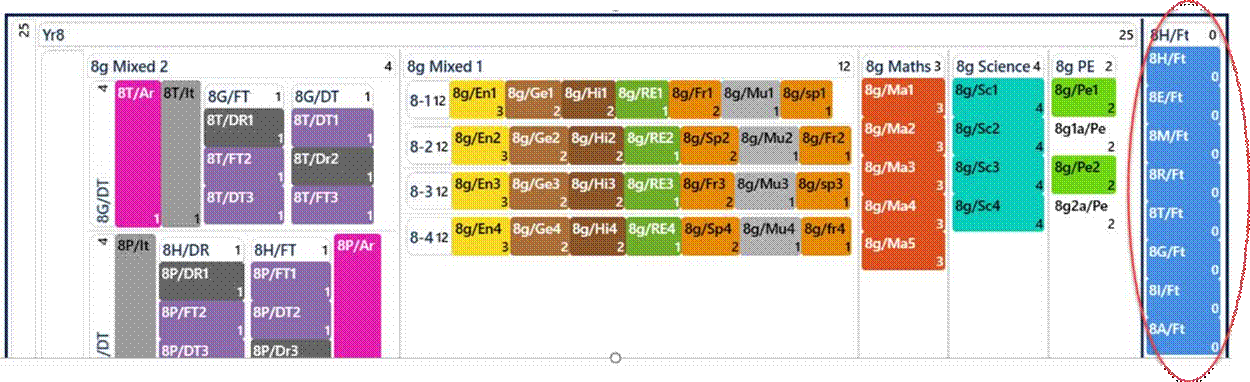
Note: Please ensure you follow sims guidance for Lesson Monitor Setup after syncing your timetable.
September 2026
Was this article helpful?
That’s Great!
Thank you for your feedback
Sorry! We couldn't be helpful
Thank you for your feedback
Feedback sent
We appreciate your effort and will try to fix the article