TABLE OF CONTENTS
- Setting up teacher loads
- Setting up unavailabilities
- Displaying Part-time load on Timetables
- Advice to Part-time staff in regards to contracts
Preamble
Part-time staff pose some challenges for schools. This is the best practice to enter part-time staff in E10.
Setting up teacher loads
When coding part-time staff in E10, a Full-time Equivalent (FTE) should reflect their proportionate part-time load. E10 will then calculate their MaxLoad by reading the Fulltime load per cycle from Setup > School info.
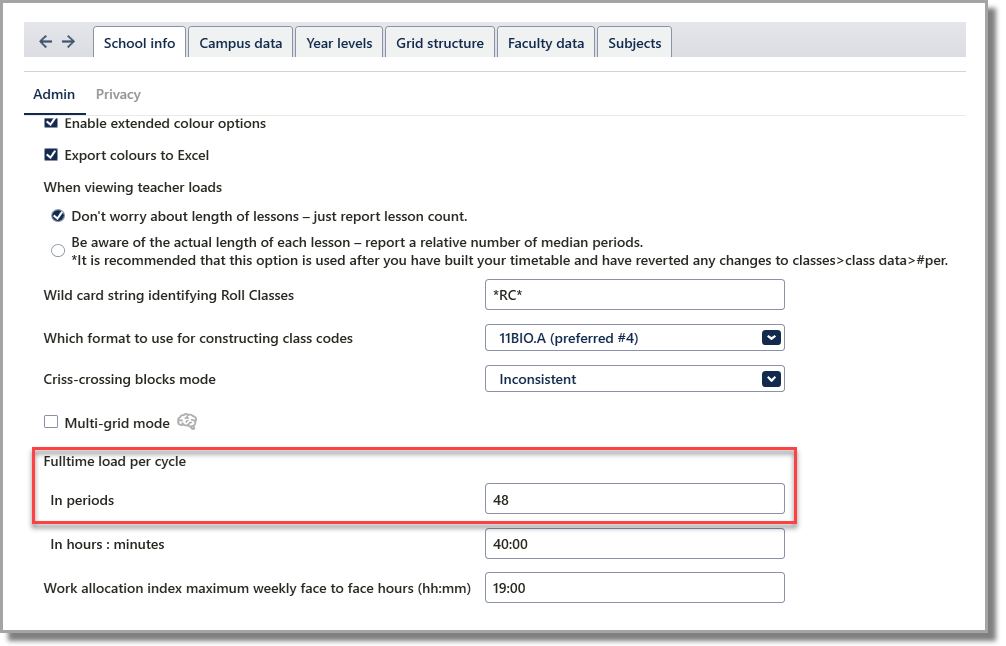
The Work allocation index maximum weekly face to face hours is used for the Victorian work allocation index report (originally called the 480 report).
More details on the Work Allocation Index report here: E10 - Reports: Teachers: Work Allocation Index (VICTORIA)To enter a teacher's FTE, ensure that FTE is selected from the View menu in Teachers > Teacher data (F2).
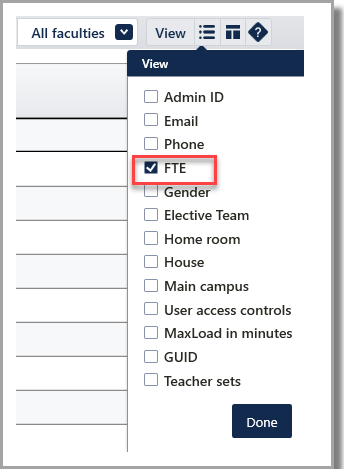
FTE and MaxLoad are dynamically linked, although not to the Unavailability cell. Unavailability is set in the Flexible Work tab, as explained below.
Setting up unavailabilities
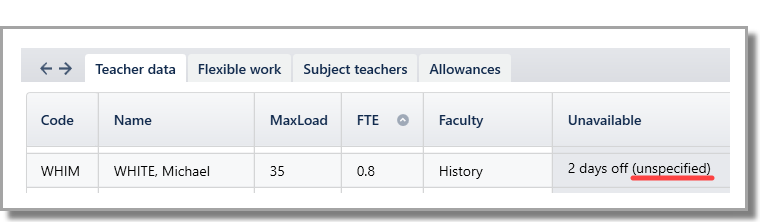
A teacher’s unavailable times are entered in the Flexible Work tab. This is accessed by double-clicking the Unavailable cell in the Teacher Data (F2) screen.
There are two options to define a teachers unavailabilities: 'non-specific' days off and specific time off. 'Non-specific' days off is far more flexible, allowing the program to dictate the best days off for each teacher. It is highly recommended to only specify fixed days off if necessary, such as pre-arranged external activities like childcare, other work or training, etc.
Non-specific unavailable times
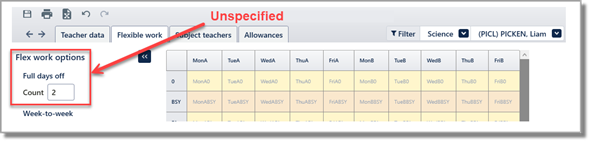
Enter the number of Full days off and/or Half days off across the cycle that the teacher needs. E10 will find the best days/half days off for this teacher during construction. You can choose to set part-timer's days off at any stage during the construction process in Grid > Master grid (F11) > action bar: Staffing . Once allocated, these full days or half days off will appear shaded lavender on the Flexible work screen. Non-specific days off can be cleared in the Master grid and reassigned as needed.
More details on how to set up half days here: E10 - ADMIN Setup: Grid StructurePreferred unavailable times
Right-click to set a preferred period off or drag to highlight multiple periods. Grey highlight indicates preferred unavailability in that period. E10 will try to keep this teacher free during these times, but has permission to ignore that request if it needs to.
More details on how to set part-timer days off here: E10 - Construct: Add classes methodSpecific unavailable times
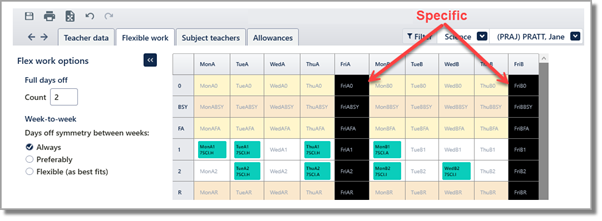
Single-click to toggle on/off a period or drag to highlight multiple periods. Black highlight indicates fixed unavailability. If for some reason this requirement is violated during construction, it will be flagged as a teacher clash.
TIP
When finalising your timetable, go to HealthCheck > Staffing > Part -timers dissatisfied to confirm that all part-timers with non-specific days off have been allocated their required unavailabilities.
Displaying Part-time load on Timetables
Loads can be viewed on a Teacher Timetable (F3) by selecting View > Staff loads.
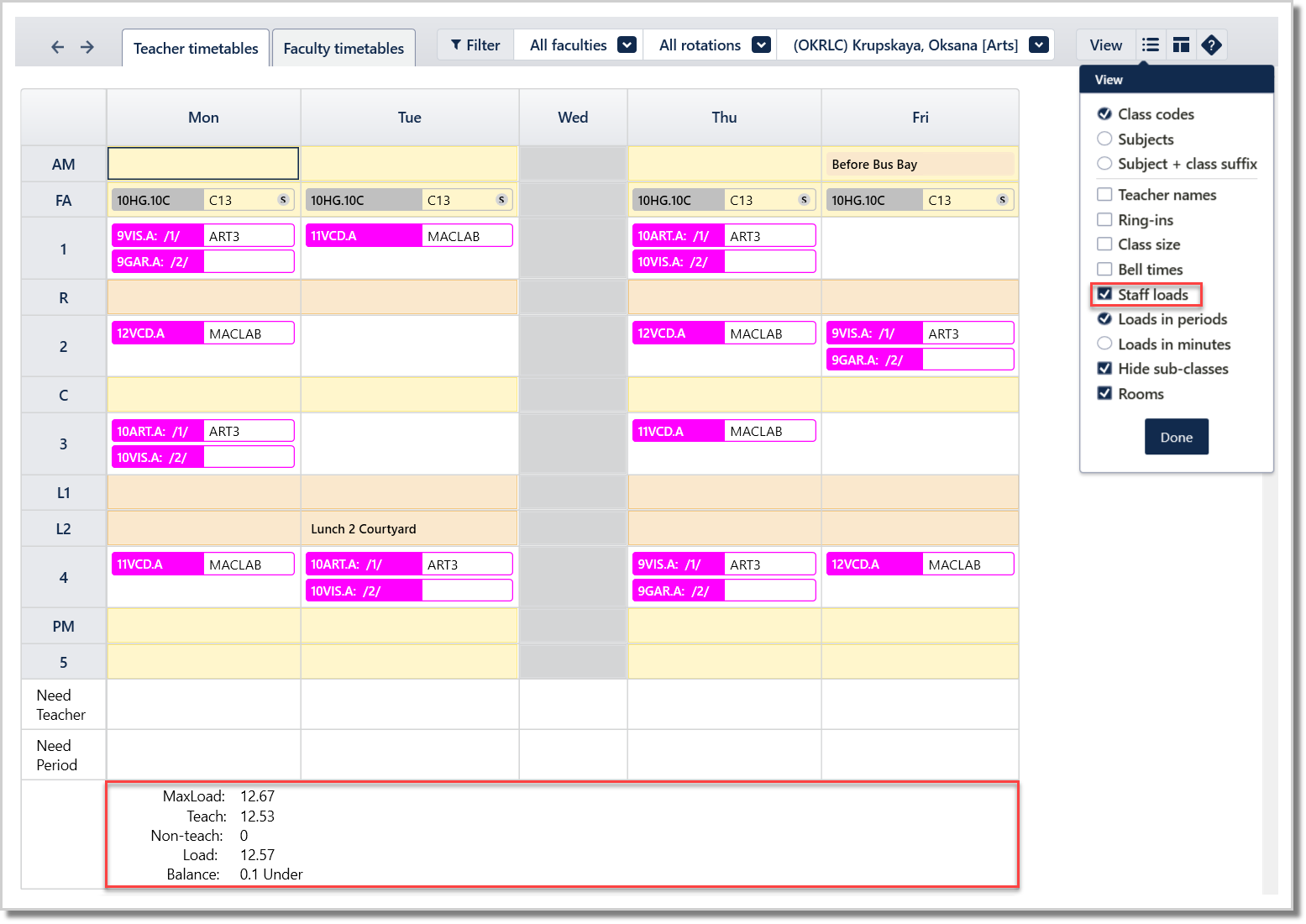
As seen below, some schools may want part-timers FTE displayed on their timetable.
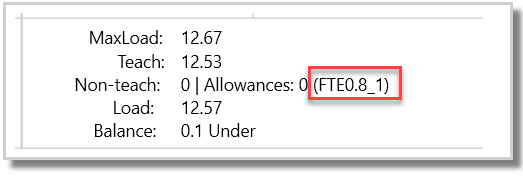
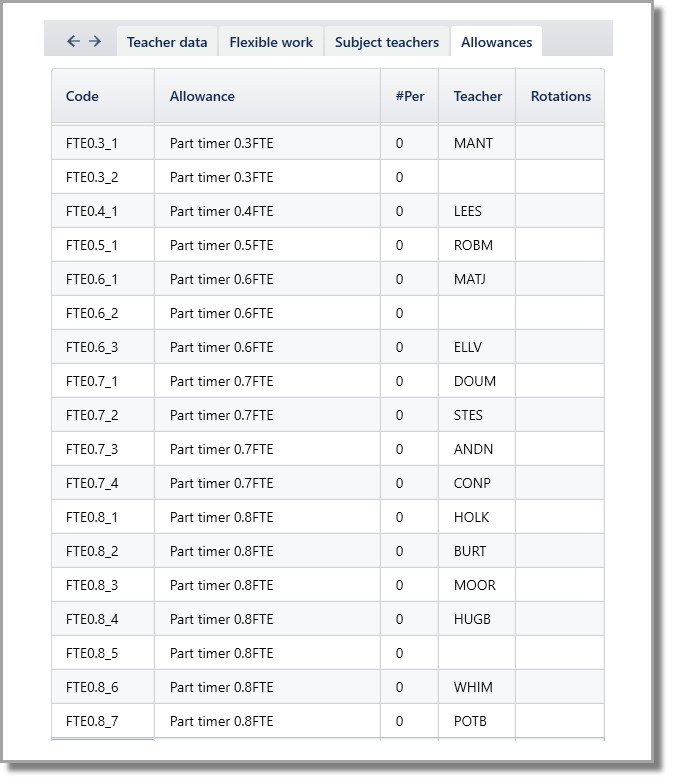
To achieve this, allowances will need to be created as these codes are displayed on the timetable. Below are the steps to achieve this:
- Navigate to Teachers > Allowances
- Enter a FTE Code. The suggested format is FTE0.8_1 (the number after the underscore is to ensure the codes are unique)
- #Per = 0
- Teacher = <Teacher CODE>
- Rotations = <Blank>
Advice to Part-time staff in regards to contracts
Lessen the impact of Part-time staff by:
- Discourage part-timers teaching senior classes, unless job sharing, or suitable for creative timetabling (splits/offline classes). Discuss the impact of this with Head Teachers, so they are aware of the implications.
- Minimise the use of hard-coded staff days off in your timetable. If teachers don’t have childcare commitments, they may be open to non-specific days off, which provides more flexibility when timetabling.
- Encourage job sharing, so that two part-timers may be timetabled as one full person, and lessen the impact on the class spread of lessons, particularly seniors.
- Utilise the 'Part-timer spreads' weight in Grid > Master grid (F11) construction, and the PT staffing tools during timetable construction.
- Discuss the teacher's requirement for day-off symmetry across weeks, and set the symmetry value accordingly in the Flexible Work screen.
Benefits of Part-time staff:
- Allow greater access to quality staff with differing skills than if all staff were full-time.
- They can be more flexible in scheduling in some ways, as they have far reduced loads, so their own classes don't clash much.
- Their 'Full-time equivalent' load (FTE) can be dynamically varied more easily in some cases, to match flexible needs from schools over time - such as going FTE from 0.6 to 0.8 if more load is needed in their area of speciality, where full-timers are always fixed.
- Provides an option to retain good teaching staff who may otherwise retire, if there is no other way to reduce from full-time.
- Allows flexible job share positions to be considered.
- Part-time staff are often able to come in and work on their day off as a casual. Flexible covering of absences, and by a teacher who is directly attached to the school and perhaps more qualified than taking casuals from 'the pool'.
Difficulties of Part-time staff:
- Part-timers require full days off. Full-time FTE 1.0 has no days off. An FTE 0.8 works 80% of the time and has 20% days off - usually one per week, and a day per week for each FTE 0.2 less. In some cases where it is especially difficult, part-timers may be allocated one morning and one afternoon off in lieu of a full day off, but this is far less desirable.
- Class spreads become more of a problem with part-time staff, especially classes with few doubles or a lot of periods, as this causes conflict. The class will always need to have lessons on the part-timers' day off - or else the class needs to be split or run offline on some days.
Was this article helpful?
That’s Great!
Thank you for your feedback
Sorry! We couldn't be helpful
Thank you for your feedback
Feedback sent
We appreciate your effort and will try to fix the article