TABLE OF CONTENTS
Preamble
Most schools will use Timetable Choice to capture student preferences, but some schools use other methods, such as manual data entry or spreadsheet import. This document covers the process for importing student preferences via a spreadsheet.
The steps below assume an existing dataset is already set up to receive student preference data.
Step 1: Set up a spreadsheet
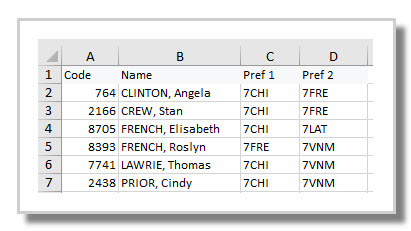
Set up an Excel/CSV spreadsheet for the elective data in the following format:
- include a header row
- one row per student, including their student code, name and preferences listed in preference order. The student name is not necessary for the import but may assist with data checking. Include a year level if importing into a multi-year dataset.
Step 2: Import preferences
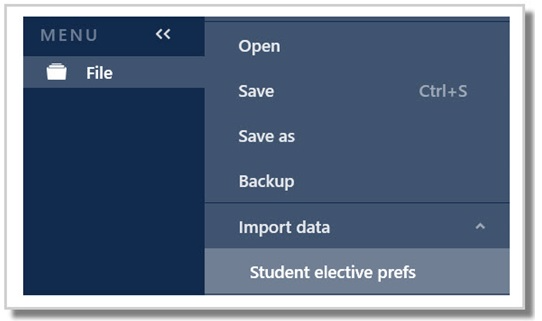
File > Import data > Student elective prefs
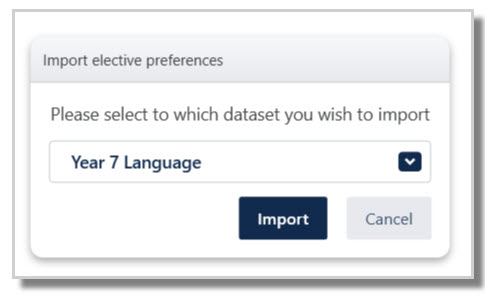
- Select the dataset that the student preferences are to be imported into
- Navigate to the location of the spreadsheet and select the file
- The system will do its best to match headings, but where the match is unclear or incorrect, simply drag and drop headers around to correctly match the data.
- Select Go.
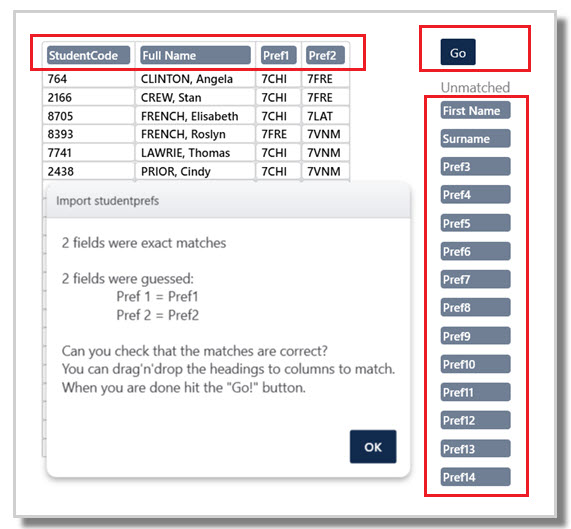
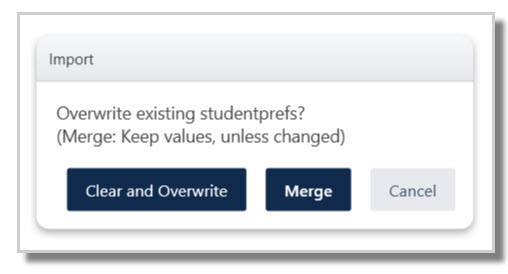
- Import options:Clear & Overwrite: This action will delete all existing preferences within the selected dataset and replace them with preference codes in the spreadsheet, as per the headings.Merge: New students and their preferences will be added, while any existing preferences for existing students will be altered to match the incoming data from the spreadsheet, as per the headings.Example using Merge in the spreadsheet import above:
If CLINTON, Angela currently has 7FRE as Pref1 in the etz file, then after the import 7FRE will change to 7CHI.
If CLINTON, Angela currently has Pref2 blank in the etz file, then after the import the blank entry will become 7FRE.
Step 3: Check Student preference data
Navigate to Lines > Elective data > Students to check the preference data is correct.

TIP: Create a copy of the .etz timetable file to practice importing student preferences until confident. Alternatively, save the file right before importing, check the data, and if it is faulty, simply File > Revert to saved file.
Was this article helpful?
That’s Great!
Thank you for your feedback
Sorry! We couldn't be helpful
Thank you for your feedback
Feedback sent
We appreciate your effort and will try to fix the article