TABLE OF CONTENTS
Preamble
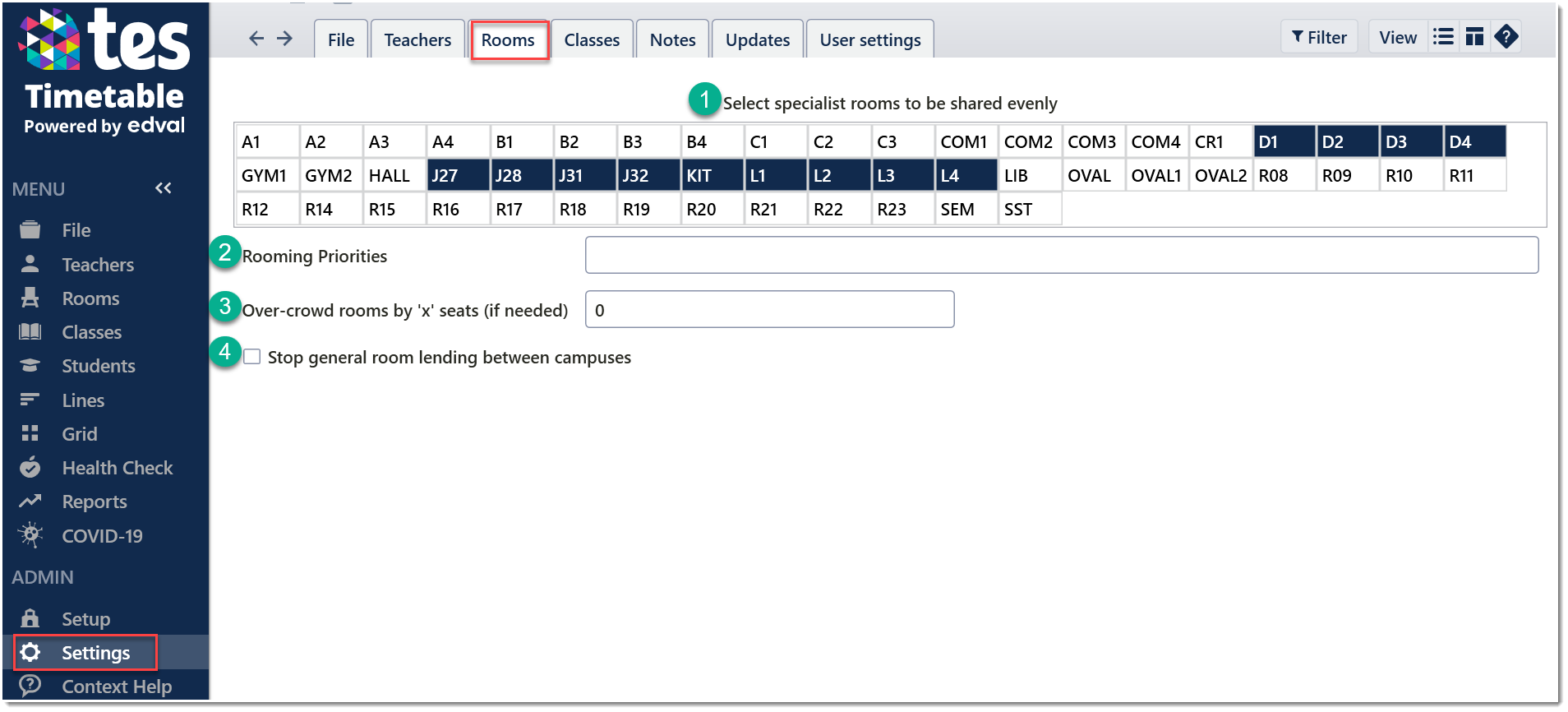
1. Prac Rooms to be shared fairly
During auto-rooming, E10 attempts to give a single room to a class for all lessons. However, for certain specialised rooms, the preference may be to distribute usage evenly so each class gets the same number of periods in an ordinary classroom. These rooms are also prioritised for double-periods over single periods.
Click a room code to select it. Click again to deselect.
2. Rooming Priorities
- The string may contain year levels, groups and faculties.
- Use brackets for entries with the same priority level.
- Use exclamation mark to indicate that it will get that priority level even if it has already matched a previous entry.
Example: "(7D, 8B, 9A, 10F), (12, 11), 7, 8, (9, 10), !PDHPE"
This means the group of classes associated with 7D, 8B, 9A and 10F are all given equal priority, ahead of any classes in either Yr11 or 12, ahead of any Yr7 class, ahead of any Yr8 class, ahead of any Yr9 or Yr10 class ahead of any class in the PDHPE faculty. Notice the exclamation mark in front of the faculty name. Also note that in the above string, some year 7 and 8 classes were already prioritised earlier. So the references to "7" and "8'' here mean 'all remaining classes in these year groups' at this priority level.
3. Over-crowd rooms by ‘x’ seats
 | If the class size exceeds the room capacity plus the over-crowd limit for all rooms available to that class, the Class Data > Room Pref field will be highlighted in red. This class cannot be roomed unless one of these changes are made: decrease the class size, increase the room capacity, or increase the over-crowd value. |
4. Stop general room lending between campuses
This setting only applies to schools with multiple campuses as defined in Setup > Campus data.
When all rooms in the specified room set are unavailable, the class will be assigned a general purpose room identified as “G” in Room data > Type. If this option is enabled, only general purpose rooms on the same campus as the class will be considered for allocation.
Refer to: E10 - ADMIN Setup: Campus data
Refer to: E10 - Rooms - Room data (F5)
Was this article helpful?
That’s Great!
Thank you for your feedback
Sorry! We couldn't be helpful
Thank you for your feedback
Feedback sent
We appreciate your effort and will try to fix the article