TABLE OF CONTENTS
- Preamble
- Type of sync
- Which data is sent to the other system?
- Other important information
- Steps to synchronise data
- Troubleshooting
Preamble
- new school file set up
- synchronisation processes
- synchronisation troubleshooting
While Tes takes all care to ensure any mention to the other system is correct and up to date, it is the user's responsibility to check with the other system prior to an initial sync. If the user becomes aware of any changes to the other system, we would very much appreciate this feedback.
Type of sync
Which data is sent to the other system?
Note that Tes builds many excellent features to help users build high quality timetables, and while these features can be sent onto the other system through the synchronisation process, not all systems have built the capability on their end to receive/display these features.
| Tes Timetable feature | Notes on feature | Is this feature received by the other system? | Other notes |
Bell times | Bell times as per Grid structures | No | |
Campuses | Campuses and their associated rooms | No | |
Classes | Classes as per Class data screens | Yes | |
Class lists | Yes | ||
Composite classes (linked classes) | One teacher teaching more than one class at the same time | Yes | |
Duty roster | Yes | ||
Faculty data | No | ||
Grid structure codes | Yes | ||
Multi-file | Two (or more) timetable files | No | |
Multi-grid | Multiple grids with different bell times | No | |
On-call roster | Yes | ||
Priority classes | The priority class that shows on student's timetables where they have class clashes | No | |
Room data | Room Code, Name, Size, Campus, Comment | No | |
Rotation classes | Classes from particular rotations | No | Only exports classes of current rotation |
RTO roster | Yes | ||
Student data | Student Code, Name, Preferred name, Year level, Letter group, House, Gender, StatewideID, Email, Phone | Yes | |
Study roster | Study classes, staffing and rooming roster | Yes | |
Sub-classes | Yes | ||
Teacher data | Teacher Code, Name, Preferred name, Faculty, Gender, Email, Phone | Yes | |
Teacher days off (Unavailables) | No | ||
Timetable data | Yes | ||
Two (or more) rooms at once | Yes | ||
Two (or more) teachers at once | Yes | ||
Year levels (non-numeric) | Year levels such as SPT, LSUP, ROLL, Yr9+10 etc | Yes |
Other important information
Steps to synchronise data
Step 1: Configure the Timetable etz file
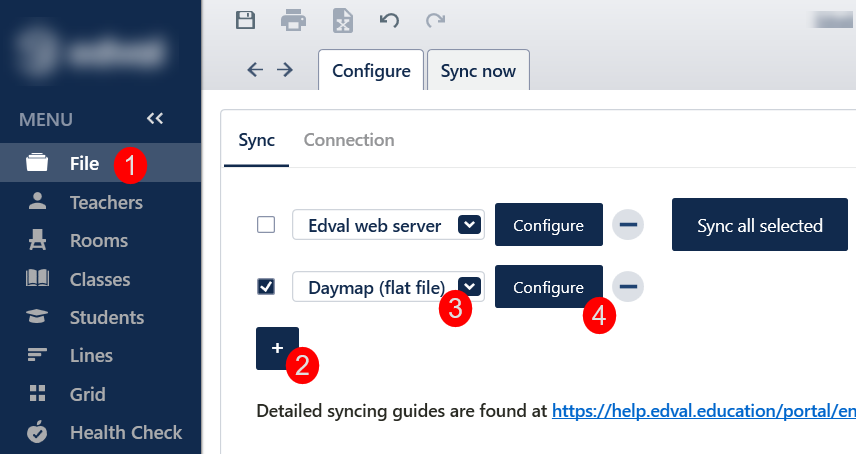
- Go to 'File > Synchronise > Configure'.
- In the 'Sync' tab, Click on the blue '+' to add another sync drop-down box
- Select 'DayMap (Flat File)' from the drop-down list
- Click on the 'Configure' button next to 'DayMap (Flat File)'
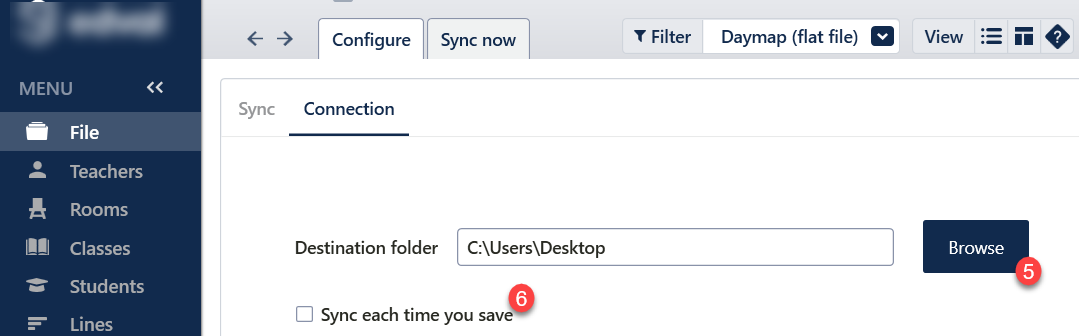
- Click on the 'Browse' button and select the location of where the files are to be exported to.
- Tick the 'Sync each time you save' if you need the export to occur when the etz file is manually saved.
Step 2: Perform the Export
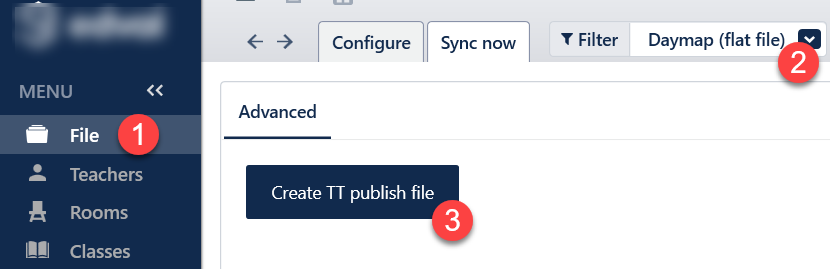
- Go to 'File > Synchronise > Sync now'.
- Select 'DayMap' from the 'Filter' drop-down at the top right.
- Click on 'Create TT publish file'.
- SCOURSES.TXT
- STAFF.TXT
- STUDENTS.TXT
- TTABLE.TXT
File Name | Data Column (A) | Data Column (B) | Data Column (C) | Data Column (D) | Data Column (E) | Data Column (F) | Data Column (G) | Data Column (H) |
SCOURSES.TXT (Student Class lists) | Student Code | Class Code (Eg.7MAT.1) | Class Code (Eg.7MAT.1) | Subject Name | Teacher Code | Year Level | N/A | N/A |
STAFF.TXT (Teacher Data) | Teacher Code | Teacher Last Name | Teacher First Name | N/A | N/A | N/A | N/A | N/A |
STUDENTS.TXT (Student Data) | Student Code | Student Last Name | Student First Name | Gender | Year Level | Letter Group | Enrollment status (Current)* | N/A |
TTABLE.TXT (Timetable data) | Day | Period | Class Code (Eg.7MAT.1) | Class Code (Eg.7MAT.1) | Subject Name | Teacher Code | Room Code | Year Level |
*Enrollment status will always appear as 'Current'. If a student is marked as 'Inactive', they will not appear in the export
Step 3: Importing into DayMap
Please refer to this system's documentation for instructions on how to upload/import the files.
Troubleshooting
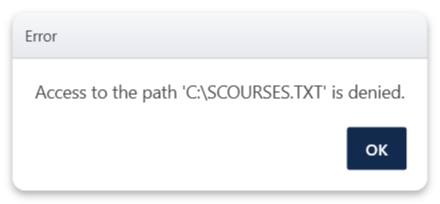
- If you are getting the message 'Access to the path 'C:\SCOURSES.TXT' is denied', please check that you a folder set up in the sync configuration section or have permission to 'write' to that location with your IT team.
Was this article helpful?
That’s Great!
Thank you for your feedback
Sorry! We couldn't be helpful
Thank you for your feedback
Feedback sent
We appreciate your effort and will try to fix the article