TABLE OF CONTENTS
Preamble
Once configured, forms can be synchronised to the webserver for testing. After thoroughly testing, students are issued their WebCodes to log in and submit their subject preferences. This document explains the sync settings and options.
When to sync the forms
- Initial form testing
- After making changes to the form, elective data, rules, prereq, etc.
- Adding new students while the form is open
- Closing the form
NOTE
It is likely that the forms will be sync'd many times throughout the subject selection process.
WARNING
Avoid changing subject codes after the form opens for subject selections, as the codes that have been selected must exist in the .etz file for successful downloads.
Sync settings and options
Navigate to Lines > Timetable Choice > Sync and select the dataset and year level from the dropdowns that will be sync'd.
NOTE
If using multi-year datasets, each year level must be sync'd separately.
If using pathways, all pathways within a year level will be sync'd at the same time.

Email settings
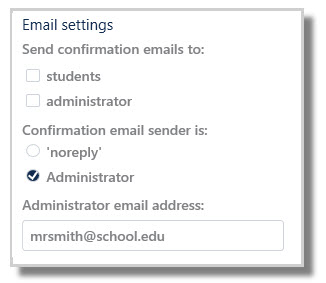
Send confirmation emails to: students or administrator
- Students’ submissions can be automatically emailed to the student and/or administrator.
- Automatic emails require student email addresses to be stored in the .etz file.
- Students can also choose to print or email their form at submission.
- If emailing, students may use their stored email address or enter an alternate one.
- Neither option may be selected and no automatic emails will be sent of students' submissions.
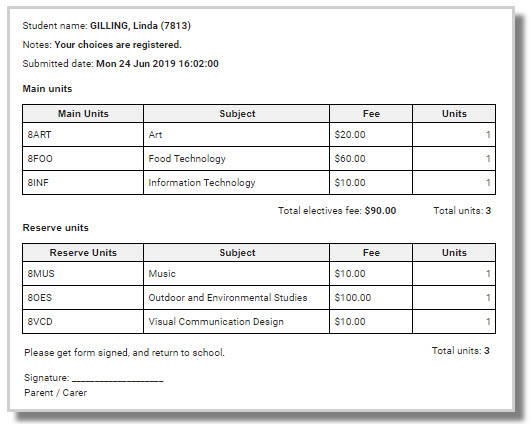
Confirmation email sender is: 'noreply' or Administrator
- If students is selected above, they will receive the submission email as shown above.
- This setting controls what happens if they should choose to reply to the email.
- 'noreply' will not be received by anyone.
- The user can enter any appropriate school email address here.
Submission settings
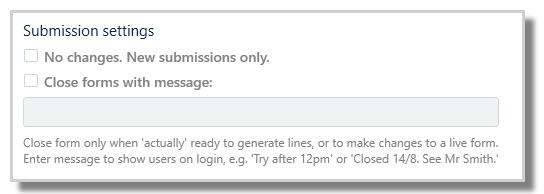
No changes. New submissions only.
- Schools can allow multiple submissions while the form is open. Alternatively, limit students to a single submission.
- Select No Changes to enforce one-time submission.
Close forms with message
- When the form is ready to be closed, tick this check box and sync.
- A message must also be entered, which will display to students should they try to access the form again.
Sync
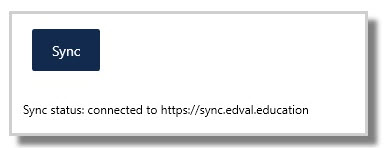
- Select Sync to upload the forms to the webserver.
- Forms can be sync'd as many times as necessary.
- The sync status will display at the bottom of the screen after a successful sync.
WARNING
Syncing a Choice form will also sync the current student enrolments and will apply not only to the online Choice module but will also update and overwrite the student enrolments in your other online products such as Daily. This change will only be applied to the academic year of the file from where you are syncing the Choice form.
Was this article helpful?
That’s Great!
Thank you for your feedback
Sorry! We couldn't be helpful
Thank you for your feedback
Feedback sent
We appreciate your effort and will try to fix the article