TABLE OF CONTENTS
Preamble
Submission rules are used to ensure students select subjects in line with curriculum guidelines. This document explains the rules in Elective data that affect online Choice forms.
1. Corequisite rule
How to setup
- Go to Lines > Elective data > Courses.
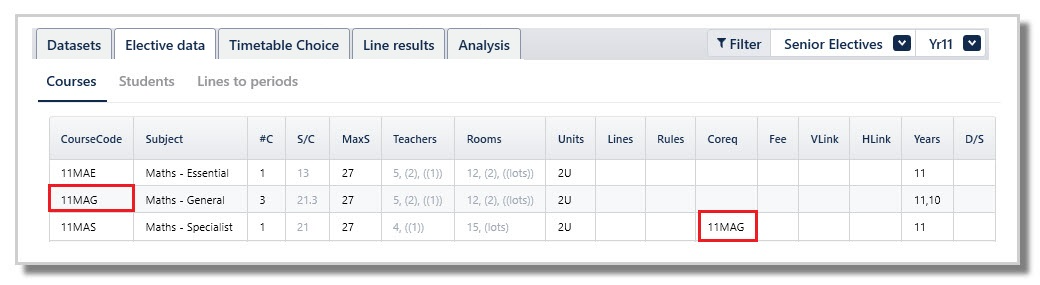
- For the subject that requires another subject, enter the required subject's CourseCode into the Coreq field.
Example
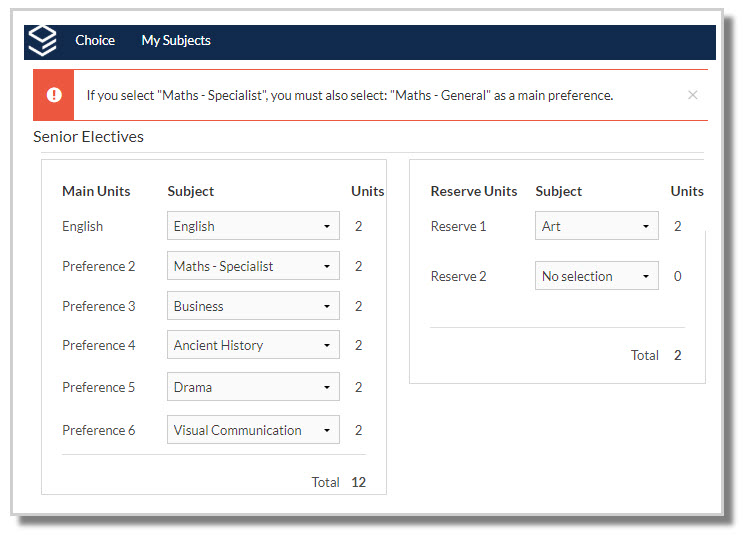
If a student selects Maths - Specialist, they must also select Maths - General.
Enter 11MAG in the Coreq field for 11MAS.
Choice displays an error message upon submission when a Coreq rule is violated.
This ensures a student will not be able to select Maths - Specialist without also selecting Maths - General.
2. Units rules
Sometimes there may be rules around selecting a minimum or maximum of a type of subject.
a) ‘at least’ rule
The 'at least' rule requires a minimum number of units from a subject category as part of their program.
- Year 11 students must select an English subject.
- Year 10 students must select an English, a Maths, a Science and a Humanities subject.
- Year 9 students must select both an Arts and a Technology type subject.
b) ‘no more than’ rule
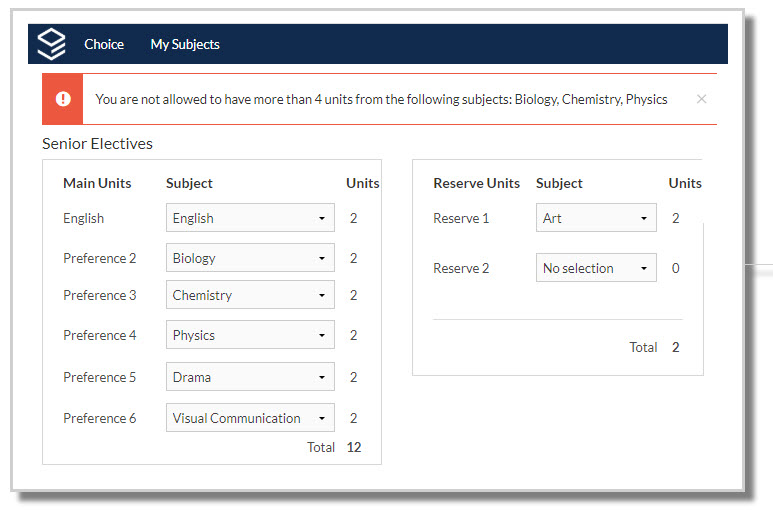
The 'no more than' rule stops students from selecting more than the specified number of units from a subject category.
- Year 11 students may not be able to select more than two Science type subjects.
- Year 9 students may not be allowed to have more than one Arts or one Technology subject.
How to setup
Step 1: Categorise courses
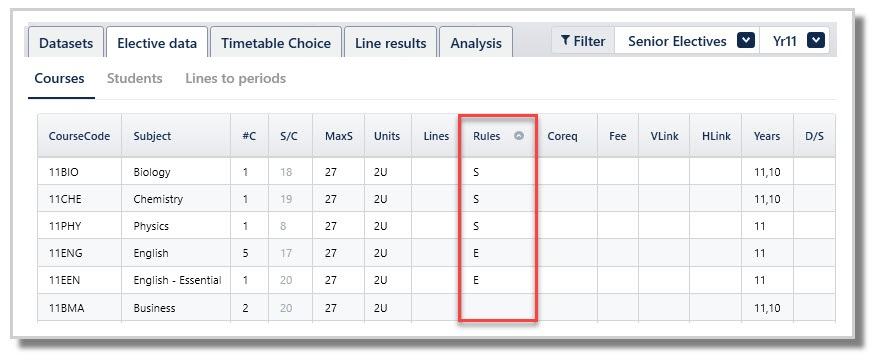
- Go to Lines > Elective data > Courses > Rules field.
- Assign a letter (A-Z), digit (0-9) or special character from the following !@#$%^&*() _+ to categorise, or group, subjects of a type that need a submission rule.
For example, all English type subjects are given the letter E, Science subjects are given the letter S and Mathematics subjects are given the special character $.
Step 2: Enter a rule
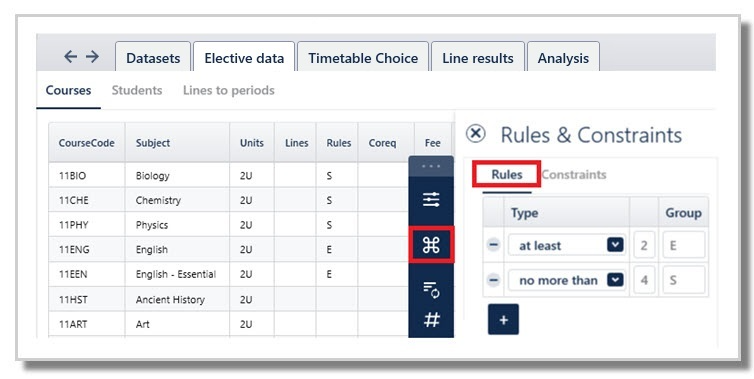
- Go to the Action bar on the right and select 'Rules and Constraints'.
- Select the Rules tab.
- Press the + button.
- Enter the required 'at least' or 'no more than' rules.
Examples
- Students must select 2 units of English. All English courses are tagged as E in Courses > Rules field, then add the rule at least - 2 Units - Group E.
- Students must not select more than two Science courses (or 4 units). All Science courses are tagged as S in Courses > Rules field, then add the rule no more than - 4 Units - Group S.
Choice displays an error message upon submission when any at least or no more than rule is violated.
NOTE
Coreq and Units rules apply during online Choice selections and line generation.
Any violations are flagged in Lines > Elective data > Students, and can only occur when selections are imported or entered manually, as Choice stops submissions if any rule is unmet.
3. Prerequisite rules
Prerequisite rules define which students are automatically eligible to select a course during online Choice subject selections.
How to setup
- Go to Lines > Elective data > Courses.
- In the Prereq field, enter the course requirements, multiple combinations (e.g., attendance or exam results) can be added.
- Import marks via Lines > Elective data > Students > Action: Import student marks for prerequisites
Refer to: E10 - Choice: Setting Course Prerequisites
Example

IMPORTANT
Prereq rules apply only during online Choice subject selections. They are not used during line generation.
Prereq violations are not flagged in Elective data > Students.
Prereq rules do not apply to subjects manually entered or imported into the etz file.
Was this article helpful?
That’s Great!
Thank you for your feedback
Sorry! We couldn't be helpful
Thank you for your feedback
Feedback sent
We appreciate your effort and will try to fix the article