TABLE OF CONTENTS
- Preamble
- How to 'rollover' your file
- Video overview of process
- What happens when the file is 'rolled over'?
Preamble
Before generating the timetable for the next academic year, you must first create a new file for that year. The File > Rollover > All year levels function creates a copy of your current file, increments the academic year, and promotes students into their next year level. This process is referred to as 'rolling over' your file. During rollover, various promotion and timetable freezing options are available to meet your school's requirements.
How to 'rollover' your file
1. Acquire a webcode for online modules (Choice, Daily)
If you are licensed for Choice, you will need to obtain a new year's Administrator webcode to sync your Choice form when ready. If you do not wish to generate your webcode at this stage, you can continue to the next step.
WARNING
An Administrator webcode is required to sync Choice forms. If your current webcode does not include permission to sync to the Edval web server, your newly generated webcode will also not include this permission.
NOTE If you don't have an Administrator webcode because:
Your webcode doesn't have this access, have your School Administrator create and assign a role in Daily that includes the 'Manage Synchronisation' permission. Otherwise, they can change your role to become System Administrator. More information here: Timetable Daily: Granting access to Users, Creating Roles and Allocating Permissions
You've never had a webcode or your School Administrator is not able to provide you access. Submit a ticket via Get Help and ensure the Email from: field in the Get Help screen contains the correct email address that requires access. Steps on how to Get Help here: Requesting help from Tes Timetable - Contact Us
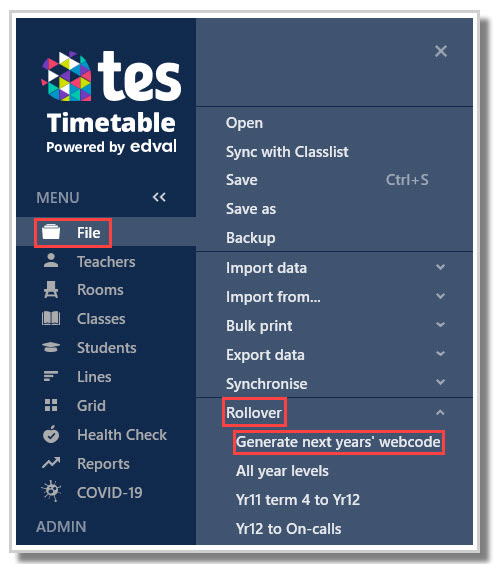
- Go to File > Rollover > Generate next year's webcode.
- A prompt will display:
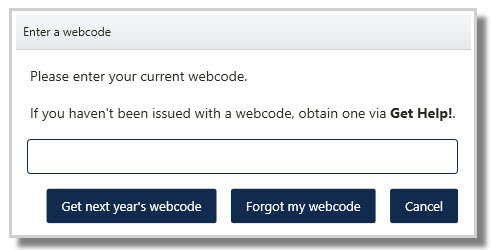
- If you know your current year's webcode, enter it into the text field and select 'Get next year's webcode'.
- If you have forgotten your current year's webcode, select 'Forgot my webcode' and your webcode will be emailed to you.
- If you haven't been issued a webcode, you can submit a request via 'Get Help'.
- Confirm your email address associated with the webcode:
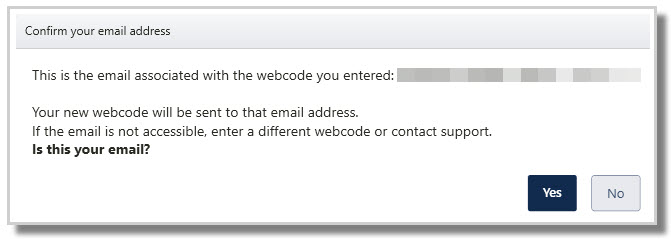
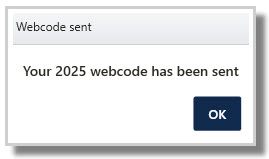
- If the email listed is correct, click 'Yes', and you will get the confirmation email. Check your email for the webcode.
2. Rollover file
- Go to File > Rollover > All Year Levels.
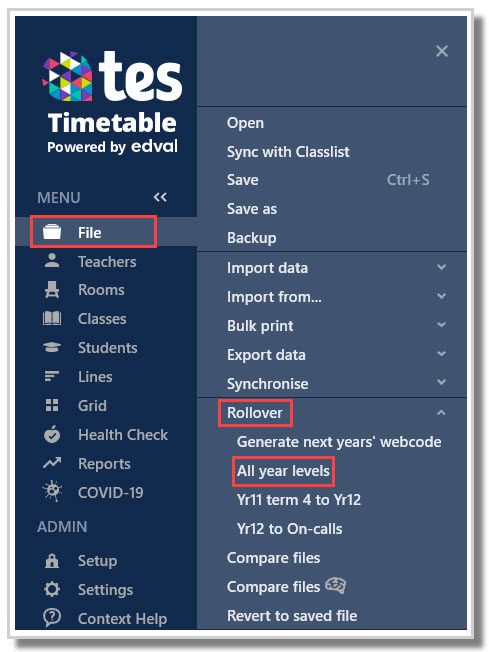
3. Enter rollover settings
You will now be presented with options for your rollover. Default settings are based on your region and your file's year-level arrangement.
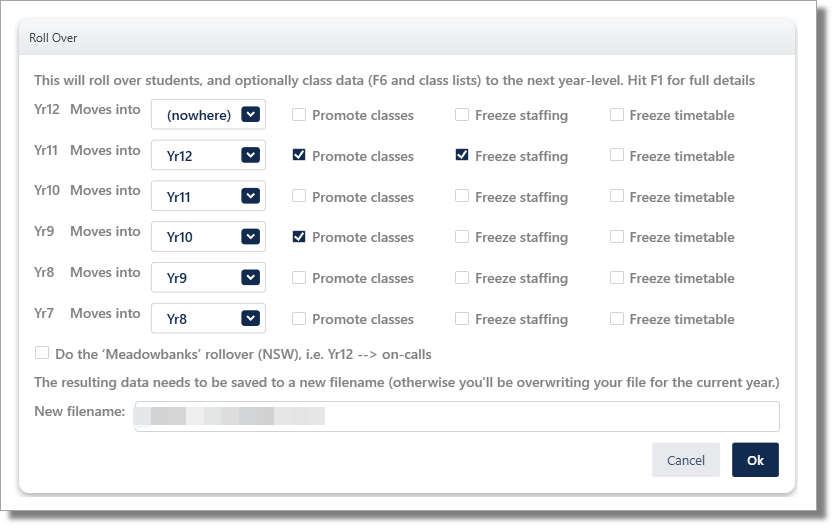
Moves into:
Map each current year level to the year level they will become in the following year's file. The drop-down options will display year levels that have been set up in Setup > Year levels. Students will be moved from their current year level to the mapped year level in student data. Any year level mapped to (nowhere) will be removed from the file.
Promote classes:
During the rollover process, all current class data is kept exactly as is in the new year's file. When selecting to promote classes, this will maintain the class lists and line structure by re-coding current classes to next year's level classes.
e.g. Year 11 needing to stay in the same classes for Year 12 by changing the code from 11BIO.A to 12BIO.A.
This option is useful for schools where electives run for two years (e.g. Yr9 and Yr10; Yr11 and Yr12).
Promoting classes will do the following in Class Data:
- Change the Class Code to: <Yr+1> <Course> <Class Identifier>
WARNING
This will not work for:
Year levels that are NOT numeric (e.g. Stage 5 classes with the code S5MUS.A)
Or where the year level is a suffix to the class code
- Copy number of periods (#Per)
WARNING
This may no longer be correct for the Yr+1 structure (make sure to check and update).
- Copy the Line entry
WARNING
Promoting classes is NOT intended for 'group' based classes (as often seen in Years 7-9).
    More details on how to manage this here: E10 - How to: Manage Group class lists
Freeze staffing:
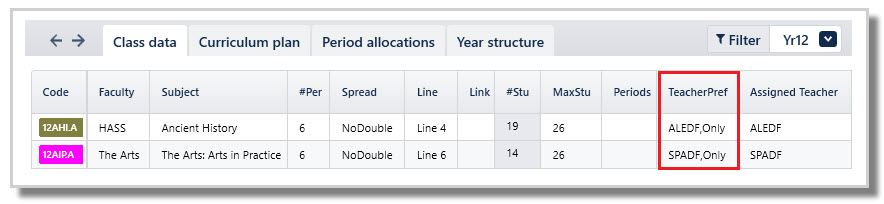
Freezing staffing will retain the same teachers for the selected year level's classes. E10 will enter the syntax required in Class data > TeacherPref column to lock staffing in place.
Freeze timetable:
During rollover, the current timetable will be removed from the Master grid (except for any hard-coded classes). It is possible to keep classes on the grid by selecting 'Freeze timetable'.
Do the 'Meadowbanks' rollover:
For NSW schools that use Daily, we recommend that you do not use the ' Do the 'Meadowbanks' rollover' function, but rather manage this directly in Daily.
4. Continue in your new year's file
- After selecting OK, the previous file will automatically close with no loss to any of the data, and the new year's file will open automatically.
NOTE
This file will, by default, be saved in the same location as the previous file, so you may wish to move it to an appropriate folder depending on your file management.
Video overview of process
What happens when the file is 'rolled over'?
- Students are moved out of each year level and into the requested year level
- Defaults are provided, but check that the year links are specified correctly in the dialogue box.
- Students in any year that does not progress into any other year level are deleted from the database.
- The Master grid is cleared.
- For every teacher, the 'MaxDuties' column in the Duty roster is reset to zero, and the 'Num' column in the Study roster is also reset to zero.
- Changes involving classes and staffing will depend upon which parameters are selected. These parameters can be specified per year level. Defaults are shown in the dialogue box, and differ per region.
- Priority classes information is maintained.
- Students' classes in Student data screen are cleared except for the following:
- Classes for year levels where you have selected Promote classes
- Classes where Group classlists is enabled, hence, auto-populated based on letter or number groups
- Classes which do not belong to the student's year level, eg. yr10 student with yr11 class, and need to be manually deleted
- Classes in non-numeric year levels, eg year VM11 classes, which also require manual deletion
NOTE
Check the rolled over file to ensure it contains the expected data. If you believe you selected the wrong options during the rollover process, you may delete the rolled over file and start again.
WARNING
There is no need to delete classes from the Class data screens (unless they are not occurring at all the following year). The process of generating lines will update the data in the Class data screens. Deleting classes has detrimental effects when working in Subject teachers and Subject rooms screens.
Was this article helpful?
That’s Great!
Thank you for your feedback
Sorry! We couldn't be helpful
Thank you for your feedback
Feedback sent
We appreciate your effort and will try to fix the article