TABLE OF CONTENTS
Preamble
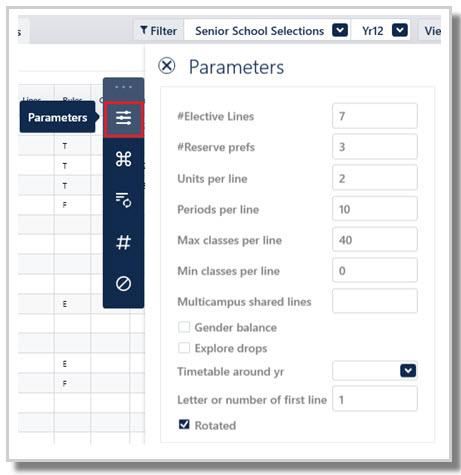
The parameters determine how the elective lines are constructed and must be set before generating lines. This document explains each field in the Elective data > Courses > Action: Parameters screen.
NOTE
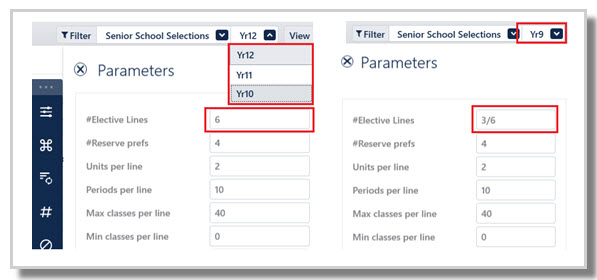
For multi-year datasets, the parameters apply to all years in the dataset and cannot be changed for individual years. The only exception is the #Elective Lines field, which can be adjusted per year level.
Parameters explained
#Elective lines
- This field specifies how many elective lines will be generated.
- Typically, this is 6 for Year 11 and 2–3 for Year 9, but values from 1 to 13 are supported.
Examples:
- VIC: In multi-year datasets or when using 'Timetable around', a format such as 3/6 indicates that the year level uses only 3 of the 6 available lines. For example, enter 6 for Years 10-12 and 3/6 for Year 9. Only 3 lines will be generated for Year 9 while still checking staffing and room availability across all 6 lines.
- NSW: For 13 total units (6.5 × 2‑unit lines), set # Elective Lines to 7 and enter Not 7b in the Lines field to exclude this subline. This means line 7a is effectively a one unit line only - for extension classes, and line 7b is always empty as it can't fit into the grid if there are only 13 units in the grid. If extensions are run offline, no 'line' is required to accommodate as the Line = 'offline' in these cases. However, it is recommended that extension classes are run online so that room and teacher availability can be considered during the line generation process.
NOTE
The #Elective Lines entry has an impact on the main preference display in Lines > Elective data > Students.
#Reserve preferences
- Determines how many reserve preference columns appear in Lines > Elective Data > Students.
- The algorithm prioritises main preferences, using reserves only when required to give students a full program.
TIPS
It is recommended to collect at least three reserve preferences for all year levels.
Capturing multiple reserves improves full allocations and reduces the need for student re‑selection. Asking them for reserves up-front is more palatable than asking them later if they missed out - even if it's effectively the same.
ALERT
More reserves may exist than are displayed; increase #Reserve Prefs to reveal any additional preferences.
Units per line
- It defines how many units make up a single elective line and must be at least equal to the highest Units value used in Lines > Elective Data > Courses.
- Lines may be divided into sub‑lines, either a timetabled sub-line (e.g. Line 3a) or representing the same line in different rotations.
- Each course’s Units value must divide evenly into the Units per Line setting (e.g. 2U courses cannot be used with 3 units per line).
Examples:
- 2 units per line: supports both full‑line (2U, full‑year) and half‑line or single‑rotation (1U) courses
- 3 units per line: used by schools with trimesters
- 4 units per line: used by schools with termly rotations
- Multi-year dataset 4 units per line, 4 rotations: Year 8: 1U (term‑long) courses, Years 9–10: 2U (semester‑long) courses, Years 10,11,12: 4U (full‑year) courses
Periods per line
- This value is not used during elective line generation.
- It is applied after lines are generated, when new classes are created, and is used to automatically populate the #Per field in Classes > Class Data.
- In multi‑year datasets, different year levels or lines may require different number of periods. This setting serves as a default only and can be easily adjusted for individual classes in Class Data where required.
Max classes per line
- This setting can be used to limit and balance the number of classes across elective lines.
- The default is 99. Typically not required, but may be adjusted if line results has very uneven class distribution.
Min classes per line
- This setting specifies a minimum number of classes per line and can be used where a guaranteed capacity is required (e.g. ensuring sufficient places for all Year 7 students).
- The default is 0. Usually unnecessary, but may be adjusted if line generation results in uneven class distribution.
NOTE
When using 'Timetable around', classes in the years being timetabled around with are excluded from the Max and Min classes per line count.
For multi-year datasets, the Max and Min classes per line values apply to the entire dataset and cannot be set differently for individual year levels.
Gender balance
- Where there are multiple classes of a course running, it is used to balance the mix of genders across the classes.
- This requires the Gender M/F field to be filled in Students > Student data.
Explore drops
- When enabled, it evaluates optimal combinations of classes, improving solution quality beyond line structure alone.
- Click the Options button to list the courses that must not be dropped.
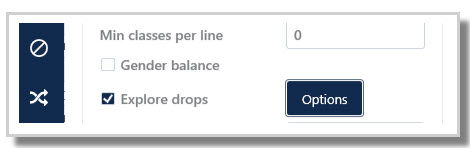
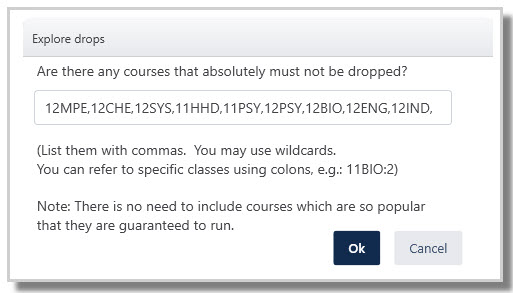
- Enter course codes (comma‑separated) that must not be dropped, even with low enrolments (e.g. Chemistry, Physics).
- Wildcards may be used (e.g. *CHE covers all Chemistry courses across year levels).
NOTE
Dropped classes appear in Lines > Line Results > View Lines> Dropped column and may be manually reinstated via drag and drop during line generation to refine the solution.
ALERT
Enabling Explore drops can significantly increase the time to generate a line solution.
Timetable around yr
- This feature generates elective lines that align with another year level whose lines are fixed (e.g. generating Year 11 around existing Year 12 lines).
- The new lines are guaranteed to fit beneath the existing lines without teacher or room clashes.
- Fixed lines appear in Lines > Line Results > View Lines, shown in black and are not movable.
- While more optimal results may be achieved by regenerating lines across both year levels together instead of using 'timetable around', this approach is more complex and typically requires guaranteeing full subject allocations for senior students.
NOTE
Refer to E10 - Elective data > Courses Action: Generate lines around existing lines in other year levels using 'Timetable around for more details on this feature.
Letter or number of the first line
- The default value is 1, but it can be changed to any number or letter as required.
- If Year 9 uses elective lines X, Y, Z, electives should be set to start at Line X.
- If Year 10 uses Line 1 for pastoral care, electives may need to start at Line 2 to avoid overlap.
TIP
Checking existing Class Data line entries before creating classes helps prevent confusion and rework.
Rotated
- Enable this setting when the dataset includes rotation‑based courses (e.g. 1U and 2U).
- When enabled, courses can be assigned to a specific semester by entering 'a' (rotation 1) or 'b' (rotation 2) in the Lines > Elective Data > Courses > Line field.
This setting affects:
- Single/double period compatibility
- Part‑time teacher calculations
- Whether classes are created as rotated classes or on sublines (e.g. Line 1a) in Class data
Was this article helpful?
That’s Great!
Thank you for your feedback
Sorry! We couldn't be helpful
Thank you for your feedback
Feedback sent
We appreciate your effort and will try to fix the article