TABLE OF CONTENTS
Preamble
Once student preferences are collected, they are analysed to determine the number of classes to run. The Calculate Number of classes feature provides an initial estimate, which can be reviewed and adjusted manually before or during line generation.
Steps
1. Navigate to Lines > Elective data > Courses > Action bar: Calculate number of #Classes
2. Edit the default entries if desired.
- Max number of students per class (0 = 'don't change'): Entering a value overrides the existing maximum class size for all courses. Leaving this set to 0 retains the current maximum for each course as specified in the MaxS field.
- Minimum class size: Any class with fewer students than this value will not run (#C=0). The default is 5, setting this to 0 allows all classes to run, regardless of demand.
4. Manually edit the #C field for any courses if required.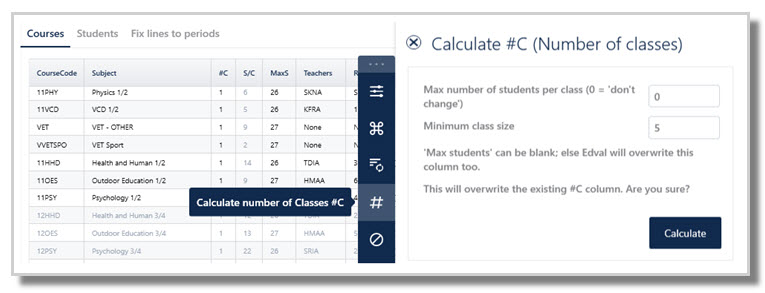
 | The school determines MaxS, the maximum number of students in a class. If x is the number of students who selected the subject as main preference, then #C = x divided by MaxS and S/C = x divided by #C. |
Tips
- Begin by over-estimating the number of classes where possible. Allow an extra class to run for subjects with big numbers, even if not actually required. Running an extra class for subjects filled to maximum will likely result in a greater overall student result. There is a whole science involved in determining the best number of classes to run. Of course school resources must be taken into account also.
- Sometimes it may be possible to get all or most students wanting a subject into just one class, but it may be better to run two classes of this subject in some cases, particularly where there are a high number of reserve requests for the subject.
- Note which classes have high first reserve preference numbers, as this can influence whether an extra class of a subject should run.
- Let the algorithm explore which classes to drop (Lines > Courses > Action bar: check the Explore drops box)
- It is very easy to trial different class number scenarios and view the resulting Lines and student success rate results.
Was this article helpful?
That’s Great!
Thank you for your feedback
Sorry! We couldn't be helpful
Thank you for your feedback
Feedback sent
We appreciate your effort and will try to fix the article