TABLE OF CONTENTS
Preamble
Constructing elective lines is a complex but critical part of timetabling. Correctly setting up the Elective data > Courses is essential, as it significantly influences line generation, Timetable Choice (if using), and student preference satisfaction. This document explains each field in this screen and links to related articles for deeper guidance, with references to Choice where relevant.
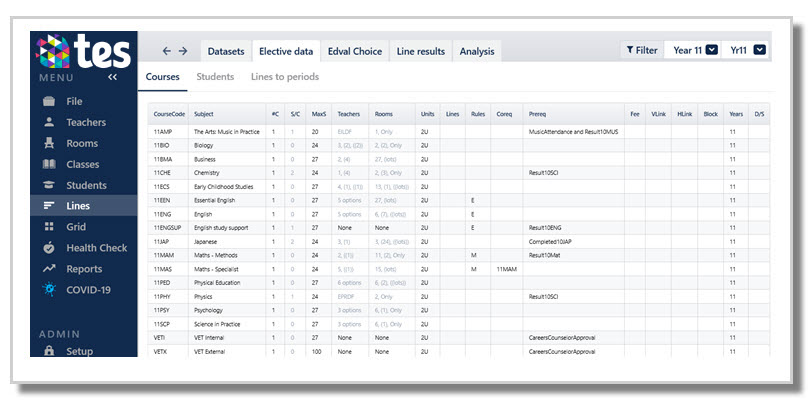
CourseCode
- A short unique code for each course, e.g. 11BIO or 11CHE.
- In a single year dataset, the year level is not strictly necessary, e.g. BIO, not 11BIO, if it is preferred to keep it short.
- Should match the codes in Teachers > Subject teachers and Rooms > Subject rooms sets.
Timetable Choice:
- Not visible to students during online selection, but they will display on a submitted webform.
WARNING
Do not make changes to course codes after a form has been published.
Subject
- Subject name, as will display in Class data F6 and on timetables, e.g. Biology (not BIO).
- Use clear, distinct names, e.g. 'French Semester 1' and 'French Semester 2'.
Timetable Choice:
- Students do not see the Course Code so identical subjects names (e.g. Biology) are confusing, particularly in multi-year datasets.
- For clarity, use subject names like 'Stage 5 Biology' / 'Stage 6 Biology', or 'Biology Units 1&2' / 'Biology Units 3&4'.
#C (number of classes)
- Set how many classes will run for each course based on student requests and available resources.
- Enter 0 (zero) for courses not running due to little student interest or lack of resource.
- Tools to help decide on #C include the Lines > Elective data > Courses > Action: Calculate number of classes #C, the Lines > Analysis > Course popularity, and iterative analysis of line solutions or dropped class suggestions.
TIP
#C can be changed many times throughout the line generation process to trial different scenarios. For example, test one class vs two classes of a course and review the results.
S/C (Student to class ratio)
- Shows the estimated class size, i.e. number of students who selected the course as a 'main' preference, divided by the number of classes. If 30 students chose a course, and #C=2 , then S/C will be 30/2=15.
- Actual class sizes may be uneven; e.g. classes with 10 and 20 if it improves overall outcome.
- Reserve preferences are not included in the S/C calculation.
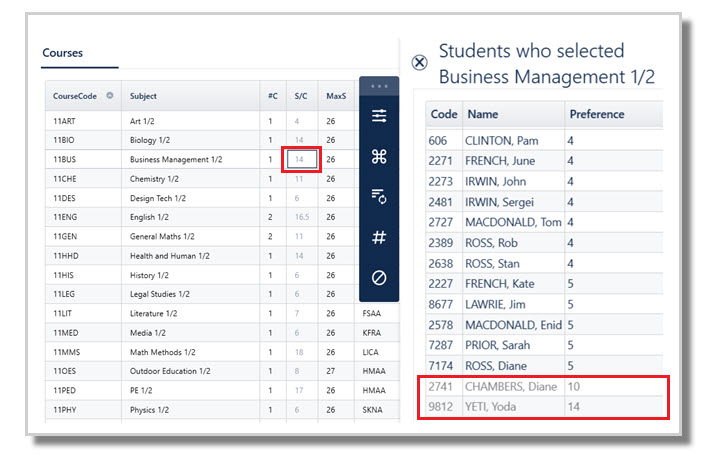
- It highlights in red if requests exceed available places (based on the Max students), indicating some students will miss out on the course, even before line generation occurs. Affected students can't be identified until lines are generated.
- Double click the S/C cell to see the list of students who requested it, including student's priority value, gender and preference. Reserve preferences will also display at the bottom, in faint text.
Max students
- Sets the maximum number of students allowed per class.
- Can be set globally in Lines > Elective data > Courses > Action: Calculate number of classes #C, then manually edited.
- For courses with multiple classes, different limits can be specified using comma separated values, e.g. 25,24,23 (no spaces). The values apply in the order entered and used for line generation and any class list management later.
- Max students can be used to 'force' class size balance. Class sizes are balanced automatically, but students are not generally moved out of their chosen subjects to achieve balance, so it's only needed in special cases.
- Sport dataset only using the 'First Come First Served' feature
- Max students represents the total places across all classes, not per class. For example, if #C = 2 and Max students = 36, the sport is marked full after 36 selections, with further students waitlisted. Two classes are created later for staffing and class lists. Refer to E10 - Sport selections using the Sport type dataset.
TIP
Max students can be set slightly below capacity to allow space for later changes or new enrolments.
Teachers
- Indicates the teacher options for the course.
- Generally, leave this field blank so the Teachers > Subject teachers data is used (if the course code exists).
- ??? means no options in the set. It’s best practice to edit set in E10 - Teacher > Subject Teachers screen.
- Enter teacher codes in this field only where there is a specific requirement for staff you want to force.
IMPORTANT
Accurate teacher and room options for each course are essential for effective line generation.
Poorly defined resources can lead to lines that can't be scheduled, overly restrictive, or require offline classes.
Maximising student preferences is important, but must be balanced with realistic resource management.
Benefits of specifying subject teacher and room sets during line generation:
Lines are generated clash‑free, e.g. no more classes on a line than available teachers.
Avoids creating multiple lines that cannot run on multiple days due to incompatible staff availability.
Improves timetabling flexibility as compatible part‑time teachers are more likely to align on the same line.
Rooms
- Indicates the room options for the course.
- Generally, leave this field blank so the Rooms > Subject rooms data is used (if the course code exists).
- ??? means no options in the set. It’s best practice to edit set in the E10 - Rooms > Subject Rooms screen.
- Enter room codes in this field only where there is a specific preference for a room you want to force.
IMPORTANT
As per teachers, room options must be correctly entered before line generation to avoid creating lines that cannot be roomed, e.g. if there is only one Drama room, classes requiring that room will not be placed on the same line.
TIP
Double click on Teachers or Rooms field to open the relevant Subject teachers or Subject rooms screen directly.
Units
- Indicates the number of units for the course.
- Default is 2U. Specify either: 1U, 2U, 3U, 4U.
- No decimal allowed.
- A 'unit' represents how much of a student's overall program a course accounts for.
- The number of units per course will differ from school to school as they depend on the number of rotations within the file and the set up of the dataset.
- Examples:
- NSW: 2U=full line; 1U=sub‑line
- SA/VIC (2 rotations): 2U=full year; 1U=semester-long courses
- 4‑rotation multi‑year dataset: Yr8=1U ( term electives), Yr9=2U (semester-long), Yr10=4U (full year)
- Units are used to specify line generation Rules, such as 'at least ~ 2U ~ E'. Students will then be given classes to meet the rules when lines are generated. Refer to E10 - Elective data > Courses Action: Rules.
- Units are totalled as students select their subjects online. They cannot submit preferences if they have more than or less than the required number of units that constitutes a full course. Schools set the required number of units in the Choice form set up. Refer to E10 - Choice: Configure Forms.
- Units are used to define online submission Rules, such as 'no more than ~ 4U ~ M', ensuring students submit subject preferences that meet school requirements. Refer to E10 - Choice: Submission rules.
Lines
NOTE
Applying more restrictions to line generation reduces flexibility an can limit outcomes.
If educational constraints or planned subject groupings are required, manage them using Lines > Elective data > Courses > Rules and Constraints, which provides greater control.
- Normally left blank to allow the course to run on any line, resulting to greater flexibility.
- Can be used to force courses to run on certain lines, avoid certain lines, or run the course offline.
- Line entries apply at the course level, not the class level, e.g. if there are three 11BIO classes and 2 is entered, all 11BIO classes will be forced to run in Line 2. To set line requirements at the class level, use Lines > Elective data > Courses > Rules and Constraints.
TIP
Use VLink and HLink fields to force courses to run at the same time without forcing into specific lines.
For other ways to run classes on the same line, refer to E10: Ways to block classes.
Line entry examples:
- Force courses to run on a specific line by entering the number of the line.
e.g. English courses must run on Line 1. Enter 1 in the Line field for the English course.
- Restrict courses to run on specific lines while keeping some flexibility. Enter line numbers (separated by a comma).
e.g. Maths can run on Lines 2 and 3. Enter 2,3 in the Line field for the Maths courses.
This could result in all classes being in either Line 2 or 3, or some classes on Line 2 and some on line 3.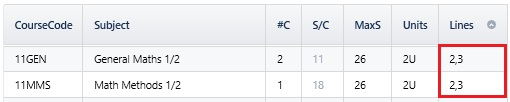
- Block courses from specific lines. Enter the word 'not' followed by the line numbers.
e.g. 11ART must not run on Lines 5 or 6. Enter not 5,6 in the Line field.
- Force or block courses from running in certain rotations (for files with rotations).
2 rotations: a=Rotation 1 and b=Rotation 2.
4 rotations: a=Rotation 1 and b=Rotation 2, c=Rotation 3 and d=Rotation 4.
e.g. Enter a for 10FRE1 and b for 10FRE2.
Leaving it blank indicates that the course can be taught in any rotation.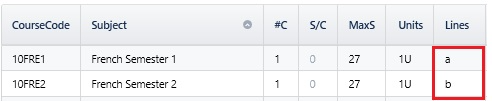
- Block or force courses in certain sublines (e.g. NSW school with 7.5 lines, so 7a is in the lines, line 7b is unused).
7a : 1-unit course that must go on line 7a.
not 7b: All 2U courses to exclude them from line 7b.
- Run courses 'offline'. Use offline for courses that are part of subject selection but are timetabled outside regular periods (e.g. before/after school or external classes like VET, TAFE, Distance Ed). Offline courses will appear in a special Offline group in View lines screen with no clash checking, so students can have multiple offline courses.
e.g. VET Building occurs after school hours, but the Units contribute to the student's overall program and must be part of the subject selection process. Enter 'offline' into the Lines field.
NOTE
Line numbers or letters may be used, depending on school settings. This is controlled under Lines > Elective data > Courses > Parameters > ‘Letter or number of first line’.
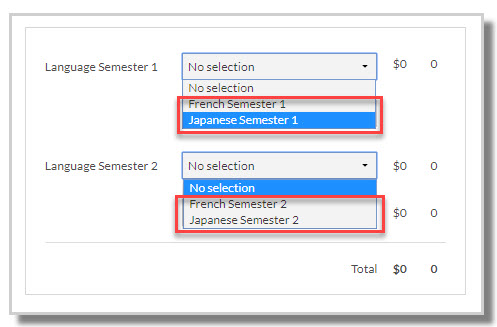
- When setting up the webform, the Line rotation entries (e.g. a, b) can be used to display certain courses only.
For example, rotated files can display Rotation 1 classes only (a) for a particular drop down, and Rotation 2 courses only (b) in the next drop down. The webform can pick up the lower case Line entries and display only those courses. Refer to E10 - Choice: Configure Forms > Groups.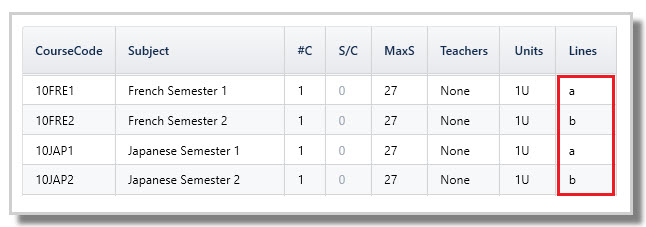
Rules
- Use this field to assign letter/character(s) for grouping subjects.
- Allowable characters: letters A-Z, digits 0-9, !@#$%^&*()_+
- A course may have more than one letter/character assigned.
- Use meaningful assignments as much as possible, eg Art=A, English=E, to categorise them into groups.
- Courses are categorised for a number of reasons, including: ensuring students are placed into required courses when lines are generated. Refer to E10 - Elective data > Courses Action: Rules.
- Used in the Choice form configuration, including the min and max units. Refer to E10 - Choice: Configure Forms.
- Ensure students submit right types of courses to meet school requirements. Refer to E10 - Choice: Submission rules.
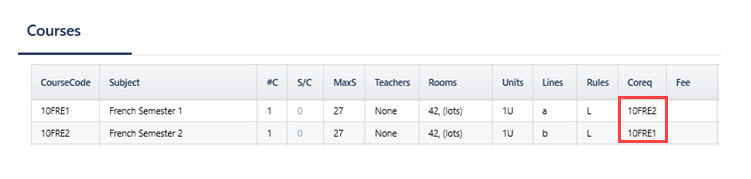
Coreq (Corequisite)
- Coreq links a course with another course for preference validation, line generation and Choice subject submission.
- Example: 10JAP2 requires 10JAP1.Enter 10JAP1 in the Coreq field for 10JAP2.
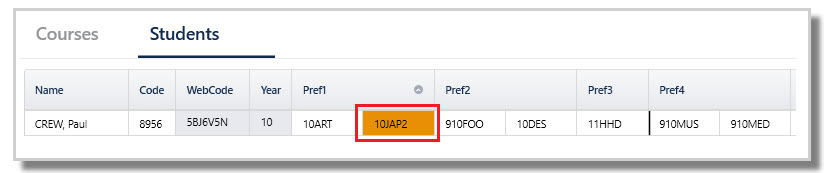
- Preferences data validation
Students will be highlighted if their preferences do not include both courses in Lines > Elective data > Students.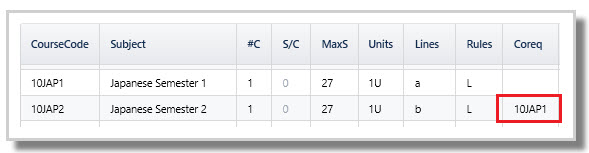
- Line generation
Students who select both courses as per the coreq rule will be allocated both 10JAP1 and 10JAP2 during line generation. Students are highlighted if the corequisite cannot be satisfied. - Choice subject submission requirements
Students cannot submit preferences unless all corequisite rules are met. - Coreq relationships can be one way or both ways. If two-way, each course must have the other in the Coreq field.
Prereq
Timetable Choice only:
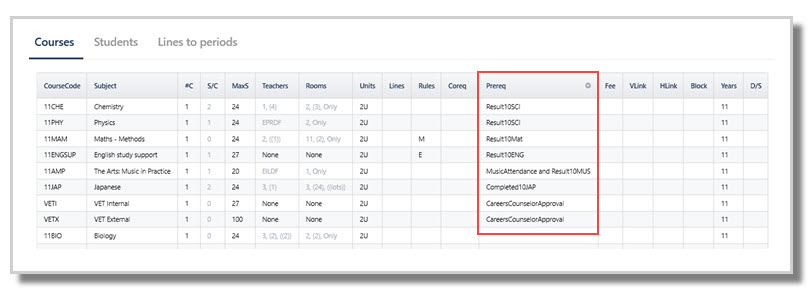
- Enables schools to set course selection eligibility rules.
- Ensures students submit preferences only for courses they qualify for.
- Can be used to enforce minimum or maximum marks, apply attendance or other performance criteria, etc.
- Prereq apply only during online Choice subject selections. They are not used during line generation.
- Double click on the Prereq field to enter prerequisite rules. Refer to: E10 - Choice: Setting Course Prerequisites.
Fee
- Fees can be entered for some or all courses.
- Timetable Choice: Fees display onscreen when students are making their subject selections and are totalled on printed webforms.
VLink (Vertical link)
- Vlink forces a course to run on the same line/sub-line as another course. If Line field is blank, the algorithm selects the most suitable line for the vertically linked courses.
- There is no limit to the number of courses that can be vertically linked
- In a multi-year dataset, courses can be linked from one year level to another, e.g. to run 11MUS in the same line as 12MUS, enter 12MUS in the VLink field for 11MUS.

- For composite classes, enter 'None' into the Teachers and Rooms fields so the linked classes share the resources.
- A course can be vertically linked to itself to keep classes on the same line, e.g. Enter 10MAT in the VLINK field to align all 10MAT classes.

NOTE
When entering data into the VLink field, be aware that this applies at the course level, not the class level, e.g. if there are four Maths General and three Maths Advanced classes running, and we VLINK 11MAG to 11MAA course which has three classes, then all four 11MAG classes will be forced to run on the same line as the three 11MAA classes (provided that there is adequate Teacher and Room options for this to occur).
If in fact Advanced must always be paired with General to allow students in Advanced to drop down to General later if needed then use the Vertical relationship in Lines > Elective data > Courses > Action: Rules and Constraints to specify vertical linking requirements at a class level.
HLink (Horizontal link)
- Used with rotated or 'half lines' to force courses to run within a single line but in different rotations or sublines.
- In a multi-year dataset, courses can be linked from one year level to another, e.g. 9MUS is HLinked with 10MUS.
- A course can be horizontally linked to itself to pair semester-based classes across rotations, e.g. four 10PE classes to be paired, 2 in each line, each line with a rot 1 class and a Rot 2 class. Enter 10PE in the HLink field.
- To pair 1U courses in a line, e.g. 1U 11ENGX and 11MATX extension classes (which must occupy half of the same line), enter either code into the HLink field of the other.
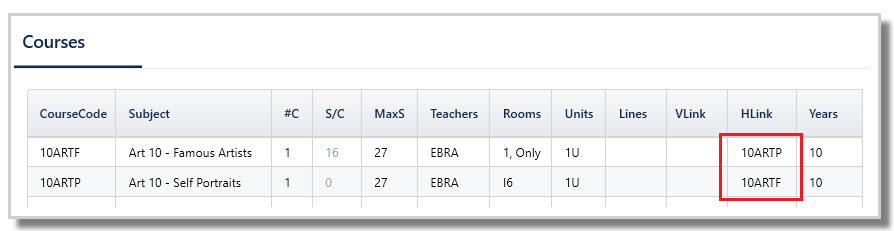
- To balance teacher loads and assist smooth transition from rot1 to rot2, horizontally link semester subjects. For example, 10ARTF and 10ARTP can use the same teacher, so hlink them to run on the same line in alternate rotations. The system chooses the best line and semester placement. Enter either code into the HLink field of the other, and will auto-populate the other Hlink entry.
NOTE
When entering data in the HLink field, be aware that this applies at the course level, not the class level. When there are odd numbers of classes (#C>1) for a course use the Horizontal relationship in Lines > Elective data > Courses > Action: Rules and Constraints to specify horizontal linking requirements at a class level.
Block
- The Block letter is a code used to identify all courses to be treated as an exclusive block.
- Use letters A through Z to designate a group of courses that must run together, exclusive of any other course in the current year level.
Years
- This entry should contain the year level of the students that the course is offered to.
- For single year datasets, this will simply be the year of the associated students (e.g. 11 for a Year 11 dataset).
- For multi year datasets, multiple year levels may be entered if the course is open to other year levels.
- The first entry is the home year level that the class will be created in, subsequent entries are in any order.
- Example: Year 12 may select all six courses, while Year 11 students may select three courses (12HHD, 12OES and 12PSY). All classes will be created in the Year 12 Class data screen as that is the year level listed first.
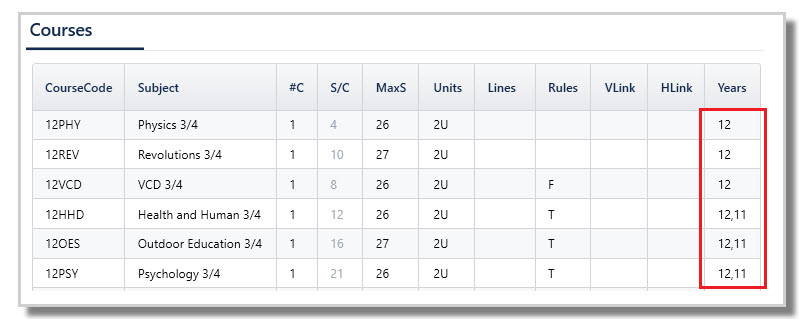
- Students will be permitted to choose all courses that include their year level in the Years field.
Note that the set up of the webform and other Rules can also influence in which courses students can select.
D/S
- Used where you want to vary the allocation of doubles to some lines but not others (rarely used).
- Usually left blank.
- Enter D = Must have doubles, S = Must have singles.
Was this article helpful?
That’s Great!
Thank you for your feedback
Sorry! We couldn't be helpful
Thank you for your feedback
Feedback sent
We appreciate your effort and will try to fix the article