TABLE OF CONTENTS
Preamble
After setting up a form in the etz file and syncing to the web server, it should be thoroughly tested before sending WebCodes to students. It's best to identify and fix issues before students begin submitting preferences. This document explains the Test form feature, which provides a special WebCode for testing purposes.
How to Test forms
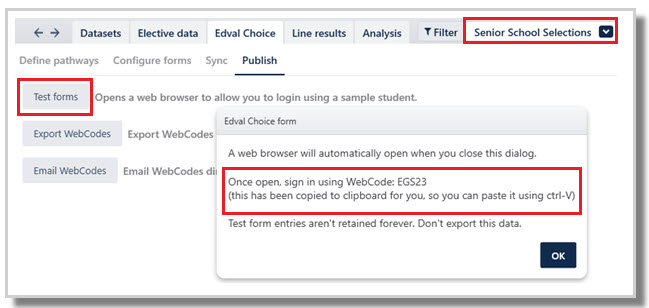
- Navigate to Lines > Timetable Choice > Publish > Test forms.
- Select the dataset and year level from the dropdowns.
- A couple of things happen at this point:
- A pop up shows the test WebCode.
- The test WebCode is automatically copied to the computer's clipboard.
- Click OK. A browser opens at my.edval.education. The computer may need to be configured for this to occur, setting Chrome as the default browser is recommended.
- Paste (Ctrl V) the WebCode into the login field. The WebCode can also be manually typed in.
6. Once logged in, select and submit subject preferences.
NOTE
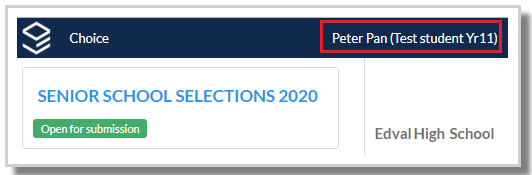
When using the test WebCode, the displayed name is always Peter Pan. You can submit and resubmit selections as needed, correcting any issues in the etz file as they are found. Resync the form after each change and continue testing until it is ready for students.
Any previously entered selections will be displayed when the test WebCode is used again.
NOTE
An individual test WebCode will be generated for each year level.
TIP
Paste all test WebCodes into a shared Word document for staff assisting with testing.
Try to 'break' all subject submission rules - if it can be done, students will find a way!
It's ok, test submissions using Peter Pan do not get downloaded into the etz file.
What to test?
The following are common items tested:
Form set up (Lines > Timetable Choice > Configure forms)
- Do the correct number of dropdowns display, both Main preferences and Reserves?
- Do label titles display as you want them to?
- Does the Notes text clearly communicate important information?
- Do the dropdowns show only the intended options?
Refer to E10 - Choice: Configure Forms.
Submitting preferences
- Are you forced to submit the correct number of Main and Reserve units for a complete course?
- Can a complete program be entered in the Main units section, ie, do the minimum units match a full program?
Courses
- Do all courses display? Courses display, by default, in alphabetical order.
- Are Subject names clear to students? Subject title should clearly indicate the exact course being selected, as students do not see the Course Codes at this point, only the Subject name. Add any extra text that helps communicate the course, such as 'Stage 4' or 'Language - offsite' etc.
- If using multi-year datasets, are students from each year level able to select the allowable subjects from other year levels?
- Do fees display correctly (if using)?
Refer to E10 - Elective data > Courses.
Rules
If using the Rules table in Lines > Elective data > Courses > Action bar: Rules and Constraints:
- 'at least' rule: Are you forced to submit courses to meet the school requirements? eg, at least 2U of E (English)
- 'no more than' rule: Are you blocked from submitting courses that do not meet school requirements? eg. no more than 4 U of M (Maths)
- Are the 'at least' rules and 'no more than' rules reflected in the online Rules section?
Refer to Units rule in E10 - Choice: Submission rules.
Corequisites
If using the Coreq field in Lines > Elective data > Courses > Coreq:
- When choosing a course that has a corequisite subject, are you forced to select both courses?
- Are the corequisite requirements displayed in the online Rules tab?
Refer to Coreq rule in E10 - Choice: Submission rules.
Multiple Streams/Pathways
If using multiple Pathways, test that both pathways' details are correct, as there are often different submission requirements per stream.
Multi-year datasets
If using multi-year datasets, check the form for each year level, as there are often different submission requirements per year level.
Forbidden Courses
If using Forbidden courses, log in with a relevant student's WebCode to view the form as the Peter Pan test WebCode will not work for forbidden courses.
Refer to E10 - Elective data > Students Action: Forbidden courses.
Prerequisites
If using the Prereq field in Lines > Elective data > Courses > Prereq, log in with a relevant student's WebCode to view the form as the Peter Pan test WebCode will not work for testing courses with prerequisites.
Refer to E10 - Choice: Setting Course Prerequisites.
NOTE
The course is marked as Ineligible when student is Forbidden or Prereq is not satisfied.
School logo
Does the school logo and information display correctly?
Refer to: Choice: Add a logo to the form.
NOTE
Duplicate selections are highlighted in red and the system blocks students from submitting the same course twice.
TIP
Add helpful text to the Notes section in Lines > Timetable Choice > Sync form > Text settings to address any confusion identified during testing.
Was this article helpful?
That’s Great!
Thank you for your feedback
Sorry! We couldn't be helpful
Thank you for your feedback
Feedback sent
We appreciate your effort and will try to fix the article