TABLE OF CONTENTS
- Preamble
- Choice login screen
- Student Profile
- Forms
- Subject Selection
- Pathways
- Ineligible Subjects
- Submitting Preferences
- Submission Form
Preamble
This document explains the online Choice screens from the student's perspective.
Choice login screen
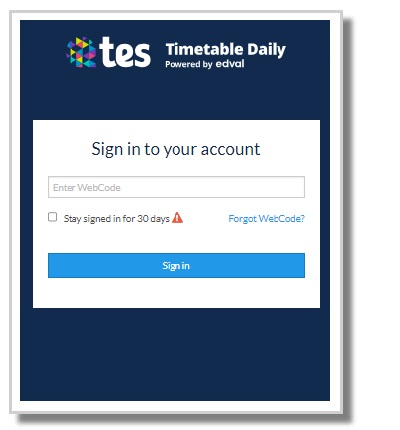
Students log in to my.edval.education using their school-issued unique WebCodes to submit subject preferences.
Refer to E10 - Choice: Publish - Email or export student WebCodes.
- Click Forget WebCode if needed.
Student Profile
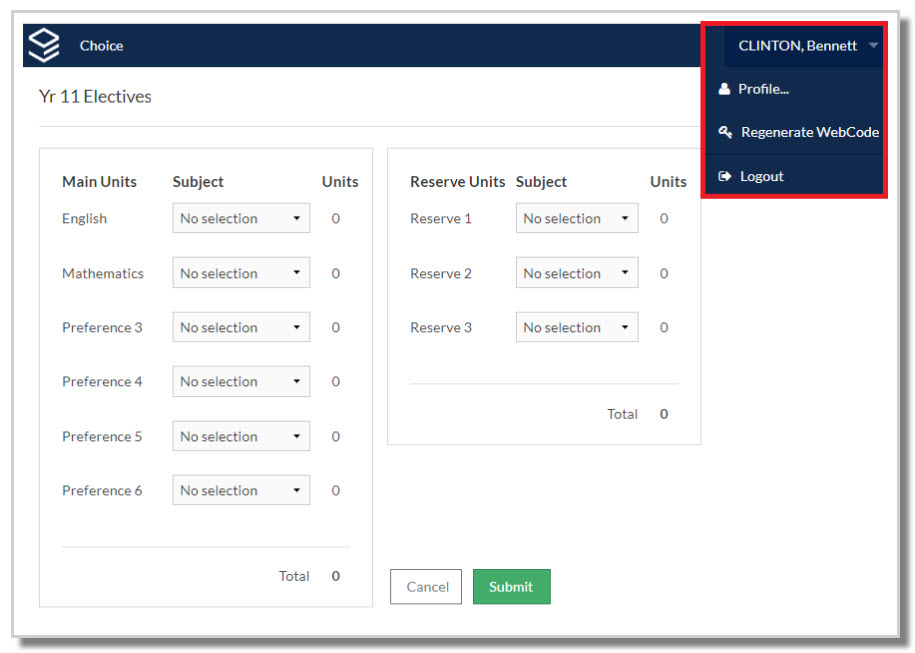
Students can access their profile at the top right of the Choice screen.
Field | Details |
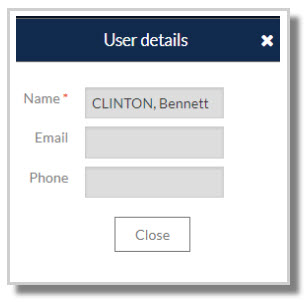
Profile | Students can view their name, email and phone number but these details are not editable. The .etz timetable file is the source of truth for these details where they can be updated and synced to the webserver if required. |
Regenerate WebCode | Students may generate a new WebCode if they believe their security has been compromised. The new WebCode will be downloaded into the .etz file at the next sync. |
Logout | Sign out |
NOTE
If this page is bookmarked while viewing the timetable, further log in as a student will open the timetable screen. This may not work for SSO.
Forms
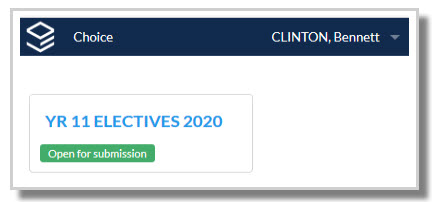
Once signed in, students see all Choice forms relevant to them, whether open or closed.
- Open forms display Open for submission.
- Closed forms display the free-text message entered in Timetable Choice > Sync> Close form message.
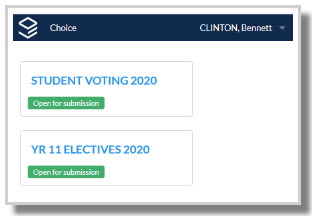
Click on a form to open the Subject selection screen.
Subject Selection
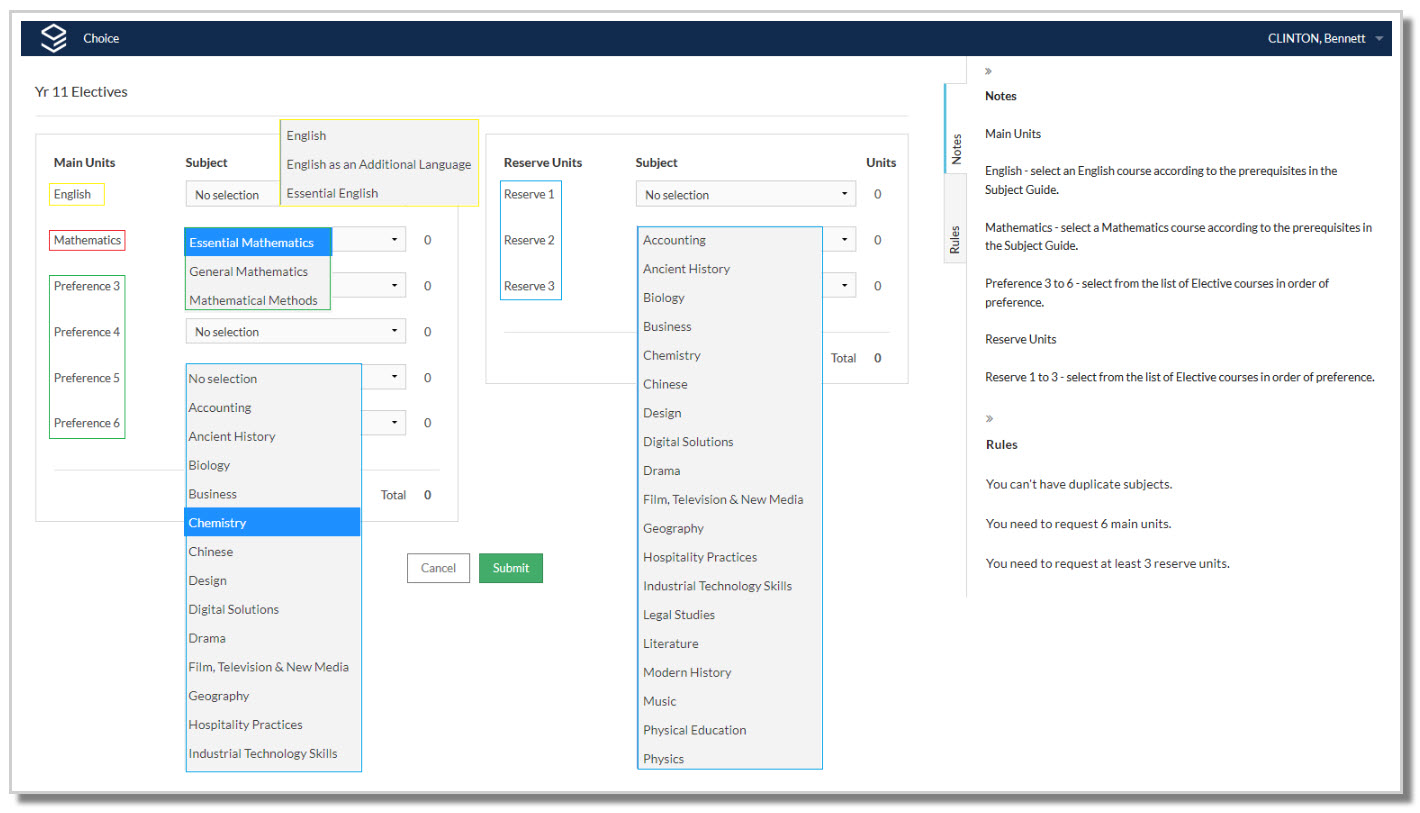
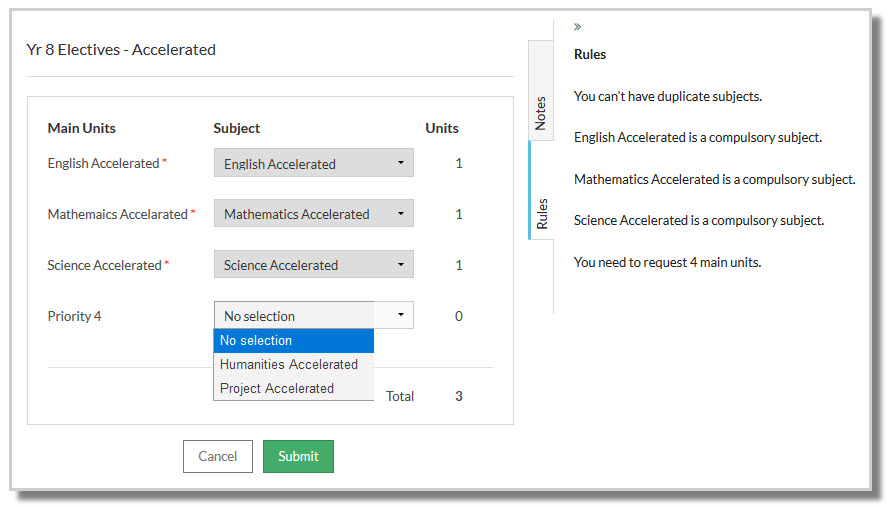
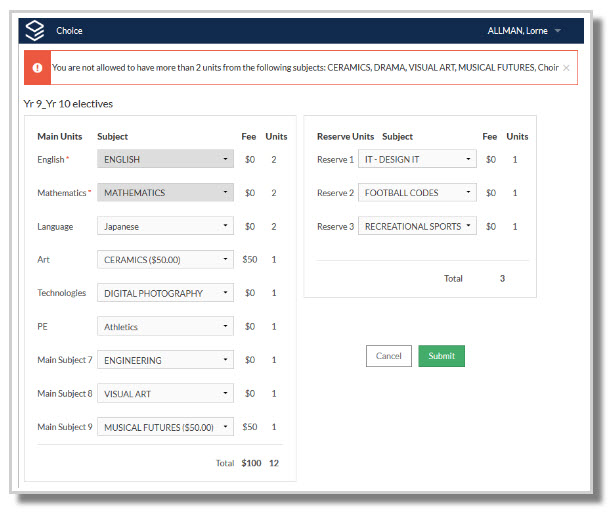
- Students select from the subject options in the Main Units and the Reserve Units dropdowns.
- Each subject has a unit value, and submission is only allowed if school requirements are met.
- Some subjects may be pre-filled, where only one option exists and there is a rule added to the .etz file.
- Notes and Rules display on the right hand side to guide students in their selections.
Refer to E10 - Choice: Configure Forms.
Pathways
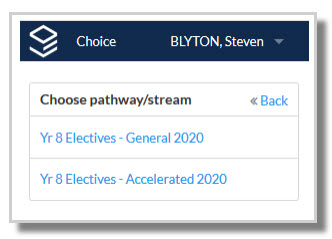
If schools have set up pathways, there are two display options:
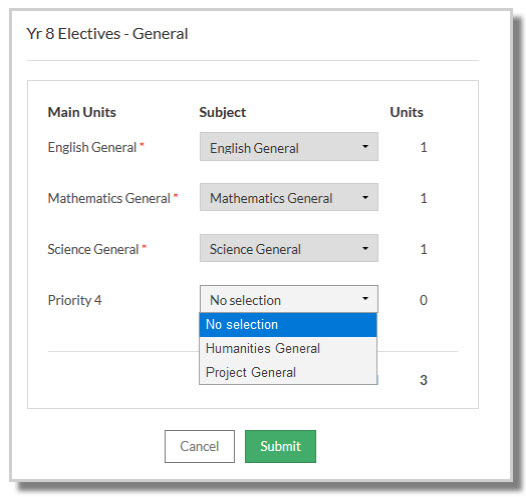
- All pathways display, and students can enter choices in their desired pathway.
- A single pathway displays, as pre-determined and entered in Lines > Elective data > Students > Pathway column.
Refer toE10 - Choice: Pathways
IMPORTANT
Note that students can submit selections in more than one pathway. However, only the most recent submission will be retained.
Ineligible Subjects
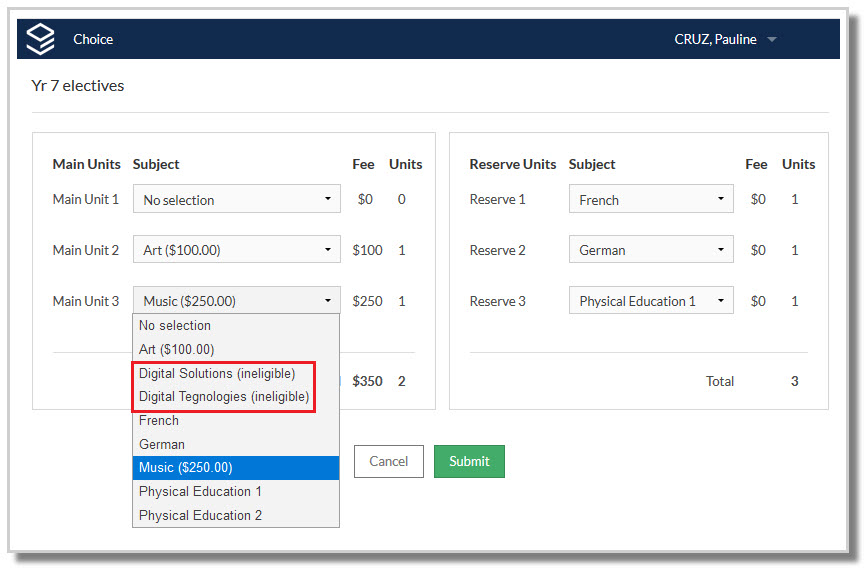
Any course that has been identified as forbidden for a student will still display to them, but it will be marked as 'ineligible'. Refer to E10 - Elective data > Students Action: Forbidden courses.
The same is true if a student did not meet the prerequisites. Refer to E10 - Choice: Setting Course Prerequisites .
NOTE
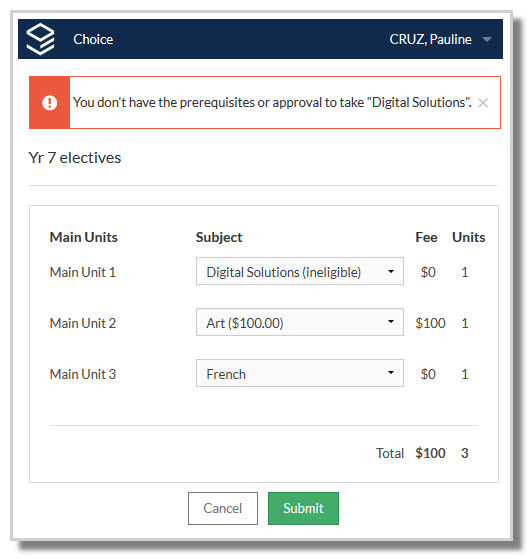
If a student selects a course marked 'ineligible', an error appears on submission and they must select another subject to submit successfully.
Submitting Preferences
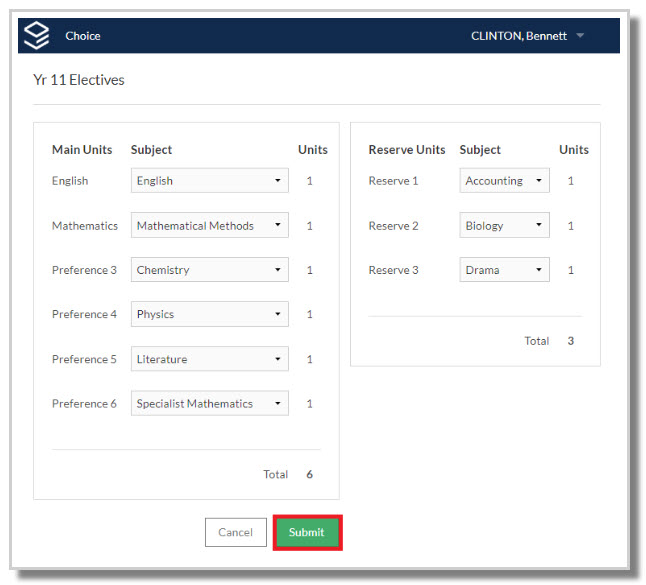
Once students have entered all their subject preferences and selected the Submit button, the system checks if they have met any rules set up by the school. If they have, their submission will be accepted.
If students have not met the submission rules, an error appears at the top of the screen. They must adjust their choices to submit successfully. Refer to E10 - Choice: Submission rules.
Submission Form
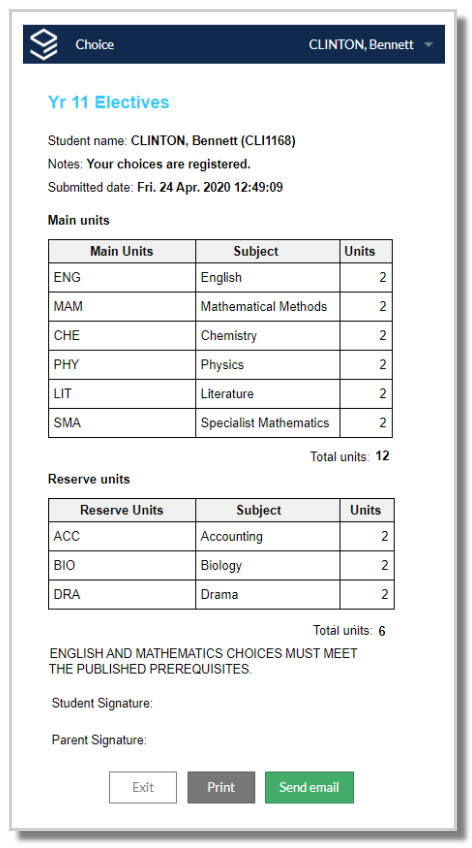
Students can print a hard copy of their submitted subject preference form.
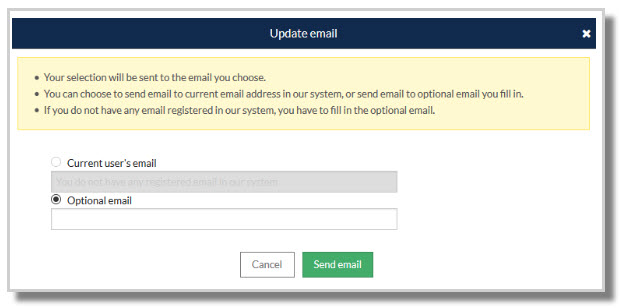
- Current email address as displayed.
- Enter a new email address in the Optional email.
NOTE
If schools have allowed students to log in multiple times to change their submissions, their previously submitted subjects will display pre-filled. The student may then change their preferences and re-submit.
Was this article helpful?
That’s Great!
Thank you for your feedback
Sorry! We couldn't be helpful
Thank you for your feedback
Feedback sent
We appreciate your effort and will try to fix the article