TABLE OF CONTENTS
Preamble
This document explains how to configure and customise online subject selection forms for schools using Choice. It covers setup options and text settings to ensure students can accurately submit their preferences.
IMPORTANT
Elective courses and rules must be entered into the etz file before configuring the forms. Refer to E10 - Choice: Submission rules.
NOTE
Each form for each year level and each pathway can be customised.
Examples
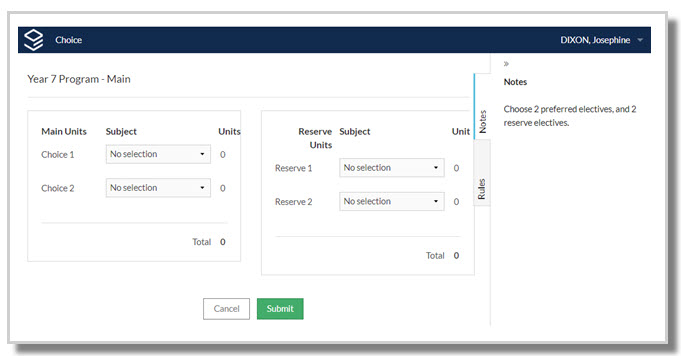
Example. A Year 7 webform showing two Main Units dropdowns, and two Reserve Units dropdowns.
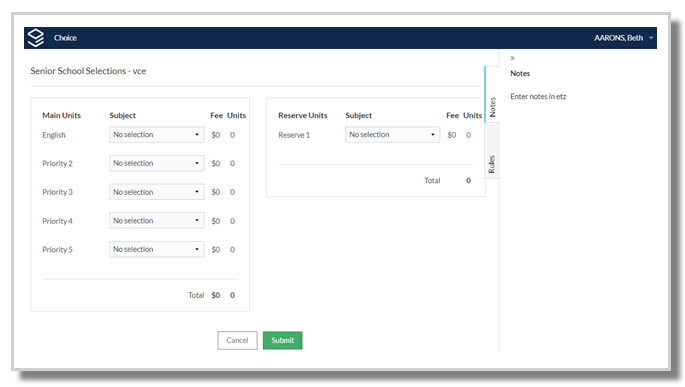
Example. A Senior School webform showing five Main Units dropdowns and one Reserve Units dropdown.
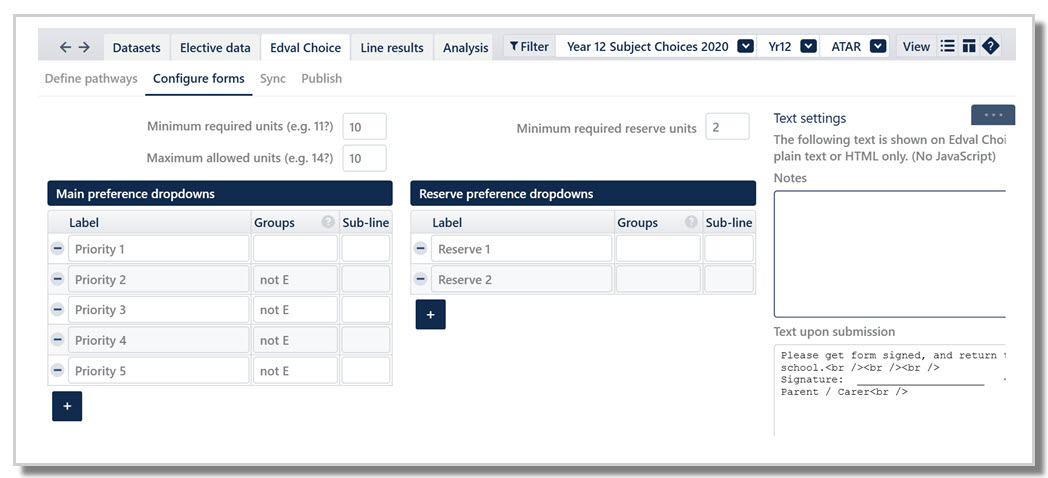
Example. Year 12 Configure forms screen with five Main preference dropdowns and two Reserve preference dropdowns.
Form Setup
- Navigate to Lines > Timetable Choice > Configure forms.
- Select the relevant dataset, year level (and pathway if using) from the dropdowns.

Minimum required and Maximum allowed units
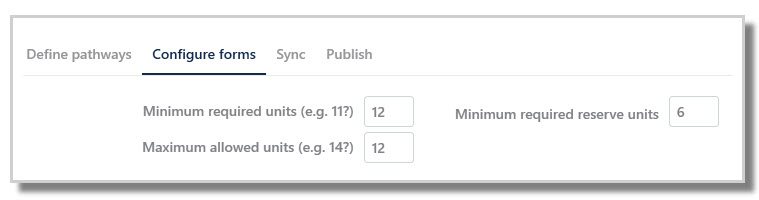
- Enter the minimum required units a student must submit to have a full program.
- Enter the maximum allowable number of units a student can submit.
For example, it is possible to have a minimum requirement of 10 units, and a maximum of 12 units.
NOTEEach course must have a unit value. Refer to E10 - Elective data > Courses Units section.
Students can only submit preferences if they meet both minimum and maximum unit requirements.
Main preference dropdowns
- Use the + button to add as many dropdowns as required on the form.
Label
- The label displays on the online form.
- It can be edited to suit school preferences by clicking the field and typing new text.
WARNING
Label must be unique as duplicate naming will cause issues in the online forms.
Groups
- Schools can control which courses appear in dropdowns for student selection by assigning courses to a 'Group'.
- Refer to Elective data > Courses > Rules field to setup Groups.
- Enter the letter/character into the Configure forms > Groups field to filter course options.
- Multiple characters can be assigned to courses so they can belong to multiple Groups.
- Use NOT to exclude specific courses from appearing.
Example:
A rule exists that all Yr 12 students must submit 2 units of group E subjects. The school has two pathways for Yr 12: mainstream and Vocational.
Elective data > Courses > Rules shows 11ENG, 11LIT and VCAL are the E group subjects.
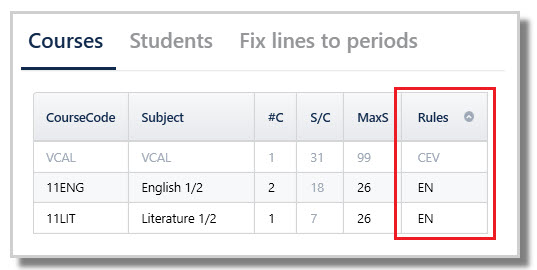
- On the mainstream pathway form, group E courses 11ENG and 11LIT need to appear in the first dropdown, but not the course 'VCAL'. Enter E NOT C in Timetable Choice > Configure forms > Groups field.
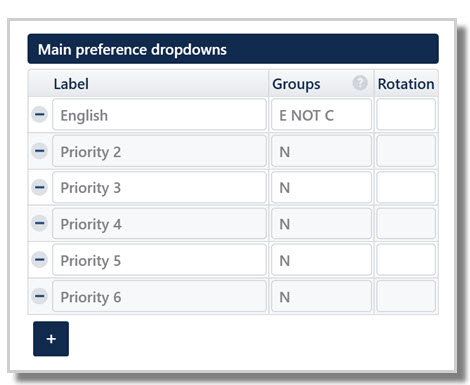
- On the Vocational pathway form, only the VCAL course has to appear. Enter just C, or V, but if there are other courses in the dataset assigned with the letter C or V, those courses will also display. Another option is E NOT N.
NOTE
There are many options when setting up Rules and Groups, so some trial and adjustment is usually required to get the desired form configuration.
Rotation / Sub-line
- This field restricts choice to rotation or sub-line subjects, and allows better curriculum rule checking.
- This is a secondary filter and works in combination with the Group filter.
- Only courses that match both the selected Group and Rotation/Sub-line will appear in the dropdown.
- Rotation/Sub-line letters (a,b,c,d) must be entered in Elective data > Courses >Lines column.
- Courses with no such letter can be either rotation/sub-line.
- Full year courses require no rotation entry.
ALERT
It toggles between Rotation and Sub-line. Where the parameters of the elective data has been defined as being 'rotated' then this is 'Rotation', where it is not rotated, it becomes 'Sub-line'.
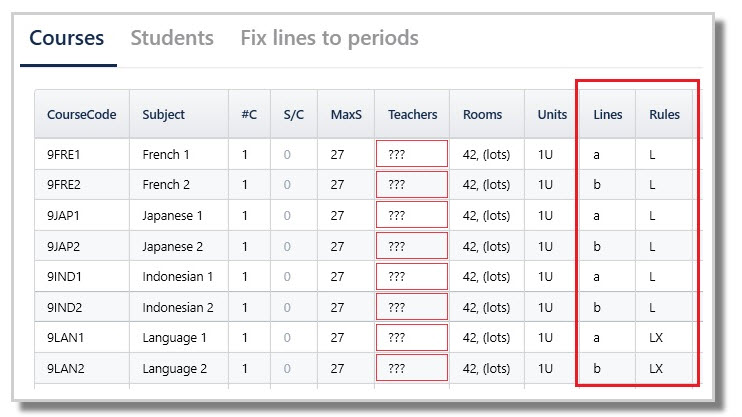
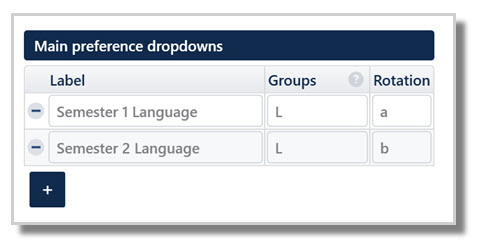
Example. Yr 9 students must choose a language in both Rotation 1 and Rotation 2. The language courses must run in particular rotations, and the form setup so that students are forced to choose a language from each rotation.
The Courses > Lines column has 'a' for courses running in Rotation 1, and 'b' for courses running in Rotation 2.
TIP
Dropdowns can also be used to ask questions. Refer to E10 - Choice: Add a question to the webform.
Minimum required reserve units
- Enter the minimum required reserve units a student must submit.
- Collecting more reserves at selection time reduces the need to chase students later.
- Two reserves may be acceptable for Year 12, and perhaps three or more reserves for Year 11, 10 and 9.
NOTE
Schools are strongly encouraged to require students to submit reserve subjects. Reserves are only assigned when a student can't receive a main preference, and these cases are clearly highlighted during line generation.
Example. If each course is worth 2 units and 2 reserve units are required, then students can submit one or two reserve courses since there are two dropdowns.
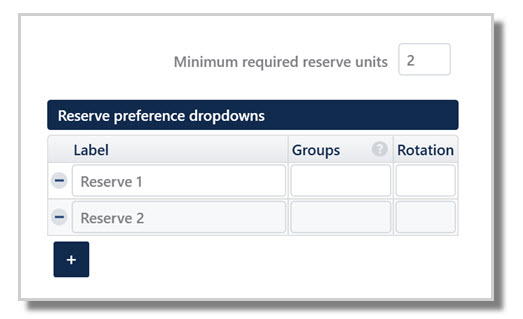
Reserve preference dropdowns
- Reserve preferences works similarly to Main preference dropdowns.
- Labels may be edited; Groups and Rotation limitations may be entered.
ALERT
Ensure there are enough dropdowns in both Main and Reserve preferences to meet the minimum unit requirements.
Text Settings
- Enter text to display on the online form.
- Basic html may be used. Refer to Choice: Basic html to use on forms and emails.
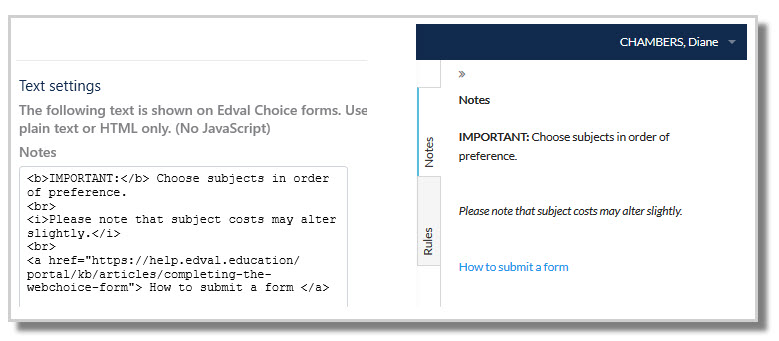
Notes Example:
The image on the left below shows text entered into the etz file, using some html. The image on the right shows how it appears for students when they have logged in online.
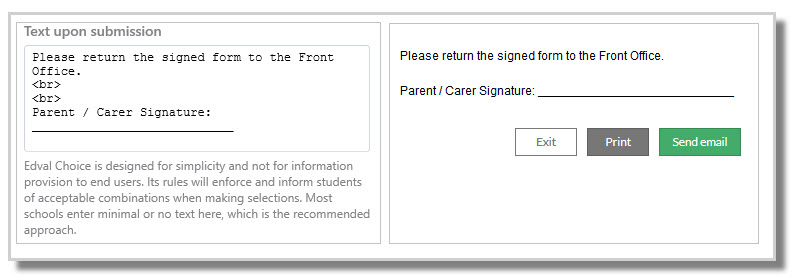
Text upon submission Example:
The image on the left below shows the submission text entered into the etz file, using some html. The image on the right shows how it appears for students when they have submitted their preferences online and have the option to print or email the form.
ALERTAlways review the Notes, Rules tab and text upon submission in online Choice forms to check what students will exactly see when they login and submit preferences. Refer to Test forms.
Copy parameters from another year-level / pathway
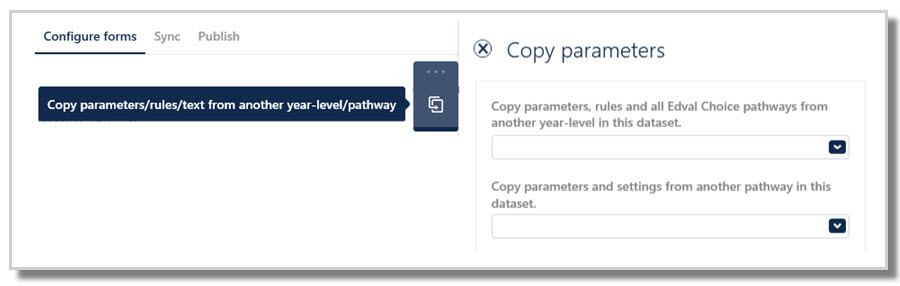
Once one form has been configured, the parameters, rules and text can be easily copied over into another form.
- Click Action bar: Copy parameters / rules / text from another year-level / pathway
- On the dropdown select the form that the data is to be copied from.
NOTE
If using multi-year datasets, each year level must be configured separately.
If using Pathways, each pathway must be configured separately.
Was this article helpful?
That’s Great!
Thank you for your feedback
Sorry! We couldn't be helpful
Thank you for your feedback
Feedback sent
We appreciate your effort and will try to fix the article