TABLE OF CONTENTS
- Preamble
- Definition of a Class
- Functions in this screen
- Options and Actions
- Class data default display fields
- Additional fields
- Easy sub-class entry (Recommended)
- Display sub-classes
- Hide sub-classes
- Split class code
- Teacher prefs (Recommended)
- Split teacher prefs
- Teacher options (all)
- Assigned teacher (Recommended)
- Room prefs (Recommended)
- Split room prefs
- Room options (all)
- Assigned room (Recommended)
- Rotations group (Recommended)
- Subject letter
- Teaching time req
- Govt subject code / Curriculum code
- Official course
- GUID
- Exportable
- Year (for moving)
- Admin system type
- Notes
- Class data > Meetings
Preamble
Classes > Class data (F6) is a primary data entry table used to define the characteristics of individual classes associated with a subject. This document describes the fields and explains how to use this frequently used screen.
Definition of a Class
- A class is a holder of resources, typically, a group of students in a room with one teacher.
- The system allows variations to this; a class may hold an extra teacher, or extra room, or for other purposes.
- A class is associated with a specific year level. However, students may be enrolled into a class in any year level.
Examples:
- Sport classes may be set up in special Year level called SPT, and may hold students from multiple year levels.
- Accelerated students may be enrolled in classes in another year level.
Refer to E10 - What is a 'class' ? (classes and sub-classes for more details.
Functions in this screen
- Sort: Double-click any column heading to sort the data.
- Add: Type in the empty row at the bottom or press the Insert key.
- Delete: Clear entry or use Delete key, then press Enter.
- Edit: Click on a cell, backspace, type changes, then press Enter.
Options and Actions
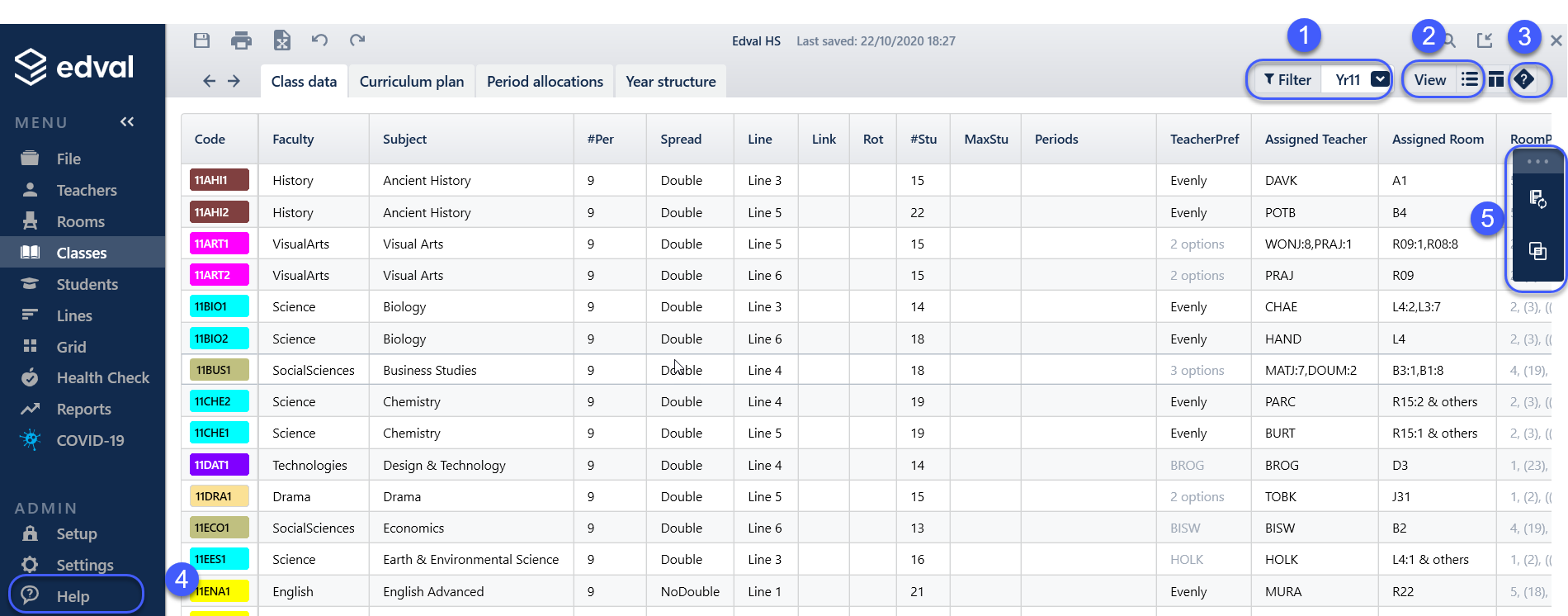
- Use the Year filter to specify the required year level.
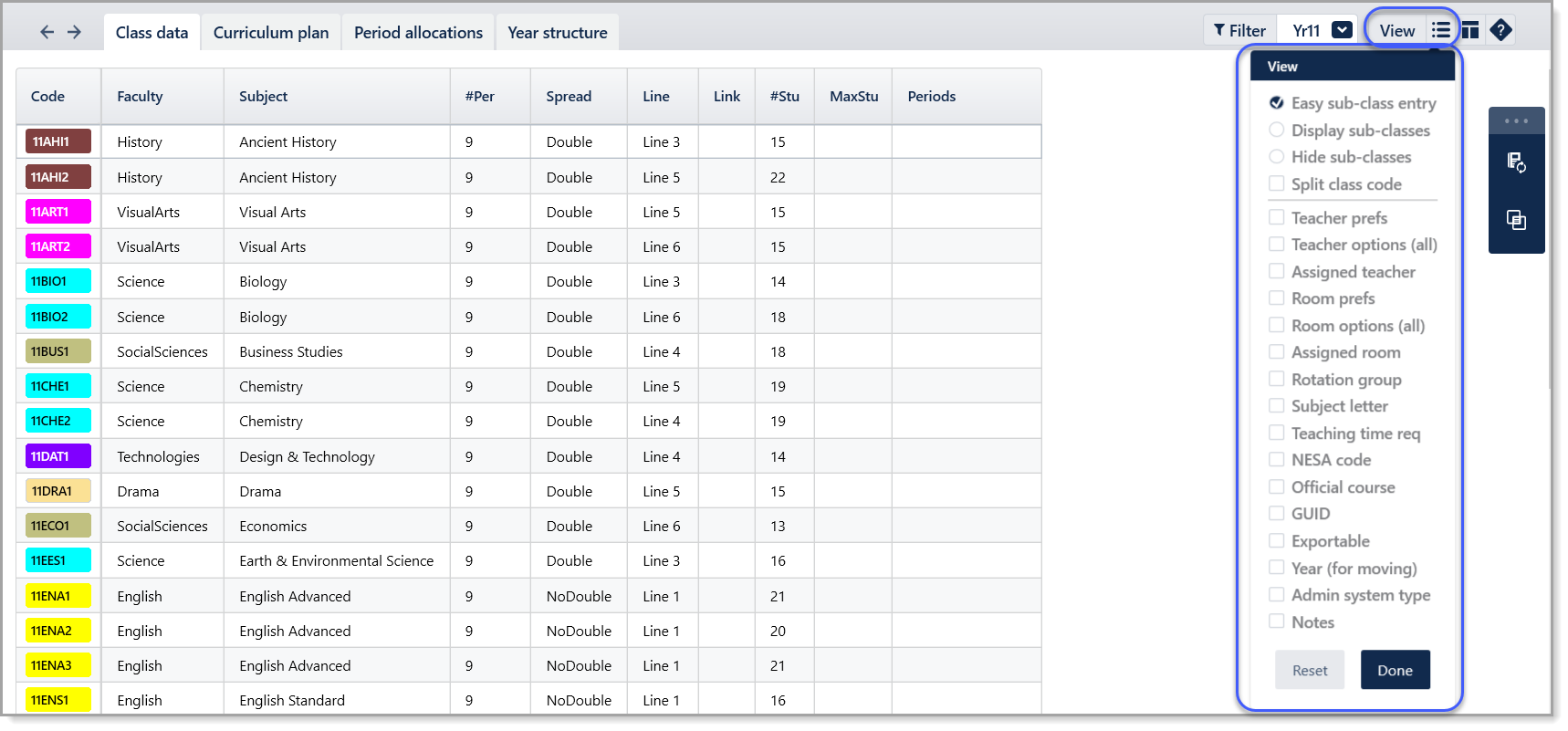
- Use the View menu to enable additional fields to be displayed. Multiple fields may be selected at the same time.
- Click the '?' to open a slide-out panel with general help.
- For help on specific column, click within the field and press F1 or Admin > Help (left menu).
- The two Action bar (on the right) icons allow to configure:
- Mix groups rule (Refer to E10 - How to: Mix groups)
- Group class lists (Refer to E10 - How to: Manage Group class lists)
Class data default display fields
The following data columns display by default:

Code
- A short code to identify each class, with three components: Year level, Course code and Class Identifier. Typical format is YYCCCI, e.g. 7ART1, 11BIOA.
- If the Class Identifier has more than one character, a separator must follow the course code. Separator can be: - '.' (dot), '-' (hyphen) or '_' (underscore); e.g. 7ART.S1
Refer to E10 - Naming Convention for Course and Class Codes for more details.
Faculty
- Every class is associated with a faculty. The course-faculty relationship is defined in Setup > Subjects.
- If there is no obvious faculty, use 'NoFaculty' which is defined in Setup > Faculty data. Refer to E10 - ADMIN Setup: Faculty Data.
- The 'Faculty' of a class is used in the Registration planner, which reports teaching time by faculty, or to show teacher options in the picker window, based on the class's designated faculty.
- Example: 11BIO.1 is a class studying Biology (BIO) and Biology belongs to the Science faculty, hence 11BIO.1 is associated with the Science faculty.
Subject
- The official name or description of the subject/course for this class.
- All classes in one year level with the same course code must have the same subject. This is entered in Setup > Subjects. Refer to E10 - ADMIN Setup: Subjects.
IMPORTANT
Subject names must be consistent in order to set up Teacher and Room sets properly, enable Balance Class Size and for Daily to produce exams.
#Per
- The number of periods the class runs per cycle.
- It is used to indicate the number of periods online or on the grid, and the teaching load.
Spread
- Specifies the requested pattern of periods per cycle, e.g. Nodouble, Double, TwoDoubles, etc.
Refer to E10 - Class data: Spread for more details.
Line
- Specifies how classes should be timetabled. Refer to E10 - Class data > Line field - it's all about structure.
- Classes may be blocked to run on a line, or associated with a particular group of students. Refer to E10 - How to: Code various structures using Line column.
- It may be left blank ONLY when the class is linked (via the Link column) to another class in the same year level, allowing them to run at the same time.
WARNING
This is a very important field. A red box will highlight the field if there is no entry present and must be addressed. Every class must have an entry in either the Line or Link column, or both.
Link
- Used to link a class to another class, so that they both run at the same time.
- Can be used to create a mini-block, e.g. three year 7 language classes running at the same time.
Refer to E10 - How to: Run classes at the same time (Link )
NOTE
If the Curriculum Plan (available in specific Region only) has been used to create the structural requirements, there will be no Line or Link column visible in Class data.
#Stu
- Displays (in grey) the total number of students in a class.
- Cannot be edited in this screen and for information purposes only.
- Double-click to see the list of students in the class. This is the same as Students > Class lists.
Max students
- The maximum number of students allowed for the class.
- Complete this column for all classes as this information is used to manage class lists and to indicate when a class is full or overfull.
- If classes are created from Elective lines then this column is updated with the same values in Elective data > Courses > Max students column.
Periods
- Enter the periods on which the class must run, e.g. 1=every period 1, MonA1=run on Monday A, period 1. This is known as 'hardcoding' classes.
- Double-click under the Periods column to select periods on the grid structure. Selected periods turn red. Hardcoded classes cannot move when working in the Master grid.
- Classes can also be excluded from running in certain periods by entering the minus symbol (-) in front of a day and/or period code, e.g. -MonA1. Excluded periods turn black.
IMPORTANT
The Periods entry must align with the #Per value, e.g. if #Per=4 then the number of hardcoded lessons can be less than or equal to 4.
Additional fields
Additional fields can be enabled via the View menu. Some are particularly helpful or important to display and are marked as Recommended below.
NOTE
Depending on the region of your school, some columns may appear with region based terminology.
Easy sub-class entry (Recommended)
- This simplifies the process of setting up sub-classes.
Display sub-classes
- Displays all sub-classes for a class. These will have 'sub' in the description.
- Can be helpful when diagnosing issues with subclasses, but not recommended to leave enabled for general use.
Hide sub-classes
- Hides all sub-classes for a class.
Split class code
- The class code may be split so that the Class Identifier is displayed in a separate column.
- This facilitates data entry but it is not recommended to leave as separate columns for general use.
Teacher prefs (Recommended)
- Indicates the teacher options for the class, in faint text.
- Generally, leave this field blank so the Teachers > Subject teachers data is used (if the course code exists).
- ??? means no options in the set. It’s best practice to edit set in E10 - Teacher > Subject Teachers screen.
- Enter teacher codes in this field only where there is a specific requirement for staff you want to force for this particular class.
Split teacher prefs
- This will be offered as an option if the Teacher prefs column is selected to be displayed.
- It splits the Teacherpref column into two new columns: TPrefCode displays the teacher code(s) and TPrefRule displays 'Only' and/or 'Evenly', if used.
Teacher options (all)
- Lists all the teachers in the Subject Teacher set of the class.
Assigned teacher (Recommended)
- Displays the teacher assigned to a class. Where there is only one teacher in the Subject Teacher set, they are automatically assigned and will be displayed.
- Not editable in this screen. Refer to Stafff Allocations.
Room prefs (Recommended)
- Indicates the room options for the class, in faint text.
- Generally, leave this field blank so the Rooms > Subject rooms data is used (if the course code exists).
- ??? means no options in the set. It’s best practice to edit the room set in the E10 - Rooms > Subject Rooms screen.
- Enter room codes in this field only where there is a specific preference for a room you want to force for this particular class.
Split room prefs
- This will be offered as an option if the Room prefs column is selected to be displayed.
- It splits the Roompref column into two new columns: RPrefCode displays the roomcode(s) and RPrefRule displays 'Only' and/or 'Evenly', if used.
Room options (all)
- Lists all the rooms in the Subject Rooms set of the class.
Assigned room (Recommended)
- Displays the room assigned to a class.
- Not editable in this screen. Refer to Room allocations.
Rotations group (Recommended)
- Some classes only run for part of the academic year. Each period of time is assigned a numeric rotation. When the etz file is synced with another system, a start date is associated with each rotation, so that the system knows which classes to display on the timetable.
- Enter the rotation the class runs in, e.g. 1=class runs in rotation 1 only.
- Leave blank if the class runs all year.
Subject letter
- A single letter to represent the subject of that class.
- It may be used to assist timetable construction in the Master grid by selecting Subject letters from the Display dropdown.
Teaching time req
- The number of teaching hours required for each subject. Use the format '100:00' to represent 100 hours.
- This entry is read in Daily under 'Reports > Teach hrs/class/year (Registration)'.
Govt subject code / Curriculum code
- This title depends on the region, e.g. NESA, VASS, SACE, WACE code.
- May be used if the state department of education requires data to be reported. Refer to Reports.
- Enter the relevant course id.
Official course
- This title depends on the region.
- This may be imported from the school's SIS via Setup > Subjects or entered manually.
GUID
- Optional. The GUID is a Globally Unique IDentifier for an object such as a code, class, room, teacher or student.
- It is used when synchronising between different software systems.
Exportable
- Most classes are exported to external systems by default, i.e. the exportable field is blank.
- Enter 'N' for classes used only for admin or timetabling purposes, so they are not exported.
WARNING
Classes marked with 'N' will also not export to Daily.
Year (for moving)
- Used to move a class from one year level to another, if required.
- Note: Classes can't be moved into the system-defined Meetings year level.
Admin system type
- May be used by some 3rd party systems to categorise classes.
Notes
- Free format text entry.
Class data > Meetings
- A meeting is a specialised type of 'class' in the Meetings year level.
- They have a different format from regular classes and do not include students.
- Each teacher attending the meeting will have their own meeting class with their teacher code used as the Class Identifier, e.g. EXEC.SMI, where SMI is the teacher code.
- These individual classes are not visible in Class data but are visible in Year timetables > Meetings or individual Teacher timetables.
Was this article helpful?
That’s Great!
Thank you for your feedback
Sorry! We couldn't be helpful
Thank you for your feedback
Feedback sent
We appreciate your effort and will try to fix the article